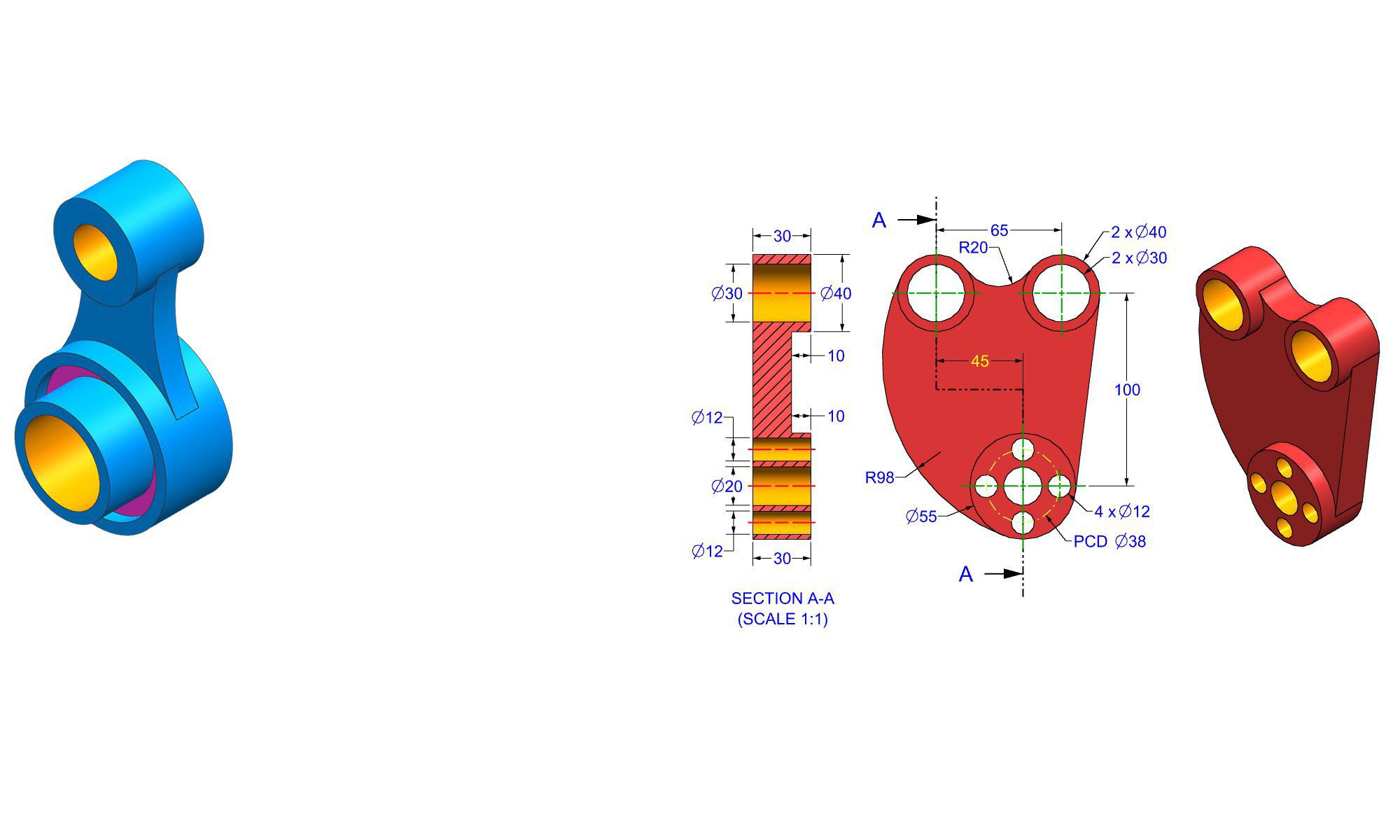

Avoiding confusion while learning SolidWorks

Introduction

Learning SolidWorks can be an exciting journey into the world of 3D CAD modeling. However, beginners often face confusion during the initial stages, which can hinder progress and cause frustration. To avoid common pitfalls and streamline your learning process, it’s essential to understand how to navigate SolidWorks effectively and develop good habits early on. This guide provides practical strategies for avoiding confusion while learning SolidWorks, helping you become confident in creating accurate models and technical drawings efficiently.


Understanding the Foundations of SolidWorks

Before diving into complex projects, it’s crucial to grasp the basic concepts of SolidWorks. Building a solid foundation helps prevent confusion later on.

1. Familiarize Yourself with the Interface

Start by exploring the main interface components:

  • Feature Manager Design Tree: The main navigation panel for your model features.
  • CommandManager: Houses primary tools like Sketch, Features, and Evaluate.
  • Graphics Area: The workspace where your model takes shape.
  • PropertyManager: Displays options for selected tools or features.
  • Task Pane: Provides access to libraries, templates, and tutorials.

2. Understand the Key Features and Terminology

Knowing core terms like sketches, extrudes, cuts, fillets, chamfers, and assemblies prevents confusion and helps you communicate effectively with peers or instructors.

3. Master Basic Sketching Skills

Most models start with sketches. Practice creating and editing 2D sketches:

  • Use dimensions and constraints to fully define sketches.
  • Familiarize yourself with sketch tools such as lines, circles, rectangles, and arcs.

4. Practice Simple Models

Begin with straightforward projects like a basic box or a simple gear. This reinforces fundamental techniques without overwhelming you.


Practical Steps to Avoid Confusion During Learning

To keep your SolidWorks journey smooth, follow these practical steps:

1. Follow Structured Tutorials and Courses

  • Select beginner-friendly resources, such as official SolidWorks tutorials or reputable online courses.
  • Work through projects step-by-step to learn the workflow and avoid skipping crucial steps.

2. Use Clear and Consistent Naming Conventions

  • Name parts, sketches, and features logically (e.g., “BasePlate,” “Shaft”).
  • Consistent naming reduces confusion when editing models or debugging issues.

3. Break Down Complex Designs into Smaller Tasks

  • Divide your project into manageable parts or features.
  • Focus on perfecting each part before combining them into a final assembly.

4. Keep Your Files Organized

  • Use folders and subfolders for different projects.
  • Save incremental versions to backtrack if needed.
  • Use the “Save As” feature for variations of a design.

5. Rely on the Feature Tree and PropertyManager

  • Regularly check the Feature Manager for errors or missing features.
  • Use the PropertyManager to verify dimensions and constraints.

6. Practice Making Use of the Help Resources

  • Use the built-in SolidWorks help menu.
  • Search online forums like GrabCAD, Reddit, or the SolidWorks Community.

Common Mistakes and How to Avoid Them

Being aware of typical errors can help you learn faster and reduce confusion.

1. Not Fully Defining Sketches

  • Mistake: Leaving sketches under-defined, leading to unexpected model behavior.
  • Solution: Always apply enough constraints and dimensions to fully define sketches.

2. Ignoring Design Intent

  • Mistake: Making models with ambiguous features that are hard to modify later.
  • Solution: Plan your design with future adjustments in mind; use configurations if necessary.

3. Overcomplicating Features

  • Mistake: Adding unnecessary features or details that complicate the model.
  • Solution: Simplify your model; focus on essential features first.

4. Skipping Units and Dimensions Checks

  • Mistake: Working without applying or verifying dimensions.
  • Solution: Always check units and ensure dimensions are correct from the start.

5. Not Using Templates or Guides

  • Mistake: Starting from scratch each time without predefined templates.
  • Solution: Use or create templates for common parts to save time and avoid inconsistencies.

Tips for Efficient Learning and Minimizing Confusion

Here are additional pro tips to enhance your learning experience:

1. Develop a Consistent Workflow

  • Sketch first, then extrude or cut.
  • Regularly evaluate your model at each step.

2. Use Visualization Techniques

  • Rotate, zoom, and section parts to understand internal features.
  • Use different views (top, front, side) to validate your design.

3. Regularly Save and Document Your Work

  • Save frequently to prevent data loss.
  • Add comments or annotations to clarify your design intentions.

4. Engage with Community and Mentors

  • Share your models for feedback.
  • Seek help when stuck, rather than guessing.

5. Practice Real-World Projects

  • Recreate everyday objects or parts from tutorials.
  • Apply your skills to practical problems.

Comparing SolidWorks with Other CAD Software

Sometimes confusion arises due to differences in software interfaces and workflows. Here’s a quick comparison:

Feature/Aspect SolidWorks AutoCAD Fusion 360
Focus 3D parametric modeling 2D drafting, 3D design Cloud-based 3D CAD, collaboration
User Interface Feature-based toolbars Command-line driven Modern, intuitive
Learning Curve Moderate, with structured tutorials Steeper for 3D Friendly for beginners
Collaboration Built-in, cloud options External tools needed Integrated cloud collaboration

Understanding these differences helps tailor your learning approach based on the software.


Conclusion

Avoiding confusion while learning SolidWorks hinges on establishing a solid foundation, following structured learning paths, and practicing methodically. By familiarizing yourself with the interface, using organized workflows, and utilizing available resources, you can reduce frustration and accelerate your mastery of this powerful CAD tool. Remember, patience and consistency are key—focus on incremental progress, and the complex parts will become clearer over time.


FAQ

1. What are the best ways to learn SolidWorks as a beginner?

Ans : Start with official tutorials, follow structured online courses, and practice basic models regularly to build foundational skills.

2. How can I avoid making common mistakes in SolidWorks?

Ans : Pay attention to fully defining sketches, planning your design, and verifying dimensions early in the modeling process.

3. What should I do if I get stuck on a feature?

Ans : Use the Help menu, search online forums, or consult tutorials specific to that feature for guidance.

4. How important is organization in SolidWorks projects?

Ans : Very important; organized files, naming conventions, and structured workflows prevent confusion and save time.

5. How do I improve my understanding of complex 3D models?

Ans : Rotate and section your models to understand internal features, and break the design into smaller, manageable parts.

6. What other CAD software is comparable to SolidWorks?

Ans : Fusion 360, Inventor, and AutoCAD are popular alternatives with different workflows and features.

7. How can I become more efficient in SolidWorks?

Ans : Develop a consistent workflow, use templates, learn keyboard shortcuts, and seek feedback on your designs.

How SolidWorks helps beginners learn design

Introduction

Learning design can feel overwhelming for beginners, especially with complex tools and software options. SolidWorks, a leading CAD (Computer-Aided Design) software, helps beginners learn design effectively. With its intuitive interface and powerful features, SolidWorks simplifies the journey from the initial concept to a detailed 3D model. This blog explores how SolidWorks helps beginners learn design, offering practical steps, real-world examples, common pitfalls, and expert tips. Whether you’re a student, hobbyist, or aspiring engineer, understanding how SolidWorks facilitates learning can empower you to develop essential design skills confidently.

How SolidWorks Helps Beginners Learn Design

SolidWorks bridges the gap between conceptual ideas and detailed technical drawings through an accessible, Structured learning process. It offers tools specifically designed to teach fundamentals, reinforce best practices, and build confidence. Here’s a detailed look at how it helps beginners advance step-by-step.

1. An Intuitive User Interface for Easy Navigation

One of the primary advantages of SolidWorks for beginners is its user-friendly interface.

  • Clean workspace layout with customizable menus
  • Context-sensitive toolbars that appear based on tasks
  • Visual cues and tutorials integrated directly into the environment

This intuitive design prevents newcomers from feeling overwhelmed, enabling focus on fundamental concepts such as sketching and feature creation.

2. Guided Learning with Built-in Tutorials and Resources

SolidWorks includes a comprehensive library of tutorials designed explicitly for beginners.

  • Step-by-step walkthroughs for common tasks (e.g., creating parts, assemblies)
  • Video tutorials embedded within the software
  • Help menus optimized for new users

These resources help beginners learn at their own pace, grasp core concepts, and develop practical skills without needing external courses initially.

3. Simplified 3D Modeling Process

SolidWorks emphasizes a parametric modeling approach, which makes learning process-oriented and approachable.

  • Create models based on dimensions and relationships
  • Edit models by modifying parameters, leading to an understanding of design constraints
  • Visual feedback instantly updates to show the impact of changes

This method teaches beginners how to think analytically about design and gain confidence in modifying models efficiently.

4. Real-World Examples Enhance Learning Effectiveness

Practical application accelerates learning. SolidWorks offers numerous templates and sample projects such as:

  • Designing a simple gear or a mechanical part
  • Creating consumer product prototypes
  • Modeling furniture or household items

Working on these real-world examples enables beginners to understand the relevance of design principles and develop practical skills faster.

5. Focused Learning Modules and Exercises

Many educational institutions and online platforms leverage SolidWorks for structured courses. These courses often include:

  • Progressive modules that introduce new features gradually
  • Hands-on exercises for each module, reinforcing key skills
  • Quizzes and assessments to gauge comprehension

Following such a structured approach helps beginners build a solid foundation in design tools, mechanisms, and engineering principles.

6. Step-by-Step Pathway to Creating a Design

SolidWorks supports a systematic workflow for beginners to develop their projects:

  1. Sketch creation
  2. Dimensioning and constraints
  3. Part feature creation (extrudes, revolves)
  4. Assembly setup
  5. Simulation and analysis (for advanced learners)

Each step provides visual and interactive feedback, making learning more engaging and less intimidating.

7. Common Mistakes Beginners Make and How to Avoid Them

Understanding pitfalls helps learners improve faster. Some common mistakes include:

  • Overcomplicating sketches with unnecessary details
  • Forgetting to fully define sketches, leading to errors
  • Ignoring proper part and assembly organization

Pro tips for beginners include:

  • Keep sketches simple and fully constrained
  • Use symmetry and patterns to streamline designs
  • Regularly save and organize files

8. Tips and Best Practices for Effective Learning

To maximize learning efficiency:

  • Use the available tutorials routinely
  • Practice by replicating real-world projects
  • Don’t hesitate to revisit basic concepts when stuck
  • Join online communities and forums for support
  • Keep exploring advanced features gradually

These strategies help reinforce concepts, deepen understanding, and boost confidence.

9. Comparing SolidWorks with Other CAD Software for Beginners

While SolidWorks is popular among engineering students and professionals, how does it compare with other beginner-friendly CAD tools?

Feature SolidWorks Fusion 360 TinkerCAD
User Interface Intuitive, professional Modern, simple Very easy, drag-and-drop
Learning Curve Moderate Gentle Very minimal
Functionality Advanced parametric modeling Cloud-based, collaborative Basic 3D modeling
Industry Relevance High (engineering, manufacturing) Growing, popular in design Educational, hobbyist
Cost Paid (free for students/community) Free (for hobbyists/students) Free

SolidWorks stands out for its robustness, making it suitable for students aiming for industry careers.

Conclusion

SolidWorks plays a pivotal role in helping beginners learn design effectively. Its user-friendly interface, rich tutorials, real-world examples, and structured workflow create an empowering environment for new users. By breaking down complex concepts into manageable steps, SolidWorks fosters confidence and skill development—paving the way for more advanced engineering and design projects. Whether you are just starting or looking to deepen your understanding, harnessing SolidWorks’s features can significantly accelerate your learning journey and set a firm foundation for your design career.

FAQ

1. What are the main benefits of using SolidWorks for beginners?

Ans: SolidWorks provides an intuitive interface, comprehensive tutorials, and a structured workflow that simplify learning 3D modeling and design fundamentals for beginners.

2. Can I learn SolidWorks without prior experience in CAD software?

Ans: Yes, SolidWorks is designed to be accessible for new users, especially with its beginner tutorials and guided learning resources.

3. How long does it typically take to learn the basics of SolidWorks?

Ans: Basic proficiency can be achieved within a few weeks of consistent practice, depending on the user’s dedication and prior experience.

4. Are there free resources or trial versions to begin learning SolidWorks?

Ans: Yes, SolidWorks offers free student licenses, and there are many online tutorials and community forums available for free.

5. Is SolidWorks suitable for learning advanced design concepts later on?

Ans: Absolutely, SolidWorks has advanced features like simulations, motion studies, and complex assemblies that support advanced learning.

6. What common mistakes should beginners avoid when using SolidWorks?

Ans: Beginners often overcomplicate sketches, fail to fully define sketches, or poorly organize files—these can be mitigated by practicing best sketching and organization habits.

7. How can I effectively practice and improve my SolidWorks skills?

Ans: Regularly work on real-world projects, utilize tutorials, participate in online forums, and progressively challenge yourself with more complex designs.