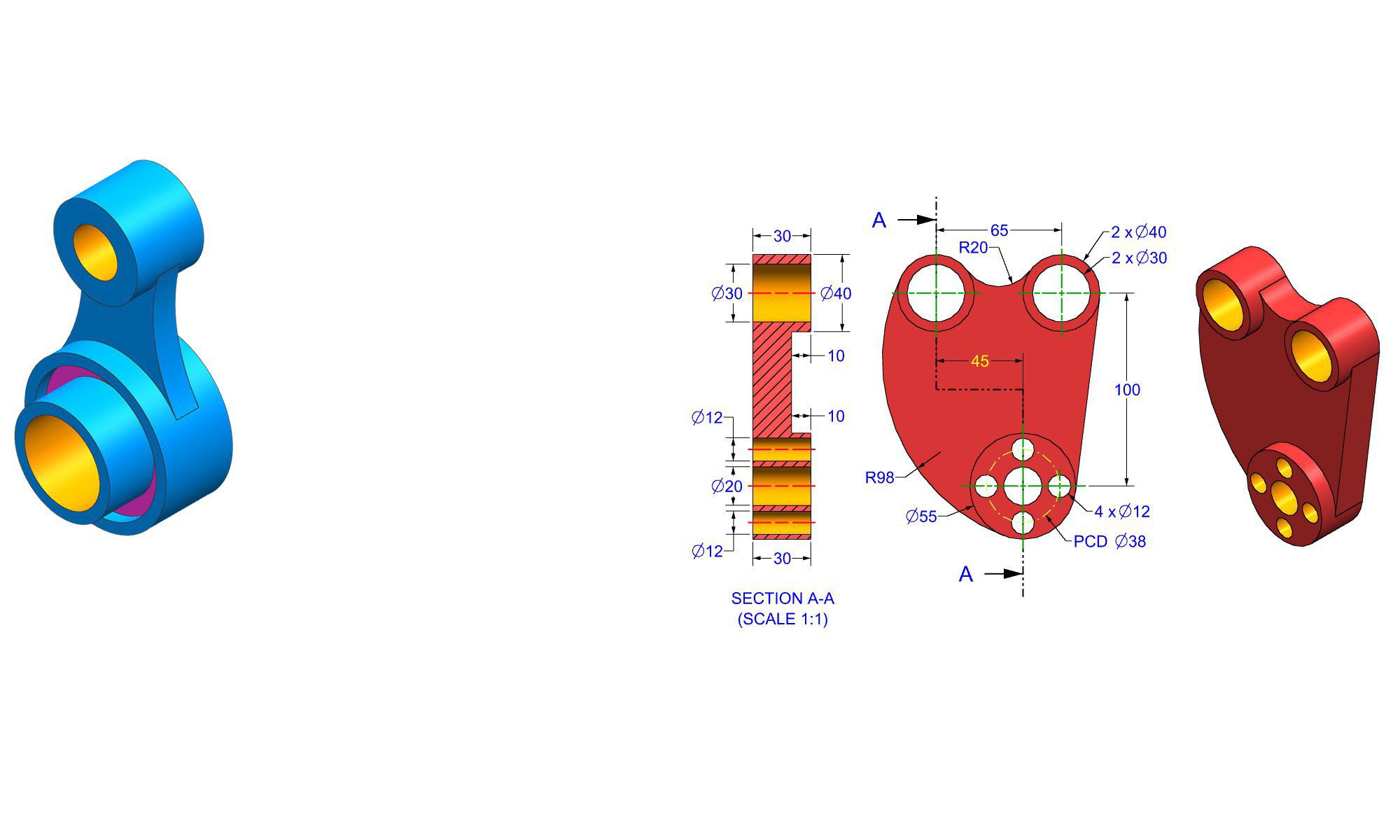

Introduction
AutoCAD is a powerful drafting and design software widely used in architecture, engineering, and construction industries. One of its key features is the ability to customize workflows efficiently, which includes understanding the difference between command names and aliases. While command names are the standard, predefined prompts to execute specific actions, aliases are user-defined shortcuts designed to expedite repetitive tasks. Grasping this distinction is essential for both beginners and seasoned AutoCAD users aiming to improve productivity and streamline their commands. In this comprehensive guide, we’ll explore the difference between command name and alias in AutoCAD, illustrating their practical applications, best practices, and common mistakes.
What Are Command Names in AutoCAD?
Command names are the default, built-in identifiers for specific functions within AutoCAD. For example, typing LINE creates a line drawing, while CIRCLE initiates a circle. These command names are standardized across the software and often follow mnemonic conventions, making it easier to recall their functions.
How Do Command Names Work?
- When you type a command name into the command line, AutoCAD recognizes it instantly.
- Command names can be fully typed or abbreviated, depending on user settings.
- AutoCAD offers a command prompt, which guides users through each function once the command is activated.
Examples of Common Commands
| Command Name | Description |
|---|---|
| LINE | Draws a straight line |
| CIRCLE | Creates a circle |
| OFFSET | Offsets objects by a specified distance |
| TRIM | Trims objects to meet or cross other objects |
| MOVE | Moves objects from one location to another |
Using Command Names Effectively
- Always use precise command names for accuracy.
- Enable command abbreviations for faster input.
- Be aware of default command prompts to avoid errors.
What Are Aliases in AutoCAD?
Aliases are user-defined shortcuts that replace lengthy command names or sequences. They enable you to execute commands quickly without typing the full command name.
How Do Aliases Work?
- Users can customize aliases in the AutoCAD acad.pgp file.
- An alias can be a short string (e.g., “l” for “LINE”).
- When the alias is typed in the command line, AutoCAD maps it to a specific command name.
Creating and Managing Aliases
- Open the acad.pgp file located in your AutoCAD support folder.
- Add or modify alias-command pairs in the following format:
“`
alias,; command_name
“`
Example:
“`
l,;LINE
c,;CIRCLE
“`
- Save the file and reload the aliases using `REINIT` command or restart AutoCAD.
Practical Benefits of Aliases
- Speed up repetitive tasks.
- Reduce typing errors.
- Customize workflows according to personal preferences.
Step-by-Step Guide: Using Command Names vs Aliases
Using Command Names
- Open AutoCAD.
- Type the command name explicitly in the command line, e.g., CIRCLE.
- Press Enter to activate the command.
- Follow prompts to complete the operation (e.g., specify center point and radius).
Creating and Using Aliases
- Locate and open acad.pgp (usually in the support files folder).
- Add a new alias, for example:
“`
cc,;CIRCLE
“`
- Save the acad.pgp file.
- Reload aliases by typing `REINIT` in the command line or restarting AutoCAD.
- Use the alias cc directly in any drawing session.
- AutoCAD interprets cc as CIRCLE and activates the circle tool immediately.
Practical Example in a Workflow
Imagine you frequently create circles:
- Instead of typing CIRCLE, you create an alias cc.
- Now, every time you need a circle, just type cc and hit Enter.
- This saves seconds per command, especially when working on complex projects.
Common Mistakes and How to Avoid Them
- Using incorrect aliases: Ensure aliases are unique and do not conflict with other commands.
- Not reloading the alias file after editing: Always reload or restart AutoCAD to make changes effective.
- Editing the wrong file: Confirm you’re editing the correct acad.pgp file based on your AutoCAD version or profile.
- Over-using abbreviations: Keep aliases memorable and descriptive to avoid confusion.
Best Practices for Command and Alias Management
- Maintain a clean alias list—delete or disable unused aliases.
- Use mnemonic aliases that help recall the function quickly.
- Document your custom aliases for team projects or future reference.
- Regularly back up acad.pgp files before making major edits.
- Use the built-in command ALIASEDIT if available, to manage aliases through the user interface.
Comparing Command Names and Aliases
| Feature | Command Name | Alias |
|---|---|---|
| Default | Predefined by AutoCAD | User-defined or customized |
| Length | Usually longer, descriptive | Short, mnemonic abbreviation |
| Flexibility | Cannot be changed | Fully customizable |
| Speed | Standard input | Faster, efficient workflow |
| Learning curve | Slightly steeper for beginners | Easy to remember if well designed |
Using command names provides clarity, whereas aliases significantly improve efficiency once properly configured.
Conclusion
Understanding the difference between command name and alias in AutoCAD is vital for optimizing your drafting workflow. Command names serve as the standard, predefined identifiers for commands, ensuring consistency across projects. Aliases, conversely, offer a customizable shortcut to speed up tasks and improve productivity, especially when dealing with repetitive actions. Properly managing aliases involves editing the acad.pgp file, reloading the system, and maintaining a systematic approach to alias creation. By mastering both, AutoCAD users can work more efficiently, reduce errors, and customize their environment according to their preferences.
FAQ
1. What is the main difference between command name and alias in AutoCAD?
Ans: The command name is the standard, predefined instruction in AutoCAD, while an alias is a custom shortcut created by the user to execute that command more quickly.
2. How do I create a custom alias in AutoCAD?
Ans: Edit the acad.pgp file to add a new alias-command pair, save the file, and reload aliases using the REINIT command or restart AutoCAD.
3. Can I change existing command aliases in AutoCAD?
Ans: Yes, by editing the acad.pgp file, you can modify or delete existing aliases, then reload the aliases again.
4. Are command names or aliases better for beginners?
Ans: Command names are better for beginners to learn the full function, while aliases are more useful for experienced users to execute commands faster.
5. How do aliases improve workflow in AutoCAD?
Ans: Aliases reduce the number of keystrokes and typing time, allowing for quicker command execution and more efficient drafting.
6. Is it necessary to reload AutoCAD after editing aliases?
Ans: Yes, you need to reload or restart AutoCAD after editing the acad.pgp file to apply the new or changed aliases.
7. Can I have the same alias for different commands?
Ans: No, each alias must be unique; overlapping aliases can cause conflicts or unintended command activations.