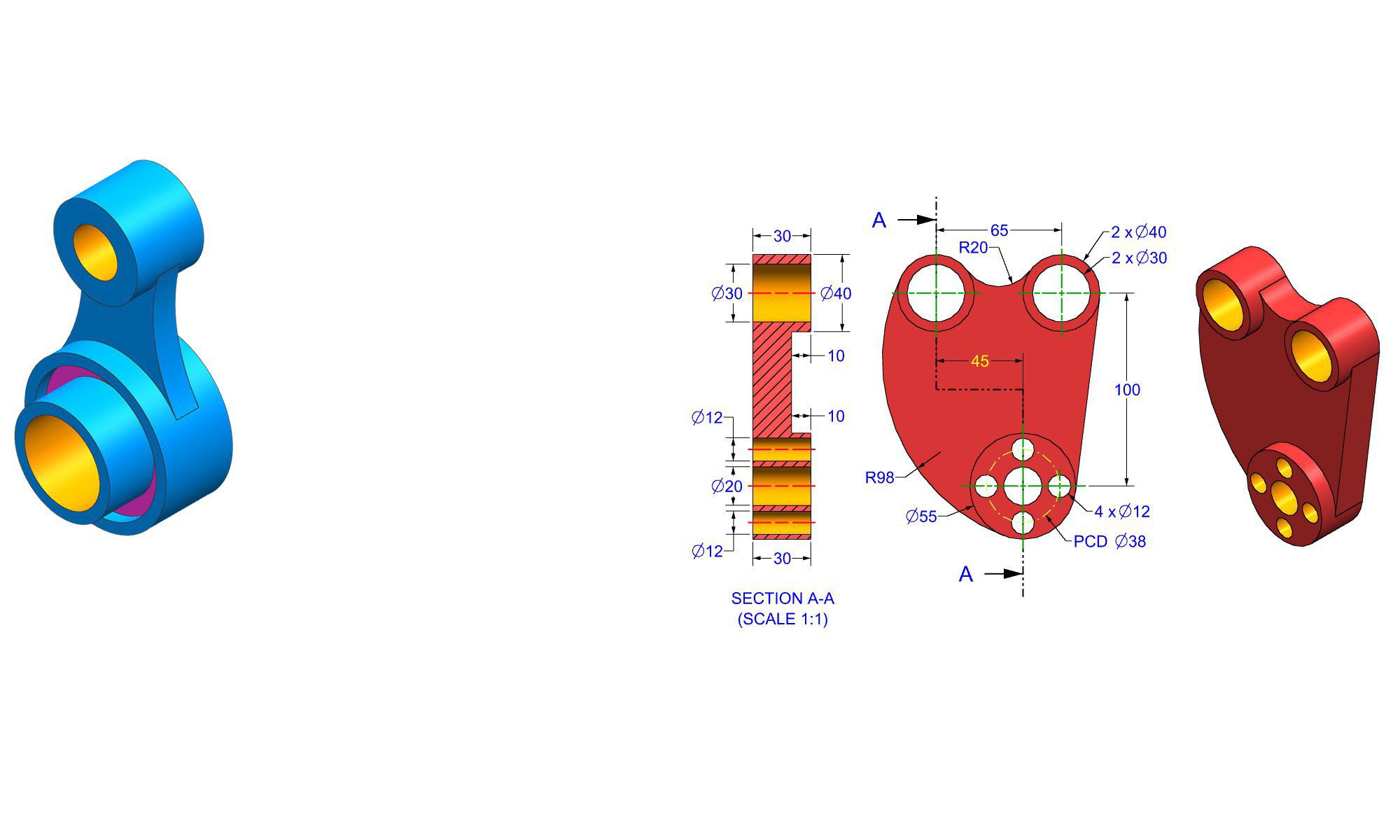

Introduction
Creating clear and simple notes in Fusion 360 is essential for efficient design, collaboration, and future modifications. Whether you’re a beginner trying to organize your ideas or a professional managing complex projects, keeping your notes concise and understandable helps streamline your workflow. Proper note-taking ensures that your design intent, measurements, and instructions are easy to interpret, saving time and minimizing errors. In this guide, we’ll explore practical strategies and best practices to keep notes clear and straightforward in Fusion 360, helping you communicate complex design ideas effectively while optimizing for high-impact keywords like “best practices for notes in Fusion 360.”
Why Keeping Notes Clear and Simple Matters in Fusion 360
Good note-taking enhances productivity, improves collaboration, and preserves design intent. Fusion 360’s environment provides various annotation and note features, but without clarity, they can become confusing. Clear notes ensure everyone involved understands the purpose behind certain features or measurements, fostering seamless teamwork. Simplified notes also make revisiting projects easier, especially after months or years.
How to Keep Notes Clear and Simple in Fusion 360
1. Use Consistent Formatting for Clarity
Standardizing your note format across projects helps in quick recognition and readability.
- Choose a clear, legible font style and size.
- Use bold or italics to highlight key information but avoid overusing them.
- Maintain a uniform structure—start with the purpose, followed by details, and end with instructions.
2. Keep Notes Brief and Focused
Avoid lengthy explanations; instead, aim for concise statements.
- Summarize complex ideas into bullet points or short paragraphs.
- Focus on the essential details—measurements, material notes, or design intent.
- Use plain language to prevent misinterpretation.
3. Leverage Fusion 360’s Annotation Tools Effectively
Fusion 360 offers several tools for adding notes and annotations that keep your workspace organized.
- Capture Markups:
- Use the “Capture Markups” feature for visual notes.
- Add comments directly on specific areas of your design.
- Text Notes:
- Insert text annotations near relevant features for clarity.
- Keep these brief and to the point.
4. Use Clear Descriptions for Sketches and Features
When documenting sketches or features, include straightforward descriptions.
- Name sketches and features descriptively (e.g., “Left Side Mount” rather than “Sketch1”).
- Add notes explaining the purpose of each feature.
- Use consistent naming conventions for easier navigation.
5. Organize Notes with Layers or Named Views
Proper organization simplifies note management.
- Group related notes using named views or layer organization.
- Place notes close to corresponding features for immediate context.
- Use the “Project Notes” feature or dedicated documentation sheets for bigger projects.
6. Incorporate Visual Aids to Support Text Notes
Sometimes a simple drawing or diagram clarifies complex instructions.
- Add sketches or diagrams alongside textual notes.
- Use arrows to point directly to critical areas.
- Keep drawings simple, clean, and relevant.
7. Version and Track Your Notes
Maintaining a record of changes prevents confusion.
- Date your notes for version control.
- Use annotations that specify revisions or updates.
- Save different note versions separately if necessary.
8. Use Templates for Repetitive Projects
Templates save time and ensure consistency.
- Create note templates with predefined formats.
- Use templates for similar parts, assemblies, or projects.
- Customize templates to suit different project needs.
Practical Examples and Common Mistakes
Example 1: Annotating a Complex Assembly
Suppose you’re documenting a motor assembly.
- Instead of writing a lengthy note: “Ensure the bearing fits tightly and lubricates properly,” instead, write:
- “Bearing: Type 6204, snug fit, lubricate with oil #XYZ.”
- Attach this note directly to the bearing feature in Fusion 360.
Error to Avoid
- Overloading notes with unnecessary info like entire design history.
- Using vague descriptions like “Check here,” instead of specific instructions.
Best Practice
- Be specific: “Hole diameter: 10 mm, tolerance ±0.1 mm” rather than “Make a hole here.”
Pro Tips for Keeping Notes Simple and Effective
- Review notes periodically to remove outdated or redundant information.
- Keep notes aligned with your design goals.
- Avoid clutter—use separate notes for different design stages.
- Use color coding or icons for quick visual cues.
Comparing Notes: Text Annotations vs. Markups
| Feature | Text Annotations | Markups (Captures) |
|---|---|---|
| Use | Brief descriptions, labels | Visual comments on specific geometry |
| Visibility | Always visible | Visible during review, can be hidden |
| Best for | Clarifying features | Highlighting issues or suggestions |
Choosing the right method depends on your project’s complexity and team collaboration needs.
Conclusion
Keeping notes clear and simple in Fusion 360 is crucial for effective design communication and project success. By maintaining consistent formatting, being concise, utilizing the right annotation tools, and organizing notes logically, you can enhance your workflow and collaboration. Remember, simple notes save time, prevent misunderstandings, and make revisiting projects much easier. Implement these strategies today to optimize your Fusion 360 experience and produce cleaner, more understandable designs.
FAQ
1. How can I add a note in Fusion 360?
Ans: Use the “Capture Markups” tool or insert text annotations to add notes directly onto your design.
2. What’s the best way to organize notes in Fusion 360?
Ans: Group related notes using named views, layers, or project notes sheets for better organization.
3. How do I make my notes more readable?
Ans: Keep notes brief, use consistent formatting, and add visual aids like sketches or arrows for clarity.
4. Can I collaborate on notes in Fusion 360?
Ans: Yes, by sharing your design with collaborators, who can leave comments and markups directly in Fusion 360.
5. How can I prevent my notes from becoming cluttered?
Ans: Use concise language, organize notes logically, and delete outdated or redundant comments regularly.
6. Are there templates for notes in Fusion 360?
Ans: Yes, you can create custom note templates to ensure consistency across projects.
7. How do I update notes after making design changes?
Ans: Revise existing notes as needed, and attach new comments or markups to reflect the latest design modifications.
End of Blog

Autodesk Fusion 360 All-in-One Workbook
500+ Practice Exercises to Master Autodesk Fusion 360 through real-world practice!
This all-in-one workbook is your ultimate resource to develop hands-on CAD skills with Autodesk Fusion 360. Whether you’re a student, engineer, hobbyist, or professional, this guide is built to help you gain real design confidence through structured practice.
What’s Inside this Book:
- 200 2D Sketching Exercises – Build a strong foundation in dimension-driven 2D geometry and technical drawings
- 200 3D Modeling Exercises – Practice modeling real-world parts, from simple shapes to complex components.
- Multi-Part Assembly Projects – Understand how parts fit together and create full assemblies with detailed drawings
🎯 Why This Book?
- 500+ practice exercises following real design standards
- Designed for self-paced learning & independent practice
- Perfect for classrooms, technical interview preparation, and personal projects
- Covers 2D Sketching, 3D Modeling & Assembly Design in one workbook
- Trusted by 15,000+ CAD learners worldwide