

Tinkercad: The Complete Beginner’s Guide to 3D Design, Circuits, and Coding (2025)
Tinkercad is one of the most beginner-friendly design tools available today. Developed by Autodesk, Tinkercad is a free, web-based application that allows users to create 3D models, simulate electronic circuits, and explore block-based coding—all directly from a browser. Its simplicity and accessibility make it a popular choice for students, educators, hobbyists, and first-time designers.
In this comprehensive guide, we’ll explore what Tinkercad is, its key features, benefits, use cases, and how to get started effectively in 2025.
What Is Tinkercad?
Tinkercad is an online CAD (Computer-Aided Design) platform that focuses on ease of use rather than complexity. Unlike professional CAD software that requires extensive training, Tinkercad uses a drag-and-drop interface that allows users to build designs using simple geometric shapes.
Tinkercad supports three main workspaces:
-
3D Design
-
Circuits
-
Codeblocks
Because it runs entirely in a web browser, there is no installation required, making it ideal for classrooms and quick prototyping.
Key Features of Tinkercad
1. Easy 3D Design Interface
Tinkercad’s 3D design workspace lets users create models by combining basic shapes such as cubes, cylinders, and spheres. Shapes can be resized, rotated, aligned, grouped, and modified with simple controls.
This intuitive approach makes Tinkercad perfect for:
-
Beginners learning CAD fundamentals
-
Students exploring 3D modeling
-
Hobbyists designing objects for 3D printing
2. Tinkercad Circuits
One of Tinkercad’s standout features is its circuits simulator. Users can build electronic circuits using virtual components such as:
-
Arduino boards
-
LEDs and resistors
-
Sensors and motors
-
Breadboards
The circuit simulation runs in real time, allowing users to test designs safely without physical hardware.
3. Block-Based and Text Coding
Tinkercad supports block-based coding (similar to Scratch) and text-based Arduino code. This makes it an excellent platform for learning programming concepts alongside electronics.
Students can:
-
Write logic using visual blocks
-
Convert blocks into Arduino C++ code
-
Understand how software interacts with hardware
4. Cloud-Based Collaboration
All projects are stored in the cloud, making it easy to access designs from anywhere. Users can also share projects via links, allowing teachers and teams to collaborate efficiently.
5. 3D Printing Ready
Tinkercad allows users to export models in STL and OBJ formats, which are widely supported by 3D printers and slicing software. This makes it a popular tool for quick 3D printing projects.
Benefits of Using Tinkercad
Beginner-Friendly
Tinkercad is designed for users with no prior CAD experience. The learning curve is minimal, and most users can create their first model within minutes.
Free to Use
Unlike many CAD tools, Tinkercad is completely free. All features are accessible with a simple Autodesk account.
Ideal for Education
Tinkercad is widely used in STEM education. Teachers can create classrooms, assign projects, and monitor student progress easily.
Safe Electronics Simulation
The circuit simulator eliminates the risk of damaging physical components, making it perfect for learning electronics safely.
Cross-Platform Access
Since it’s browser-based, Tinkercad works on Windows, macOS, Linux, and Chromebooks without installation.
Common Use Cases of Tinkercad
1. Learning 3D Modeling
Students and beginners use Tinkercad to understand core concepts like scaling, alignment, grouping, and spatial thinking.
2. 3D Printing Projects
Hobbyists design phone stands, keychains, enclosures, and custom parts for home 3D printers.
3. Electronics Prototyping
Tinkercad Circuits is commonly used to simulate Arduino projects before building them physically.
4. Classroom STEM Projects
Teachers use Tinkercad to introduce CAD, electronics, and coding in a unified learning environment.
How to Get Started with Tinkercad
Step 1: Create an Account
Visit the Tinkercad website and sign in using an Autodesk account or a supported login method.
Step 2: Choose a Workspace
Select 3D Design, Circuits, or Codeblocks depending on your project goals.
Step 3: Start Designing
Drag shapes onto the workplane, adjust dimensions, and combine them to form your model.
Step 4: Simulate or Export
-
Run simulations for circuits
-
Export 3D designs as STL files for printing
Tinkercad vs Professional CAD Software
While Tinkercad is not intended to replace advanced CAD tools like Fusion 360 or SolidWorks, it serves as an excellent entry point.
| Feature | Tinkercad | Professional CAD |
|---|---|---|
| Learning Curve | Very Low | High |
| Cost | Free | Paid |
| Browser-Based | Yes | Mostly No |
| Advanced Engineering | No | Yes |
Tinkercad is best for learning and simple projects, while professional CAD software is better suited for complex engineering tasks.
Limitations of Tinkercad
Despite its advantages, Tinkercad has some limitations:
-
Not suitable for complex mechanical designs
-
Limited parametric modeling
-
Basic rendering and visualization tools
However, these limitations are expected given its beginner-focused design.
Final Thoughts
Tinkercad is an excellent starting point for anyone interested in 3D design, electronics, or coding. Its simplicity, free access, and educational focus make it one of the most valuable tools for beginners and classrooms worldwide.
Whether you’re a student learning CAD, a teacher introducing STEM concepts, or a hobbyist exploring 3D printing, Tinkercad provides a powerful yet accessible platform to bring ideas to life.
If you’re just beginning your design .
End of Blog
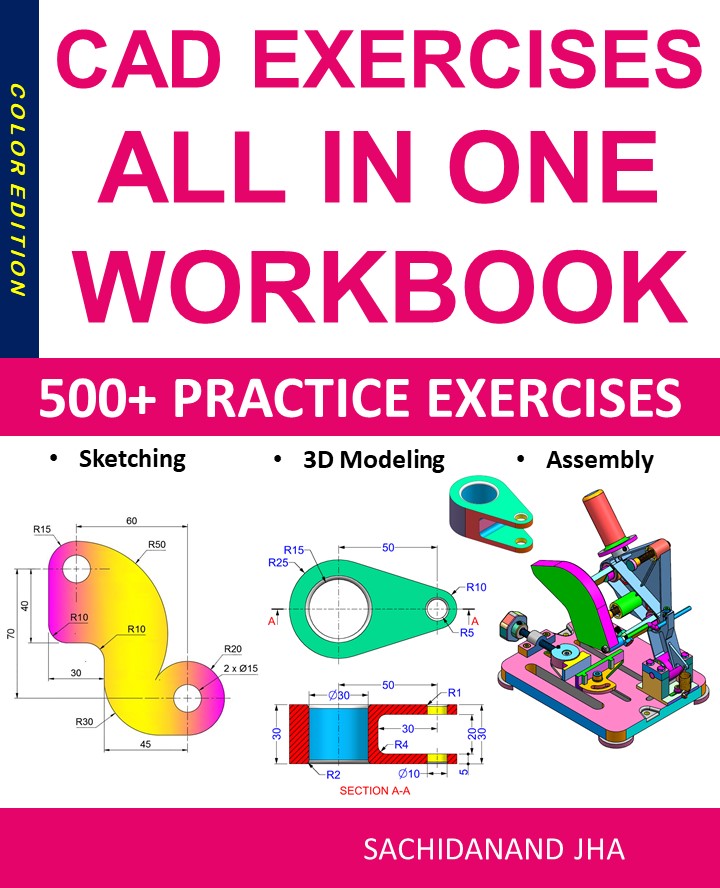
CAD EXERCISES All-in-One Workbook
500+ Practice Exercises to Master CAD Through Real-World Practice!
This all-in-one workbook is your ultimate resource to develop hands-on CAD skills using any CAD software.Whether you’re a student, engineer, hobbyist, or professional, this guide is designed to help you gain real design confidence through structured, practice-oriented exercises.
What’s Inside this Book:
- 200 2D Sketching Exercises – Build a strong foundation in dimension-driven 2D geometry and technical drawings
- 200 3D Modeling Exercises – Practice modeling real-world parts, from simple shapes to complex components.
- Multi-Part Assembly Projects – Understand how parts fit together and create full assemblies with detailed drawings
🎯 Why This Book?
- 500+ practice exercises following real design standards
- Designed for self-paced learning & independent practice
- Perfect for classrooms, technical interview preparation, and personal projects
- Covers 2D Sketching, 3D Modeling & Assembly Design in one workbook
- Trusted by 15,000+ CAD learners worldwide
Tinkercad Complete Guide 2025: Learn 3D Design, Circuits & Coding Easily
Tinkercad: The Complete Beginner’s Guide to 3D Design, Circuits, and Coding (2025)
Tinkercad is one of the most beginner-friendly design tools available today. Developed by Autodesk, Tinkercad is a free, web-based application that allows users to create 3D models, simulate electronic circuits, and explore block-based coding—all directly from a browser. Its simplicity and accessibility make it a popular choice for students, educators, hobbyists, and first-time designers.
In this comprehensive guide, we’ll explore what Tinkercad is, its key features, benefits, use cases, and how to get started effectively in 2025.
What Is Tinkercad?
Tinkercad is an online CAD (Computer-Aided Design) platform that focuses on ease of use rather than complexity. Unlike professional CAD software that requires extensive training, Tinkercad uses a drag-and-drop interface that allows users to build designs using simple geometric shapes.
Tinkercad supports three main workspaces:
-
3D Design
-
Circuits
-
Codeblocks
Because it runs entirely in a web browser, there is no installation required, making it ideal for classrooms and quick prototyping.
Key Features of Tinkercad
1. Easy 3D Design Interface
Tinkercad’s 3D design workspace lets users create models by combining basic shapes such as cubes, cylinders, and spheres. Shapes can be resized, rotated, aligned, grouped, and modified with simple controls.
This intuitive approach makes Tinkercad perfect for:
-
Beginners learning CAD fundamentals
-
Students exploring 3D modeling
-
Hobbyists designing objects for 3D printing
2. Tinkercad Circuits
One of Tinkercad’s standout features is its circuits simulator. Users can build electronic circuits using virtual components such as:
-
Arduino boards
-
LEDs and resistors
-
Sensors and motors
-
Breadboards
The circuit simulation runs in real time, allowing users to test designs safely without physical hardware.
3. Block-Based and Text Coding
Tinkercad supports block-based coding (similar to Scratch) and text-based Arduino code. This makes it an excellent platform for learning programming concepts alongside electronics.
Students can:
-
Write logic using visual blocks
-
Convert blocks into Arduino C++ code
-
Understand how software interacts with hardware
4. Cloud-Based Collaboration
All projects are stored in the cloud, making it easy to access designs from anywhere. Users can also share projects via links, allowing teachers and teams to collaborate efficiently.
5. 3D Printing Ready
Tinkercad allows users to export models in STL and OBJ formats, which are widely supported by 3D printers and slicing software. This makes it a popular tool for quick 3D printing projects.
Benefits of Using Tinkercad
Beginner-Friendly
Tinkercad is designed for users with no prior CAD experience. The learning curve is minimal, and most users can create their first model within minutes.
Free to Use
Unlike many CAD tools, Tinkercad is completely free. All features are accessible with a simple Autodesk account.
Ideal for Education
Tinkercad is widely used in STEM education. Teachers can create classrooms, assign projects, and monitor student progress easily.
Safe Electronics Simulation
The circuit simulator eliminates the risk of damaging physical components, making it perfect for learning electronics safely.
Cross-Platform Access
Since it’s browser-based, Tinkercad works on Windows, macOS, Linux, and Chromebooks without installation.
Common Use Cases of Tinkercad
1. Learning 3D Modeling
Students and beginners use Tinkercad to understand core concepts like scaling, alignment, grouping, and spatial thinking.
2. 3D Printing Projects
Hobbyists design phone stands, keychains, enclosures, and custom parts for home 3D printers.
3. Electronics Prototyping
Tinkercad Circuits is commonly used to simulate Arduino projects before building them physically.
4. Classroom STEM Projects
Teachers use Tinkercad to introduce CAD, electronics, and coding in a unified learning environment.
How to Get Started with Tinkercad
Step 1: Create an Account
Visit the Tinkercad website and sign in using an Autodesk account or a supported login method.
Step 2: Choose a Workspace
Select 3D Design, Circuits, or Codeblocks depending on your project goals.
Step 3: Start Designing
Drag shapes onto the workplane, adjust dimensions, and combine them to form your model.
Step 4: Simulate or Export
-
Run simulations for circuits
-
Export 3D designs as STL files for printing
Tinkercad vs Professional CAD Software
While Tinkercad is not intended to replace advanced CAD tools like Fusion 360 or SolidWorks, it serves as an excellent entry point.
| Feature | Tinkercad | Professional CAD |
|---|---|---|
| Learning Curve | Very Low | High |
| Cost | Free | Paid |
| Browser-Based | Yes | Mostly No |
| Advanced Engineering | No | Yes |
Tinkercad is best for learning and simple projects, while professional CAD software is better suited for complex engineering tasks.
Limitations of Tinkercad
Despite its advantages, Tinkercad has some limitations:
-
Not suitable for complex mechanical designs
-
Limited parametric modeling
-
Basic rendering and visualization tools
However, these limitations are expected given its beginner-focused design.
Final Thoughts
Tinkercad is an excellent starting point for anyone interested in 3D design, electronics, or coding. Its simplicity, free access, and educational focus make it one of the most valuable tools for beginners and classrooms worldwide.
Whether you’re a student learning CAD, a teacher introducing STEM concepts, or a hobbyist exploring 3D printing, Tinkercad provides a powerful yet accessible platform to bring ideas to life.
If you’re just beginning your design journey in 2025, Tinkercad is the perfect place to start.
End of Blog
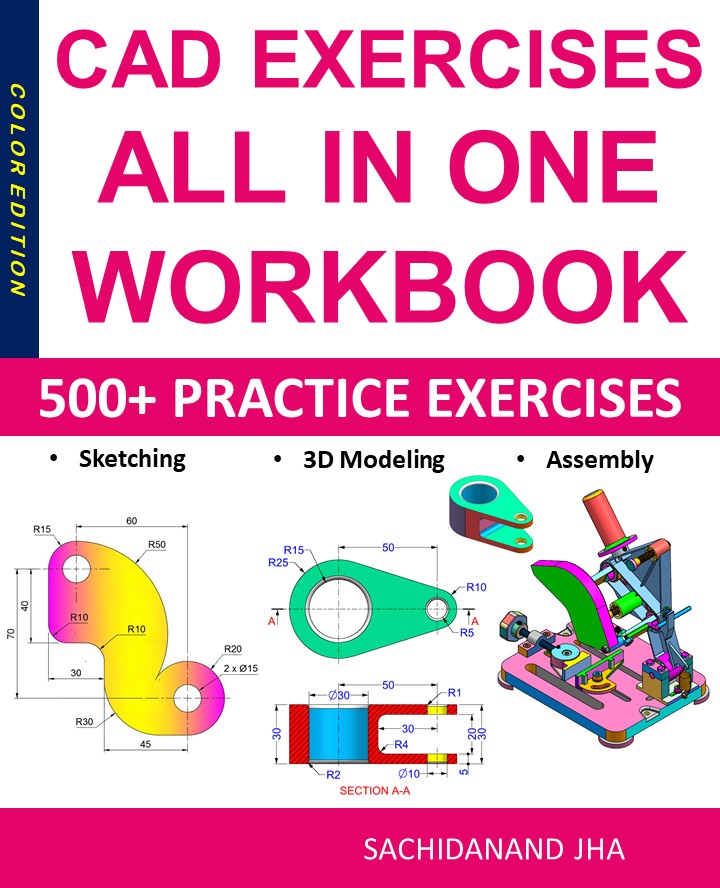
CAD EXERCISES All-in-One Workbook
500+ Practice Exercises to Master CAD Through Real-World Practice!
This all-in-one workbook is your ultimate resource to develop hands-on CAD skills using any CAD software.Whether you’re a student, engineer, hobbyist, or professional, this guide is designed to help you gain real design confidence through structured, practice-oriented exercises.
What’s Inside this Book:
- 200 2D Sketching Exercises – Build a strong foundation in dimension-driven 2D geometry and technical drawings
- 200 3D Modeling Exercises – Practice modeling real-world parts, from simple shapes to complex components.
- Multi-Part Assembly Projects – Understand how parts fit together and create full assemblies with detailed drawings
🎯 Why This Book?
- 500+ practice exercises following real design standards
- Designed for self-paced learning & independent practice
- Perfect for classrooms, technical interview preparation, and personal projects
- Covers 2D Sketching, 3D Modeling & Assembly Design in one workbook
- Trusted by 15,000+ CAD learners worldwide