Master Fusion 360: Enable/Disable Sketch Grid

Master Fusion 360: Enable/Disable Sketch Grid

Introduction

Fusion 360 is a powerful 3D CAD, CAM, and CAE tool that offers a wide range of features and tools for product design, engineering, and manufacturing. One of the useful features in Fusion 360 is the Sketch Grid, which provides a temporary reference frame for sketching and drawing objects. In this blog post, we will explore the process of turning the Sketch Grid on and off in Fusion 360.

Understanding the Sketch Grid

The Sketch Grid is a temporary reference frame that is displayed on the sketch plane. It consists of a series of lines and curves that intersect at specific points, creating a grid-like pattern. The Sketch Grid is useful for creating accurate and precise sketches, especially when working with complex shapes or symmetrical objects.

Turning the Sketch Grid On

To turn the Sketch Grid on in Fusion 360, follow these steps:

  1. Open a new or existing sketch in Fusion 360.
  2. Go to the “Sketch” tab in the top menu bar.
  3. Click on the “Grid” dropdown menu.
  4. Select “Show Grid” from the list of options.
  5. The Sketch Grid will be displayed on the sketch plane.

Alternatively, you can also turn the Sketch Grid on using the keyboard shortcut “Ctrl+Shift+G” (Windows) or “Command+Shift+G” (Mac).

Customizing the Sketch Grid

While the Sketch Grid is turned on, you can customize its appearance by adjusting the grid size, line style, and color. To do this:

  1. Go to the “Sketch” tab in the top menu bar.
  2. Click on the “Grid” dropdown menu.
  3. Select “Grid Options” from the list of options.
  4. In the “Grid Options” dialog box, adjust the grid size, line style, and color as desired.
  5. Click “OK” to apply the changes.

Turning the Sketch Grid Off

To turn the Sketch Grid off in Fusion 360, follow these steps:

  1. Open a new or existing sketch in Fusion 360.
  2. Go to the “Sketch” tab in the top menu bar.
  3. Click on the “Grid” dropdown menu.
  4. Select “Hide Grid” from the list of options.
  5. The Sketch Grid will be hidden from the sketch plane.

Alternatively, you can also turn the Sketch Grid off using the keyboard shortcut “Ctrl+Shift+G” (Windows) or “Command+Shift+G” (Mac) while holding down the “Shift” key.

Using the Sketch Grid in Practice

The Sketch Grid is a useful tool for creating accurate and precise sketches in Fusion 360. Here are a few examples of how to use the Sketch Grid in practice:

Example 1: Creating a Symmetrical Object

To create a symmetrical object using the Sketch Grid, follow these steps:

  1. Create a new sketch in Fusion 360.
  2. Go to the “Sketch” tab in the top menu bar.
  3. Click on the “Grid” dropdown menu.
  4. Select “Show Grid” from the list of options.
  5. Draw a line or shape on the sketch plane using the Sketch Grid as a reference frame.
  6. Use the “Mirror” tool to create a symmetrical copy of the line or shape.
  7. Adjust the Sketch Grid as needed to create the desired symmetrical object.

Example 2: Creating a Complex Shape

To create a complex shape using the Sketch Grid, follow these steps:

  1. Create a new sketch in Fusion 360.
  2. Go to the “Sketch” tab in the top menu bar.
  3. Click on the “Grid” dropdown menu.
  4. Select “Show Grid” from the list of options.
  5. Draw a series of lines or shapes on the sketch plane using the Sketch Grid as a reference frame.
  6. Use the “Trim” and “Extend” tools to modify the lines or shapes as needed.
  7. Adjust the Sketch Grid as needed to create the desired complex shape.

Conclusion

The Sketch Grid is a powerful tool in Fusion 360 that provides a temporary reference frame for sketching and drawing objects. By turning the Sketch Grid on and off, you can create accurate and precise sketches, especially when working with complex shapes or symmetrical objects. In this blog post, we have explored the process of turning the Sketch Grid on and off, as well as how to customize its appearance and use it in practice.

FAQ

Q: How do I turn the Sketch Grid on in Fusion 360?

A: To turn the Sketch Grid on in Fusion 360, go to the “Sketch” tab in the top menu bar, click on the “Grid” dropdown menu, and select “Show Grid” from the list of options.

Q: How do I turn the Sketch Grid off in Fusion 360?

A: To turn the Sketch Grid off in Fusion 360, go to the “Sketch” tab in the top menu bar, click on the “Grid” dropdown menu, and select “Hide Grid” from the list of options.

Q: Can I customize the appearance of the Sketch Grid?

A: Yes, you can customize the appearance of the Sketch Grid by adjusting the grid size, line style, and color. To do this, go to the “Sketch” tab in the top menu bar, click on the “Grid” dropdown menu, and select “Grid Options” from the list of options.

Q: How do I use the Sketch Grid to create a symmetrical object?

A: To create a symmetrical object using the Sketch Grid, draw a line or shape on the sketch plane using the Sketch Grid as a reference frame, and then use the “Mirror” tool to create a symmetrical copy of the line or shape.

Q: Can I use the Sketch Grid to create complex shapes?

A: Yes, you can use the Sketch Grid to create complex shapes by drawing a series of lines or shapes on the sketch plane using the Sketch Grid as a reference frame, and then using the “Trim” and “Extend” tools to modify the lines or shapes as needed.

Q: How do I reset the Sketch Grid to its default settings?

A: To reset the Sketch Grid to its default settings, go to the “Sketch” tab in the top menu bar, click on the “Grid” dropdown menu, and select “Reset Grid” from the list of options.


End of Blog


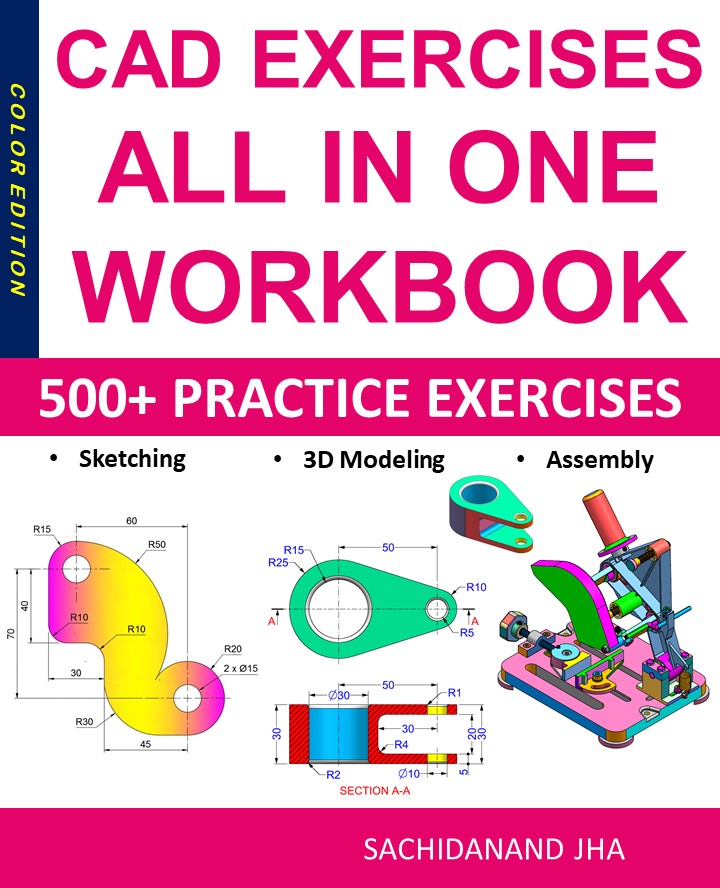
Fusion 360 Workbook Cover

After purchasing, a download link will be sent instantly to your email.

Buy Now For $27.99

Are you a student or Unemployed? Get this bundle for $19.99

Offer for Students Buy Now For $19.99

Buy Paperback on Amazon.com

Autodesk Fusion 360 All-in-One Workbook

500+ Practice Exercises to Master Autodesk Fusion 360 through real-world practice!

This all-in-one workbook is your ultimate resource to develop hands-on CAD skills with Autodesk Fusion 360. Whether you’re a student, engineer, hobbyist, or professional, this guide is built to help you gain real design confidence through structured practice.

What’s Inside this Book:

  • 200 2D Sketching Exercises – Build a strong foundation in dimension-driven 2D geometry and technical drawings
  • 200 3D Modeling Exercises – Practice modeling real-world parts, from simple shapes to complex components.
  • Multi-Part Assembly Projects – Understand how parts fit together and create full assemblies with detailed drawings

🎯 Why This Book?

  • 500+ practice exercises following real design standards
  • Designed for self-paced learning & independent practice
  • Perfect for classrooms, technical interview preparation, and personal projects
  • Covers 2D Sketching, 3D Modeling & Assembly Design in one workbook
  • Trusted by 15,000+ CAD learners worldwide

After purchasing, a download link will be sent instantly to your email.

Buy Now For $27.99

Are you a student or Unemployed? Get this bundle for $19.99

Offer for Students Buy Now For $19.99

Buy Paperback on Amazon.com

Autodesk Inventor: Powerful 3D CAD for Engineers


Autodesk Inventor: Powerful 3D CAD Software for Mechanical Design and Engineering

Autodesk Inventor is a professional-grade 3D CAD software widely used for mechanical design, product development, and engineering simulations. Developed by Autodesk, Inventor enables engineers and designers to create accurate 3D models, assemblies, and technical drawings with precision and efficiency. It is especially popular in manufacturing, automotive, aerospace, and industrial design industries.

In this in-depth guide, we’ll explore what Autodesk Inventor is, its core features, benefits, use cases, and why it remains one of the most trusted CAD tools for mechanical engineers worldwide.

What Is Autodesk Inventor?

Autodesk Inventor is a parametric, feature-based 3D mechanical design software that helps professionals design, visualize, and simulate products before they are built. It supports the complete product development lifecycleβ€”from conceptual design and prototyping to manufacturing and documentation.

Inventor is available for Windows and integrates seamlessly with other Autodesk products such as AutoCAD, Fusion 360, and Vault, making it a strong choice for enterprise-level workflows.

Why Choose Autodesk Inventor?

Autodesk Inventor stands out for its advanced mechanical design tools, reliability, and deep integration with manufacturing processes.

1. Industry-Standard Mechanical CAD

Inventor is widely adopted across industries, making it easier to collaborate, hire skilled professionals, and exchange files with partners.

2. Parametric and Direct Modeling

Users can work with parametric constraints or switch to direct modeling for faster design iterations.

3. Professional Simulation Tools

Built-in stress analysis, motion simulation, and interference detection help validate designs before production.

4. Seamless Autodesk Ecosystem

Inventor integrates tightly with AutoCAD, Fusion 360, and Autodesk Vault for data management and collaboration.

Key Features of Autodesk Inventor

Parametric 3D Modeling

Inventor allows designers to define dimensions, constraints, and relationships, enabling easy updates and revisions throughout the design process.

Assembly Design and Management

Create complex assemblies with thousands of components while maintaining performance and design accuracy. Tools like constraints, joints, and contact sets ensure proper mechanical behavior.

Drawing and Documentation

Generate 2D drawings, exploded views, and bills of materials (BOMs) directly from 3D models, ensuring consistency and reducing errors.

Built-In Simulation and Analysis

Inventor includes tools for:

  • Stress and deformation analysis

  • Motion simulation

  • Dynamic loads testing

These features help reduce prototyping costs and improve product reliability.

Sheet Metal and Frame Design

Specialized tools allow users to design sheet metal parts, folded components, and structural frames with manufacturing-ready outputs.

iLogic Automation

Inventor’s iLogic feature enables rule-based automation, helping companies standardize designs and reduce repetitive tasks.


File Format Compatibility

Autodesk Inventor supports a wide range of industry-standard file formats, including:

  • DWG

  • DXF

  • STEP

  • IGES

  • STL

This ensures smooth collaboration with suppliers, manufacturers, and other CAD platforms.


Common Use Cases of Autodesk Inventor

Mechanical Engineering

Inventor is extensively used for designing machinery, tools, and mechanical components with high precision.

Product Design and Manufacturing

From consumer products to industrial equipment, Inventor supports detailed modeling and manufacturing-ready designs.

Automotive and Aerospace

Engineers use Inventor to design parts, assemblies, and systems that require high accuracy and simulation validation.

Sheet Metal Fabrication

Inventor’s sheet metal tools help generate flat patterns and production-ready designs for fabrication.

Education and Professional Training

Inventor is widely taught in engineering colleges and technical institutes, preparing students for real-world industry demands.


Autodesk Inventor vs Other CAD Software

When compared to tools like SolidWorks, Fusion 360, or FreeCAD, Autodesk Inventor excels in professional mechanical workflows.

  • Compared to Fusion 360: Inventor is more powerful for large assemblies and enterprise-level mechanical design.

  • Compared to SolidWorks: Inventor offers comparable features with tighter AutoCAD integration.

  • Compared to FreeCAD: Inventor provides a more polished UI, advanced simulations, and official technical support.

While Inventor is a paid tool, its feature depth justifies the investment for professional users.


Advantages of Autodesk Inventor

  • Professional-grade mechanical CAD tools

  • Advanced simulation and analysis

  • Strong assembly and documentation capabilities

  • Excellent integration with Autodesk products

  • Widely recognized in the engineering industry


Limitations of Autodesk Inventor

Despite its strengths, Inventor has some limitations:

  • Subscription-based pricing can be expensive

  • Available only on Windows

  • Requires powerful hardware for large assemblies

However, for professional engineering environments, these limitations are often outweighed by its capabilities.


Getting Started With Autodesk Inventor

To begin using Autodesk Inventor:

  1. Download Inventor from Autodesk’s official website

  2. Choose a subscription or educational license

  3. Learn basic sketching, constraints, and assemblies

  4. Explore Autodesk tutorials and official documentation

With practice, Inventor becomes an extremely efficient tool for complex mechanical design tasks.


Final Thoughts

Autodesk Inventor is one of the most powerful 3D CAD software solutions for mechanical engineering and product design. Its parametric modeling, advanced simulation tools, and seamless integration with the Autodesk ecosystem make it a top choice for professionals and enterprises.

If you are working on complex mechanical assemblies, manufacturing-ready designs, or engineering simulations, Autodesk Inventor provides the reliability, precision, and scalability required for modern product development.

CAD Exercises Workbook Cover

πŸ“˜ CAD EXERCISES
All-in-One Workbook

500+ Practice Exercises to Master CAD Through Real-World Practice!

This all-in-one workbook is your ultimate resource to develop hands-on CAD skills using any CAD
software.

πŸ”§ What’s Inside this
Book:

  • 200 2D Sketching Exercises – Build a strong foundation in dimension-driven 2D geometry and
    technical drawings.
  • 200 3D Modeling Exercises – Practice modeling real-world parts, from simple shapes to
    complex components.
  • Multi-Part Assembly Projects – Understand how parts fit together and create full assemblies
    with detailed drawings.

🎯 Why This Book?

  • 500+ practice exercises following real design standards
  • Designed for self-paced learning & independent practice
  • Covers 2D Sketching, 3D Modeling & Assembly Design in one workbook
  • Trusted by 15,000+ CAD learners worldwide