


How to Use Fusion 360 – Complete Beginner Guide (2025)

Fusion 360 is one of the most powerful and beginner-friendly CAD/CAM/CAE tools available today. Developed by Autodesk, Fusion 360 is widely used for 3D modeling, product design, mechanical engineering, CNC machining, and 3D printing. Whether you are a student, hobbyist, or professional designer, learning Fusion 360 can significantly boost your design and manufacturing skills.

In this guide, you’ll learn how to use Fusion 360 step by step, from setting up your workspace to creating your first 3D model and exporting it for manufacturing.


What Is Fusion 360?

Fusion 360 is a cloud-based 3D CAD, CAM, and CAE software that combines design, engineering, and manufacturing tools in one platform. Unlike traditional CAD software, Fusion 360 allows parametric modeling, direct modeling, simulation, and collaboration in a single workflow.

Key Features of Fusion 360

  • Parametric & direct 3D modeling

  • Sketch-based design

  • Assembly & joint system

  • Simulation & stress analysis

  • CAM for CNC machining

  • Cloud collaboration & version control


How to Download and Install Fusion 360

Before learning how to use Fusion 360, you need to install it properly.

Steps to Install Fusion 360

  1. Visit the Autodesk Fusion 360 official website

  2. Sign in with your Autodesk account

  3. Choose the correct license:

    • Personal Use (Free for hobbyists)

    • Student/Educational License

    • Commercial License

  4. Download and install Fusion 360

  5. Launch the software and sign in

Once installed, Fusion 360 automatically updates via the cloud.


Understanding the Fusion 360 Interface

When you open Fusion 360, the interface may feel overwhelming, but it’s well organized.

Main Areas of Fusion 360

  • Toolbar – Design, Solid, Surface, Mesh, and Sheet Metal tools

  • Browser Panel – Shows sketches, bodies, components, and timelines

  • Canvas – Main workspace where you model

  • Timeline – Tracks design history and parametric changes

Understanding the timeline is crucial, as it allows you to edit any step later without breaking your model.


Creating Your First Sketch in Fusion 360

Sketching is the foundation of all 3D models in Fusion 360.

Steps to Create a Sketch

  1. Click Create Sketch

  2. Select a plane (XY, YZ, or XZ)

  3. Use sketch tools like:

    • Line

    • Rectangle

    • Circle

    • Arc

  4. Apply dimensions (D key) to fully constrain the sketch

  5. Finish the sketch

💡 Tip: Always aim for a fully constrained sketch (black lines), which ensures stability.


Turning a Sketch into a 3D Model

Once your sketch is ready, you can convert it into a solid body.

Common 3D Modeling Tools

  • Extrude (E) – Create 3D shapes from sketches

  • Revolve – Rotate a profile around an axis

  • Loft – Blend shapes between profiles

  • Sweep – Extrude along a path

Example:

  • Select a sketch profile

  • Press E (Extrude)

  • Enter distance

  • Click OK

You now have your first 3D model in Fusion 360.


Using Components and Assemblies

Fusion 360 uses a component-based workflow, which is essential for real-world designs.

Why Use Components?

  • Better organization

  • Easier assemblies

  • Motion simulation

  • Improved performance

How to Create Components

  1. Right-click in the Browser

  2. Select New Component

  3. Model parts inside components

  4. Use Joints to connect parts

This approach is ideal for mechanical designs and product assemblies.


Applying Materials and Appearance

Fusion 360 allows you to add realistic materials to your model.

Steps to Apply Materials

  1. Press A (Appearance)

  2. Choose a material (metal, plastic, wood, etc.)

  3. Drag and drop onto your model

  4. Adjust color, texture, and finish

This is useful for rendering, presentations, and client previews.


Rendering and Visualization

Fusion 360 includes a powerful rendering engine.

Rendering Workflow

  • Switch to Render Workspace

  • Set environment and lighting

  • Choose materials

  • Adjust camera angle

  • Click Render

You can render locally or use cloud rendering for faster results.


Exporting Files for Manufacturing

Fusion 360 supports multiple export formats depending on your use case.

Common Export Formats

  • STL – 3D printing

  • STEP / IGES – CAD file sharing

  • DXF – Laser cutting / CNC

  • G-code – CNC machining (CAM workspace)

To export:

  1. Go to File → Export

  2. Choose format

  3. Save locally or to the cloud


Tips to Learn Fusion 360 Faster

  • Learn keyboard shortcuts (E, D, L, P)

  • Use parametric design properly

  • Name sketches and components

  • Watch Autodesk tutorials

  • Practice real-world projects

  • Avoid editing bodies directly—edit sketches instead


Final Thoughts

Fusion 360 is an all-in-one design and manufacturing solution that is both beginner-friendly and industry-ready. By mastering sketches, parametric modeling, components, and exporting workflows, you can design professional-grade products efficiently.

Whether you want to create mechanical parts, 3D printable models, or CNC-ready designs, Fusion 360 gives you everything you need in one powerful platform.

How to Use Fusion 360 – Complete Beginner Guide (2025)

Fusion 360 is one of the most powerful and beginner-friendly CAD/CAM/CAE tools available today. Developed by Autodesk, Fusion 360 is widely used for 3D modeling, product design, mechanical engineering, CNC machining, and 3D printing. Whether you are a student, hobbyist, or professional designer, learning Fusion 360 can significantly boost your design and manufacturing skills.

In this guide, you’ll learn how to use Fusion 360 step by step, from setting up your workspace to creating your first 3D model and exporting it for manufacturing.


What Is Fusion 360?

Fusion 360 is a cloud-based 3D CAD, CAM, and CAE software that combines design, engineering, and manufacturing tools in one platform. Unlike traditional CAD software, Fusion 360 allows parametric modeling, direct modeling, simulation, and collaboration in a single workflow.

Key Features of Fusion 360

  • Parametric & direct 3D modeling

  • Sketch-based design

  • Assembly & joint system

  • Simulation & stress analysis

  • CAM for CNC machining

  • Cloud collaboration & version control


How to Download and Install Fusion 360

Before learning how to use Fusion 360, you need to install it properly.

Steps to Install Fusion 360

  1. Visit the Autodesk Fusion 360 official website

  2. Sign in with your Autodesk account

  3. Choose the correct license:

    • Personal Use (Free for hobbyists)

    • Student/Educational License

    • Commercial License

  4. Download and install Fusion 360

  5. Launch the software and sign in

Once installed, Fusion 360 automatically updates via the cloud.


Understanding the Fusion 360 Interface

When you open Fusion 360, the interface may feel overwhelming, but it’s well organized.

Main Areas of Fusion 360

  • Toolbar – Design, Solid, Surface, Mesh, and Sheet Metal tools

  • Browser Panel – Shows sketches, bodies, components, and timelines

  • Canvas – Main workspace where you model

  • Timeline – Tracks design history and parametric changes

Understanding the timeline is crucial, as it allows you to edit any step later without breaking your model.


Creating Your First Sketch in Fusion 360

Sketching is the foundation of all 3D models in Fusion 360.

Steps to Create a Sketch

  1. Click Create Sketch

  2. Select a plane (XY, YZ, or XZ)

  3. Use sketch tools like:

    • Line

    • Rectangle

    • Circle

    • Arc

  4. Apply dimensions (D key) to fully constrain the sketch

  5. Finish the sketch

💡 Tip: Always aim for a fully constrained sketch (black lines), which ensures stability.


Turning a Sketch into a 3D Model

Once your sketch is ready, you can convert it into a solid body.

Common 3D Modeling Tools

  • Extrude (E) – Create 3D shapes from sketches

  • Revolve – Rotate a profile around an axis

  • Loft – Blend shapes between profiles

  • Sweep – Extrude along a path

Example:

  • Select a sketch profile

  • Press E (Extrude)

  • Enter distance

  • Click OK

You now have your first 3D model in Fusion 360.


Using Components and Assemblies

Fusion 360 uses a component-based workflow, which is essential for real-world designs.

Why Use Components?

  • Better organization

  • Easier assemblies

  • Motion simulation

  • Improved performance

How to Create Components

  1. Right-click in the Browser

  2. Select New Component

  3. Model parts inside components

  4. Use Joints to connect parts

This approach is ideal for mechanical designs and product assemblies.


Applying Materials and Appearance

Fusion 360 allows you to add realistic materials to your model.

Steps to Apply Materials

  1. Press A (Appearance)

  2. Choose a material (metal, plastic, wood, etc.)

  3. Drag and drop onto your model

  4. Adjust color, texture, and finish

This is useful for rendering, presentations, and client previews.


Rendering and Visualization

Fusion 360 includes a powerful rendering engine.

Rendering Workflow

  • Switch to Render Workspace

  • Set environment and lighting

  • Choose materials

  • Adjust camera angle

  • Click Render

You can render locally or use cloud rendering for faster results.


Exporting Files for Manufacturing

Fusion 360 supports multiple export formats depending on your use case.

Common Export Formats

  • STL – 3D printing

  • STEP / IGES – CAD file sharing

  • DXF – Laser cutting / CNC

  • G-code – CNC machining (CAM workspace)

To export:

  1. Go to File → Export

  2. Choose format

  3. Save locally or to the cloud


Tips to Learn Fusion 360 Faster

  • Learn keyboard shortcuts (E, D, L, P)

  • Use parametric design properly

  • Name sketches and components

  • Watch Autodesk tutorials

  • Practice real-world projects

  • Avoid editing bodies directly—edit sketches instead


Final Thoughts

Fusion 360 is an all-in-one design and manufacturing solution that is both beginner-friendly and industry-ready. By mastering sketches, parametric modeling, components, and exporting workflows, you can design professional-grade products efficiently.

Whether you want to create mechanical parts, 3D printable models, or CNC-ready designs, Fusion 360 gives you everything you need in one powerful platform.

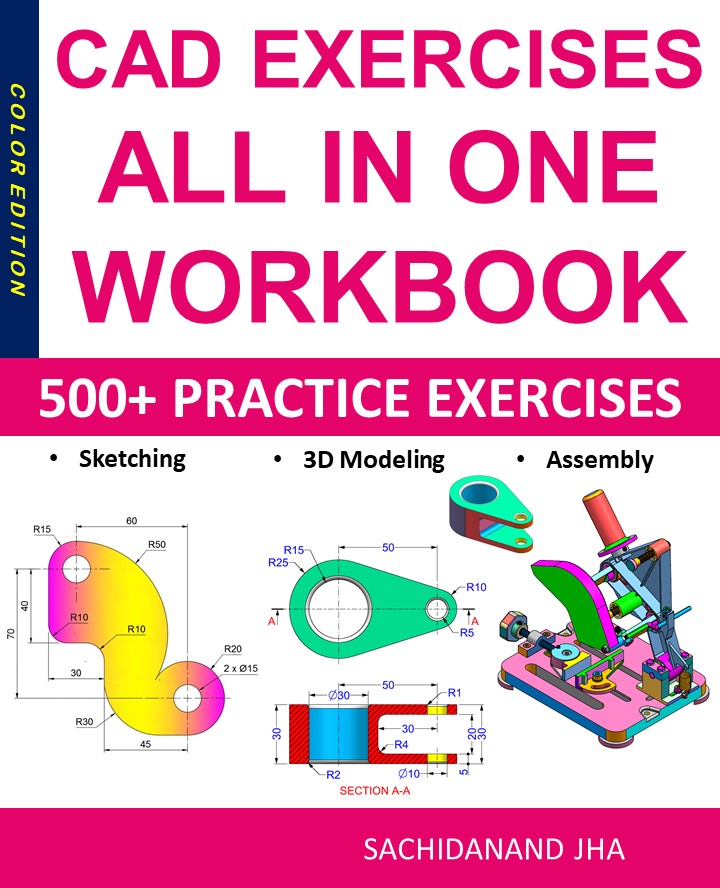
CAD Exercises Workbook Cover

CAD EXERCISES All-in-One Workbook

500+ Practice Exercises to Master CAD Through Real-World Practice!

This all-in-one workbook is your ultimate resource to develop hands-on CAD skills using any CAD software.

What’s Inside this Book:

  • 200 2D Sketching Exercises – Build a strong foundation in dimension-driven 2D geometry andtechnical drawings.
  • 200 3D Modeling Exercises – Practice modeling real-world parts, from simple shapes to complex components.
  • Multi-Part Assembly Projects – Understand how parts fit together and create full assemblies with detailed drawings

🎯 Why This Book?

  • 500+ practice exercises following real design standards
  • Designed for self-paced learning & independent practice
  • Covers 2D Sketching, 3D Modeling & Assembly Design in one workbook
  • Trusted by 15,000+ CAD learners worldwide

How to Use Fusion 360 – Complete Beginner Guide (2025)

How to Use Fusion 360: A Complete Beginner’s Guide (2025)

Fusion 360 is one of the most powerful and beginner-friendly CAD/CAM/CAE tools available today. Developed by Autodesk, Fusion 360 is widely used for 3D modeling, product design, mechanical engineering, CNC machining, and 3D printing. Whether you are a student, hobbyist, or professional designer, learning Fusion 360 can significantly boost your design and manufacturing skills.

In this guide, you’ll learn how to use Fusion 360 step by step, from setting up your workspace to creating your first 3D model and exporting it for manufacturing.


What Is Fusion 360?

Fusion 360 is a cloud-based 3D CAD, CAM, and CAE software that combines design, engineering, and manufacturing tools in one platform. Unlike traditional CAD software, Fusion 360 allows parametric modeling, direct modeling, simulation, and collaboration in a single workflow.

Key Features of Fusion 360

  • Parametric & direct 3D modeling

  • Sketch-based design

  • Assembly & joint system

  • Simulation & stress analysis

  • CAM for CNC machining

  • Cloud collaboration & version control


How to Download and Install Fusion 360

Before learning how to use Fusion 360, you need to install it properly.

Steps to Install Fusion 360

  1. Visit the Autodesk Fusion 360 official website

  2. Sign in with your Autodesk account

  3. Choose the correct license:

    • Personal Use (Free for hobbyists)

    • Student/Educational License

    • Commercial License

  4. Download and install Fusion 360

  5. Launch the software and sign in

Once installed, Fusion 360 automatically updates via the cloud.


Understanding the Fusion 360 Interface

When you open Fusion 360, the interface may feel overwhelming, but it’s well organized.

Main Areas of Fusion 360

  • Toolbar – Design, Solid, Surface, Mesh, and Sheet Metal tools

  • Browser Panel – Shows sketches, bodies, components, and timelines

  • Canvas – Main workspace where you model

  • Timeline – Tracks design history and parametric changes

Understanding the timeline is crucial, as it allows you to edit any step later without breaking your model.


Creating Your First Sketch in Fusion 360

Sketching is the foundation of all 3D models in Fusion 360.

Steps to Create a Sketch

  1. Click Create Sketch

  2. Select a plane (XY, YZ, or XZ)

  3. Use sketch tools like:

    • Line

    • Rectangle

    • Circle

    • Arc

  4. Apply dimensions (D key) to fully constrain the sketch

  5. Finish the sketch

💡 Tip: Always aim for a fully constrained sketch (black lines), which ensures stability.


Turning a Sketch into a 3D Model

Once your sketch is ready, you can convert it into a solid body.

Common 3D Modeling Tools

  • Extrude (E) – Create 3D shapes from sketches

  • Revolve – Rotate a profile around an axis

  • Loft – Blend shapes between profiles

  • Sweep – Extrude along a path

Example:

  • Select a sketch profile

  • Press E (Extrude)

  • Enter distance

  • Click OK

You now have your first 3D model in Fusion 360.


Using Components and Assemblies

Fusion 360 uses a component-based workflow, which is essential for real-world designs.

Why Use Components?

  • Better organization

  • Easier assemblies

  • Motion simulation

  • Improved performance

How to Create Components

  1. Right-click in the Browser

  2. Select New Component

  3. Model parts inside components

  4. Use Joints to connect parts

This approach is ideal for mechanical designs and product assemblies.


Applying Materials and Appearance

Fusion 360 allows you to add realistic materials to your model.

Steps to Apply Materials

  1. Press A (Appearance)

  2. Choose a material (metal, plastic, wood, etc.)

  3. Drag and drop onto your model

  4. Adjust color, texture, and finish

This is useful for rendering, presentations, and client previews.


Rendering and Visualization

Fusion 360 includes a powerful rendering engine.

Rendering Workflow

  • Switch to Render Workspace

  • Set environment and lighting

  • Choose materials

  • Adjust camera angle

  • Click Render

You can render locally or use cloud rendering for faster results.


Exporting Files for Manufacturing

Fusion 360 supports multiple export formats depending on your use case.

Common Export Formats

  • STL – 3D printing

  • STEP / IGES – CAD file sharing

  • DXF – Laser cutting / CNC

  • G-code – CNC machining (CAM workspace)

To export:

  1. Go to File → Export

  2. Choose format

  3. Save locally or to the cloud


Tips to Learn Fusion 360 Faster

  • Learn keyboard shortcuts (E, D, L, P)

  • Use parametric design properly

  • Name sketches and components

  • Watch Autodesk tutorials

  • Practice real-world projects

  • Avoid editing bodies directly—edit sketches instead


Final Thoughts

Fusion 360 is an all-in-one design and manufacturing solution that is both beginner-friendly and industry-ready. By mastering sketches, parametric modeling, components, and exporting workflows, you can design professional-grade products efficiently.

Whether you want to create mechanical parts, 3D printable models, or CNC-ready designs, Fusion 360 gives you everything you need in one powerful platform.

How to Use Fusion 360 – Complete Beginner Guide (2025)

How to Use Fusion 360: A Complete Beginner’s Guide (2025)

Fusion 360 is one of the most powerful and beginner-friendly CAD/CAM/CAE tools available today. Developed by Autodesk, Fusion 360 is widely used for 3D modeling, product design, mechanical engineering, CNC machining, and 3D printing. Whether you are a student, hobbyist, or professional designer, learning Fusion 360 can significantly boost your design and manufacturing skills.

In this guide, you’ll learn how to use Fusion 360 step by step, from setting up your workspace to creating your first 3D model and exporting it for manufacturing.


What Is Fusion 360?

Fusion 360 is a cloud-based 3D CAD, CAM, and CAE software that combines design, engineering, and manufacturing tools in one platform. Unlike traditional CAD software, Fusion 360 allows parametric modeling, direct modeling, simulation, and collaboration in a single workflow.

Key Features of Fusion 360

  • Parametric & direct 3D modeling

  • Sketch-based design

  • Assembly & joint system

  • Simulation & stress analysis

  • CAM for CNC machining

  • Cloud collaboration & version control


How to Download and Install Fusion 360

Before learning how to use Fusion 360, you need to install it properly.

Steps to Install Fusion 360

  1. Visit the Autodesk Fusion 360 official website

  2. Sign in with your Autodesk account

  3. Choose the correct license:

    • Personal Use (Free for hobbyists)

    • Student/Educational License

    • Commercial License

  4. Download and install Fusion 360

  5. Launch the software and sign in

Once installed, Fusion 360 automatically updates via the cloud.


Understanding the Fusion 360 Interface

When you open Fusion 360, the interface may feel overwhelming, but it’s well organized.

Main Areas of Fusion 360

  • Toolbar – Design, Solid, Surface, Mesh, and Sheet Metal tools

  • Browser Panel – Shows sketches, bodies, components, and timelines

  • Canvas – Main workspace where you model

  • Timeline – Tracks design history and parametric changes

Understanding the timeline is crucial, as it allows you to edit any step later without breaking your model.


Creating Your First Sketch in Fusion 360

Sketching is the foundation of all 3D models in Fusion 360.

Steps to Create a Sketch

  1. Click Create Sketch

  2. Select a plane (XY, YZ, or XZ)

  3. Use sketch tools like:

    • Line

    • Rectangle

    • Circle

    • Arc

  4. Apply dimensions (D key) to fully constrain the sketch

  5. Finish the sketch

💡 Tip: Always aim for a fully constrained sketch (black lines), which ensures stability.


Turning a Sketch into a 3D Model

Once your sketch is ready, you can convert it into a solid body.

Common 3D Modeling Tools

  • Extrude (E) – Create 3D shapes from sketches

  • Revolve – Rotate a profile around an axis

  • Loft – Blend shapes between profiles

  • Sweep – Extrude along a path

Example:

  • Select a sketch profile

  • Press E (Extrude)

  • Enter distance

  • Click OK

You now have your first 3D model in Fusion 360.


Using Components and Assemblies

Fusion 360 uses a component-based workflow, which is essential for real-world designs.

Why Use Components?

  • Better organization

  • Easier assemblies

  • Motion simulation

  • Improved performance

How to Create Components

  1. Right-click in the Browser

  2. Select New Component

  3. Model parts inside components

  4. Use Joints to connect parts

This approach is ideal for mechanical designs and product assemblies.


Applying Materials and Appearance

Fusion 360 allows you to add realistic materials to your model.

Steps to Apply Materials

  1. Press A (Appearance)

  2. Choose a material (metal, plastic, wood, etc.)

  3. Drag and drop onto your model

  4. Adjust color, texture, and finish

This is useful for rendering, presentations, and client previews.


Rendering and Visualization

Fusion 360 includes a powerful rendering engine.

Rendering Workflow

  • Switch to Render Workspace

  • Set environment and lighting

  • Choose materials

  • Adjust camera angle

  • Click Render

You can render locally or use cloud rendering for faster results.


Exporting Files for Manufacturing

Fusion 360 supports multiple export formats depending on your use case.

Common Export Formats

  • STL – 3D printing

  • STEP / IGES – CAD file sharing

  • DXF – Laser cutting / CNC

  • G-code – CNC machining (CAM workspace)

To export:

  1. Go to File → Export

  2. Choose format

  3. Save locally or to the cloud


Tips to Learn Fusion 360 Faster

  • Learn keyboard shortcuts (E, D, L, P)

  • Use parametric design properly

  • Name sketches and components

  • Watch Autodesk tutorials

  • Practice real-world projects

  • Avoid editing bodies directly—edit sketches instead


Final Thoughts

Fusion 360 is an all-in-one design and manufacturing solution that is both beginner-friendly and industry-ready. By mastering sketches, parametric modeling, components, and exporting workflows, you can design professional-grade products efficiently.

Whether you want to create mechanical parts, 3D printable models, or CNC-ready designs, Fusion 360 gives you everything you need in one powerful platform.