


Master Fusion 360: Enable/Disable Sketch Grid

Master Fusion 360: Enable/Disable Sketch Grid

Introduction

Fusion 360 is a powerful 3D CAD, CAM, and CAE tool that offers a wide range of features and tools for product design, engineering, and manufacturing. One of the useful features in Fusion 360 is the Sketch Grid, which provides a temporary reference frame for sketching and drawing objects. In this blog post, we will explore the process of turning the Sketch Grid on and off in Fusion 360.

Understanding the Sketch Grid

The Sketch Grid is a temporary reference frame that is displayed on the sketch plane. It consists of a series of lines and curves that intersect at specific points, creating a grid-like pattern. The Sketch Grid is useful for creating accurate and precise sketches, especially when working with complex shapes or symmetrical objects.

Turning the Sketch Grid On

To turn the Sketch Grid on in Fusion 360, follow these steps:

  1. Open a new or existing sketch in Fusion 360.
  2. Go to the “Sketch” tab in the top menu bar.
  3. Click on the “Grid” dropdown menu.
  4. Select “Show Grid” from the list of options.
  5. The Sketch Grid will be displayed on the sketch plane.

Alternatively, you can also turn the Sketch Grid on using the keyboard shortcut “Ctrl+Shift+G” (Windows) or “Command+Shift+G” (Mac).

Customizing the Sketch Grid

While the Sketch Grid is turned on, you can customize its appearance by adjusting the grid size, line style, and color. To do this:

  1. Go to the “Sketch” tab in the top menu bar.
  2. Click on the “Grid” dropdown menu.
  3. Select “Grid Options” from the list of options.
  4. In the “Grid Options” dialog box, adjust the grid size, line style, and color as desired.
  5. Click “OK” to apply the changes.

Turning the Sketch Grid Off

To turn the Sketch Grid off in Fusion 360, follow these steps:

  1. Open a new or existing sketch in Fusion 360.
  2. Go to the “Sketch” tab in the top menu bar.
  3. Click on the “Grid” dropdown menu.
  4. Select “Hide Grid” from the list of options.
  5. The Sketch Grid will be hidden from the sketch plane.

Alternatively, you can also turn the Sketch Grid off using the keyboard shortcut “Ctrl+Shift+G” (Windows) or “Command+Shift+G” (Mac) while holding down the “Shift” key.

Using the Sketch Grid in Practice

The Sketch Grid is a useful tool for creating accurate and precise sketches in Fusion 360. Here are a few examples of how to use the Sketch Grid in practice:

Example 1: Creating a Symmetrical Object

To create a symmetrical object using the Sketch Grid, follow these steps:

  1. Create a new sketch in Fusion 360.
  2. Go to the “Sketch” tab in the top menu bar.
  3. Click on the “Grid” dropdown menu.
  4. Select “Show Grid” from the list of options.
  5. Draw a line or shape on the sketch plane using the Sketch Grid as a reference frame.
  6. Use the “Mirror” tool to create a symmetrical copy of the line or shape.
  7. Adjust the Sketch Grid as needed to create the desired symmetrical object.

Example 2: Creating a Complex Shape

To create a complex shape using the Sketch Grid, follow these steps:

  1. Create a new sketch in Fusion 360.
  2. Go to the “Sketch” tab in the top menu bar.
  3. Click on the “Grid” dropdown menu.
  4. Select “Show Grid” from the list of options.
  5. Draw a series of lines or shapes on the sketch plane using the Sketch Grid as a reference frame.
  6. Use the “Trim” and “Extend” tools to modify the lines or shapes as needed.
  7. Adjust the Sketch Grid as needed to create the desired complex shape.

Conclusion

The Sketch Grid is a powerful tool in Fusion 360 that provides a temporary reference frame for sketching and drawing objects. By turning the Sketch Grid on and off, you can create accurate and precise sketches, especially when working with complex shapes or symmetrical objects. In this blog post, we have explored the process of turning the Sketch Grid on and off, as well as how to customize its appearance and use it in practice.

FAQ

Q: How do I turn the Sketch Grid on in Fusion 360?

A: To turn the Sketch Grid on in Fusion 360, go to the “Sketch” tab in the top menu bar, click on the “Grid” dropdown menu, and select “Show Grid” from the list of options.

Q: How do I turn the Sketch Grid off in Fusion 360?

A: To turn the Sketch Grid off in Fusion 360, go to the “Sketch” tab in the top menu bar, click on the “Grid” dropdown menu, and select “Hide Grid” from the list of options.

Q: Can I customize the appearance of the Sketch Grid?

A: Yes, you can customize the appearance of the Sketch Grid by adjusting the grid size, line style, and color. To do this, go to the “Sketch” tab in the top menu bar, click on the “Grid” dropdown menu, and select “Grid Options” from the list of options.

Q: How do I use the Sketch Grid to create a symmetrical object?

A: To create a symmetrical object using the Sketch Grid, draw a line or shape on the sketch plane using the Sketch Grid as a reference frame, and then use the “Mirror” tool to create a symmetrical copy of the line or shape.

Q: Can I use the Sketch Grid to create complex shapes?

A: Yes, you can use the Sketch Grid to create complex shapes by drawing a series of lines or shapes on the sketch plane using the Sketch Grid as a reference frame, and then using the “Trim” and “Extend” tools to modify the lines or shapes as needed.

Q: How do I reset the Sketch Grid to its default settings?

A: To reset the Sketch Grid to its default settings, go to the “Sketch” tab in the top menu bar, click on the “Grid” dropdown menu, and select “Reset Grid” from the list of options.


End of Blog


Fusion 360 Workbook Cover

After purchasing, a download link will be sent instantly to your email.

Buy Now For $27.99

Are you a student or Unemployed? Get this bundle for $19.99

Offer for Students Buy Now For $19.99

Buy Paperback on Amazon.com

Autodesk Fusion 360 All-in-One Workbook

500+ Practice Exercises to Master Autodesk Fusion 360 through real-world practice!

This all-in-one workbook is your ultimate resource to develop hands-on CAD skills with Autodesk Fusion 360. Whether you’re a student, engineer, hobbyist, or professional, this guide is built to help you gain real design confidence through structured practice.

What’s Inside this Book:

  • 200 2D Sketching Exercises – Build a strong foundation in dimension-driven 2D geometry and technical drawings
  • 200 3D Modeling Exercises – Practice modeling real-world parts, from simple shapes to complex components.
  • Multi-Part Assembly Projects – Understand how parts fit together and create full assemblies with detailed drawings

🎯 Why This Book?

  • 500+ practice exercises following real design standards
  • Designed for self-paced learning & independent practice
  • Perfect for classrooms, technical interview preparation, and personal projects
  • Covers 2D Sketching, 3D Modeling & Assembly Design in one workbook
  • Trusted by 15,000+ CAD learners worldwide

After purchasing, a download link will be sent instantly to your email.

Buy Now For $27.99

Are you a student or Unemployed? Get this bundle for $19.99

Offer for Students Buy Now For $19.99

Buy Paperback on Amazon.com

Fusion 360 Software: Complete Guide to Features, Benefits & Uses in 2026

Fusion 360: The Complete Guide to Autodesk’s Cloud-Based CAD Software

Fusion 360 is one of the most advanced and versatile design tools available today. Developed by Autodesk, Fusion 360 combines CAD (Computer-Aided Design), CAM (Computer-Aided Manufacturing), and CAE (Computer-Aided Engineering) into a single cloud-based platform. This unified approach has made Fusion 360 a favorite among engineers, product designers, startups, and manufacturers worldwide.

In this guide, we’ll explore what Fusion 360 is, its key features, benefits, applications, and why it stands out in the modern CAD landscape.


What Is Fusion 360?

Fusion 360 is a professional 3D design and engineering software developed by Autodesk. Unlike traditional desktop-only CAD tools, Fusion 360 operates on a cloud-connected environment, enabling real-time collaboration, automatic updates, and secure data storage.

Fusion 360 supports:

  • 3D parametric modeling

  • Freeform and surface modeling

  • Mechanical assemblies

  • Simulation and analysis

  • CNC machining and manufacturing workflows

This all-in-one approach eliminates the need for multiple disconnected tools.


Key Features of Fusion 360

Fusion 360 is packed with powerful features designed for modern product development.

1. Parametric and Direct Modeling

Fusion 360 allows both parametric modeling (dimension-driven designs) and direct modeling for flexible edits. Designers can quickly iterate without breaking design intent.

2. Cloud-Based Collaboration

All projects are stored securely in the cloud, allowing teams to:

  • Collaborate in real time

  • Track design history

  • Access designs from anywhere

3. Integrated CAM

Fusion 360 includes built-in CAM tools for:

  • CNC milling

  • Turning

  • Cutting

  • Additive manufacturing

This makes it ideal for manufacturing-ready designs.

4. Simulation and Analysis (CAE)

Engineers can test designs using:

  • Stress and strain analysis

  • Thermal simulations

  • Motion studies

Early testing helps reduce design failures and production costs.

5. Generative Design

Fusion 360 uses AI-driven generative design to automatically create optimized design options based on materials, constraints, and manufacturing methods.


Benefits of Using Fusion 360

Fusion 360 offers several advantages over traditional CAD software.

Faster Product Development

By combining CAD, CAM, and CAE in one platform, Fusion 360 reduces workflow complexity and speeds up development cycles.

Cost-Effective Solution

Fusion 360 is more affordable than many high-end CAD tools and offers flexible subscription plans for startups, students, and hobbyists.

Easy Learning Curve

With an intuitive interface and extensive tutorials, Fusion 360 is beginner-friendly while still powerful enough for professionals.

Automatic Updates

Users always have access to the latest features without manual upgrades.


Applications of Fusion 360

Fusion 360 is used across a wide range of industries.

Product Design and Prototyping

Designers create functional prototypes and test them digitally before physical production.

Mechanical Engineering

Engineers design complex mechanical parts and assemblies with precision.

Manufacturing and CNC Machining

Fusion 360’s CAM tools generate toolpaths directly from CAD models, ensuring accuracy and efficiency.

Electronics Design

Fusion 360 supports PCB design and integrates electronic and mechanical workflows.

Education and Training

Students and educators use Fusion 360 to learn modern design and manufacturing processes.


Fusion 360 vs Traditional CAD Software

Fusion 360 differs from traditional CAD tools in several ways:

  • Cloud-based collaboration instead of local file storage

  • Integrated manufacturing tools instead of third-party plugins

  • Subscription-based pricing instead of expensive perpetual licenses

  • Continuous feature updates instead of yearly releases

These advantages make Fusion 360 especially appealing to modern design teams.


Fusion 360 Pricing Overview

Fusion 360 offers multiple licensing options:

  • Free licenses for students, educators, and personal use

  • Commercial subscriptions for professionals and businesses

  • Startup plans with reduced pricing

This flexible pricing makes Fusion 360 accessible to users at all levels.


Future of Fusion 360

Autodesk continues to enhance Fusion 360 with:

  • AI-assisted design tools

  • Advanced generative design

  • Improved cloud performance

  • Deeper manufacturing integrations

As digital manufacturing and Industry 4.0 grow, Fusion 360 is positioned to remain a leading design platform.


Final Thoughts

Fusion 360 is more than just CAD software—it’s a complete product development ecosystem. By integrating design, engineering, and manufacturing into a single cloud-based platform, Fusion 360 empowers teams to innovate faster and smarter.

Whether you’re a student, startup founder, or professional engineer, Fusion 360 offers the tools needed to turn idea


End of Blog


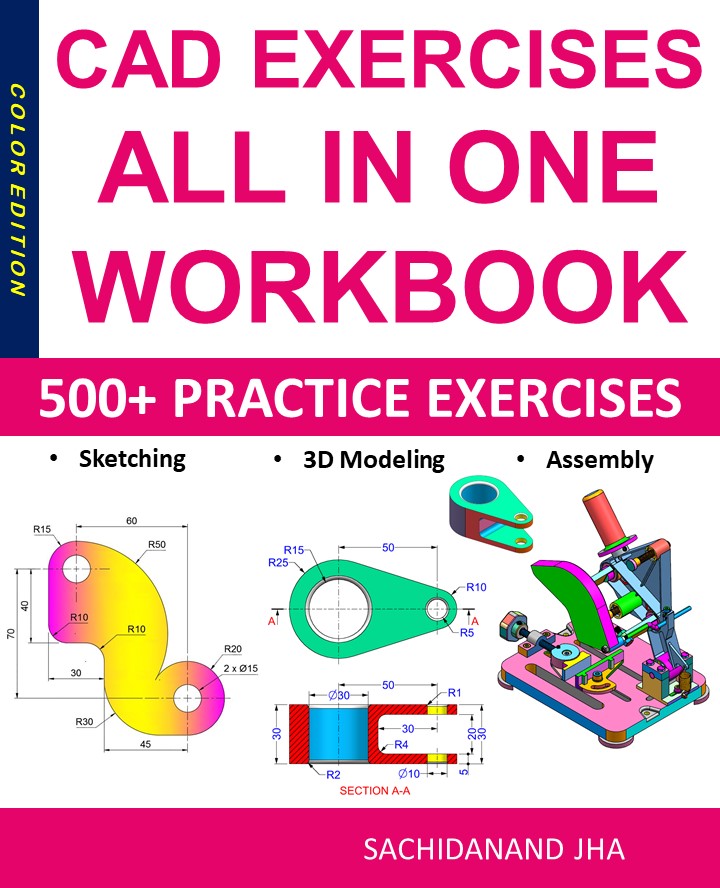
CAD Exercises Workbook Cover

After purchasing, a download link will be sent instantly to your email.

Buy Now For $27.99

Are you a student or Unemployed? Get this bundle for $19.99

Offer for Students Buy Now For $19.99

Buy Paperback on Amazon.com

CAD EXERCISES All-in-One Workbook

500+ Practice Exercises to Master CAD Through Real-World Practice!

This all-in-one workbook is your ultimate resource to develop hands-on CAD skills using any CAD software.Whether you’re a student, engineer, hobbyist, or professional, this guide is designed to help you gain real design confidence through structured, practice-oriented exercises.

What’s Inside this Book:

  • 200 2D Sketching Exercises – Build a strong foundation in dimension-driven 2D geometry and technical drawings
  • 200 3D Modeling Exercises – Practice modeling real-world parts, from simple shapes to complex components.
  • Multi-Part Assembly Projects – Understand how parts fit together and create full assemblies with detailed drawings

🎯 Why This Book?

  • 500+ practice exercises following real design standards
  • Designed for self-paced learning & independent practice
  • Perfect for classrooms, technical interview preparation, and personal projects
  • Covers 2D Sketching, 3D Modeling & Assembly Design in one workbook
  • Trusted by 15,000+ CAD learners worldwide
After purchasing, a download link will be sent instantly to your email.

Buy Now For $27.99

Are you a student or Unemployed? Get this bundle for $19.99

Offer for Students Buy Now For $19.99

Buy Paperback on Amazon.com