

TurboCAD Software: Complete Guide for 2D & 3D CAD Design
TurboCAD software is a powerful and flexible CAD solution used for professional 2D drafting and 3D modeling. Whether you are an engineer, architect, product designer, or student, TurboCAD offers advanced design tools at a cost-effective price compared to other CAD platforms.
In this guide, you’ll learn what TurboCAD software is, its key features, how it compares to other CAD tools, and how to use it efficiently for professional design projects.
What Is TurboCAD Software?
TurboCAD software is a computer-aided design (CAD) application developed by IMSI Design. It is widely used for creating technical drawings, floor plans, mechanical designs, and 3D models with high precision.
TurboCAD supports both 2D drafting and 3D surface and solid modeling, making it suitable for a wide range of industries, including architecture, manufacturing, construction, and engineering.
Why Choose TurboCAD Software for CAD Design?
TurboCAD software stands out because it combines professional-level tools with affordable pricing. Unlike many subscription-based CAD tools, TurboCAD offers perpetual licenses, making it a popular choice for independent designers and small businesses.
Key Benefits of TurboCAD Software
-
Cost-effective alternative to premium CAD tools
-
Advanced 2D and 3D design capabilities
-
High compatibility with DWG and DXF files
-
Customizable user interface
-
Suitable for beginners and professionals
Key Features of TurboCAD Software
TurboCAD software includes a wide range of features designed to improve productivity and design accuracy.
1. Advanced 2D Drafting Tools
TurboCAD provides precise drafting tools such as:
-
Smart dimensioning
-
Layers and object snapping
-
Parametric constraints
-
Annotation and text tools
These tools help users create accurate technical drawings for construction and manufacturing.
2. Powerful 3D Modeling Capabilities
With TurboCAD software, you can create:
-
Solid and surface models
-
Extrusions, sweeps, and lofts
-
Boolean operations
-
Photorealistic renderings
This makes TurboCAD suitable for product design and mechanical modeling.
3. File Compatibility and Import/Export
TurboCAD supports:
-
DWG / DXF
-
STL
-
SKP
-
PDF
-
OBJ
This ensures seamless collaboration with users of other CAD software.
4. Customization and Automation
TurboCAD allows users to:
-
Customize tool palettes
-
Use scripts for repetitive tasks
-
Modify shortcuts and UI layouts
TurboCAD Software Versions Explained
TurboCAD software is available in multiple versions to suit different user needs.
TurboCAD Deluxe
-
Ideal for beginners and hobbyists
-
Strong 2D drafting tools
-
Basic 3D modeling features
TurboCAD Expert
-
Advanced 3D modeling tools
-
Architectural and mechanical features
-
Best for professionals and businesses
How to Get Started with TurboCAD Software
Getting started with TurboCAD software is simple, even for beginners.
Step 1: Install TurboCAD
Download TurboCAD from the official IMSI Design website and choose the version that matches your requirements.
Step 2: Learn the Interface
TurboCAD uses a command-based interface similar to other CAD platforms, making it easier for experienced CAD users to adapt.
Step 3: Create Your First Drawing
Start with a simple 2D sketch, then gradually move to 3D modeling as you become comfortable with the tools.
Best Practices for Using TurboCAD Software
To get the most out of TurboCAD software, follow these best practices:
-
Use layers to organize drawings
-
Save custom templates for repeated projects
-
Learn keyboard shortcuts for faster workflow
-
Regularly update and backup your files
-
Optimize render settings for better performance
TurboCAD vs Other CAD Software
When compared to other CAD tools like AutoCAD or Fusion 360, TurboCAD software offers:
| Feature | TurboCAD | Other CAD Tools |
|---|---|---|
| Pricing | One-time license | Subscription-based |
| 2D Drafting | Excellent | Excellent |
| 3D Modeling | Strong | Strong |
| Learning Curve | Moderate | Moderate to High |
TurboCAD is an excellent choice for users looking for professional features without recurring costs.
Who Should Use TurboCAD Software?
TurboCAD software is ideal for:
-
Architects and engineers
-
Mechanical designers
-
Interior designers
-
Students and educators
-
Small businesses and freelancers
Common Mistakes to Avoid in TurboCAD
-
Ignoring layer management
-
Not using object snaps
-
Overcomplicating early designs
-
Forgetting to optimize file exports
Avoiding these mistakes will significantly improve your productivity.
Conclusion: Is TurboCAD Software Worth It?
TurboCAD software is a powerful, affordable, and versatile CAD solution for both 2D drafting and 3D modeling. Its professional tools, flexible licensing, and wide file compatibility make it an excellent choice for designers who want full control without ongoing subscription costs.
If you are looking for a reliable CAD tool that balances performance, features, and cost, TurboCAD software is definitely worth considering.
End of Blog
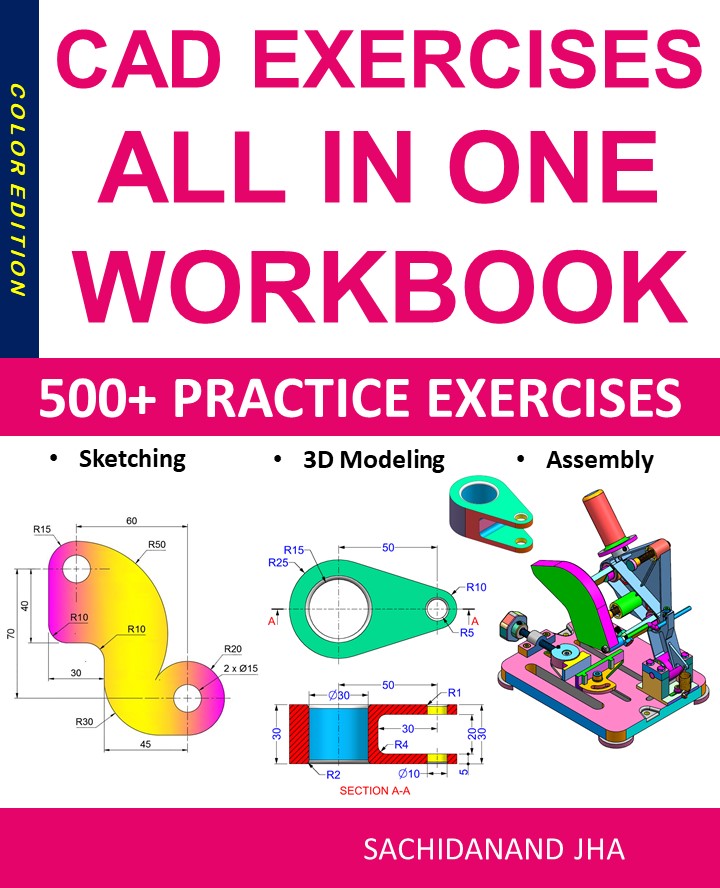
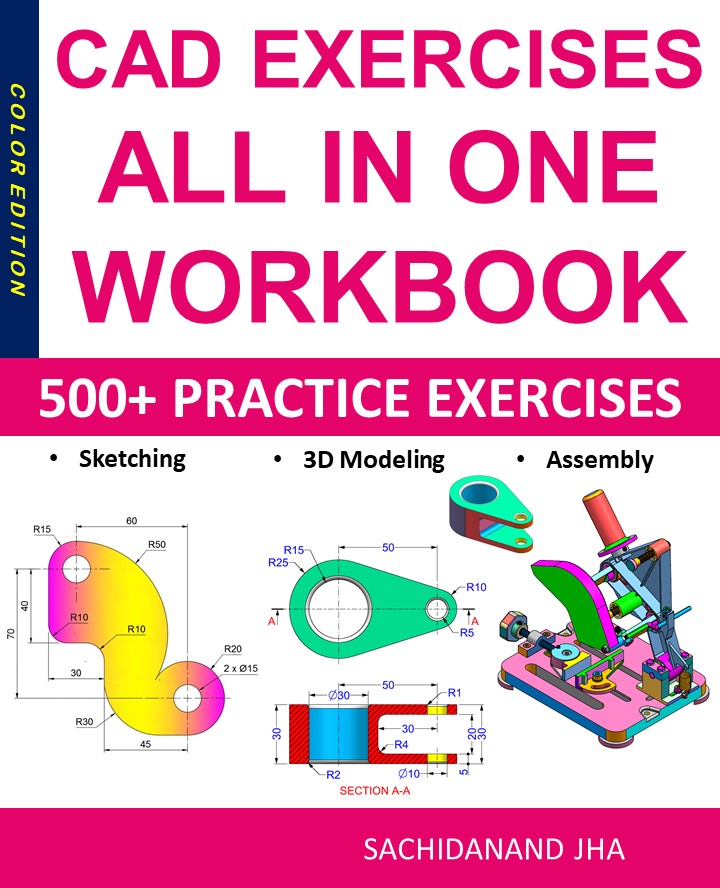
CAD EXERCISES All-in-One Workbook
500+ Practice Exercises to Master CAD Through Real-World Practice!
This all-in-one workbook is your ultimate resource to develop hands-on CAD skills using any CAD software.Whether you’re a student, engineer, hobbyist, or professional, this guide is designed to help you gain real design confidence through structured, practice-oriented exercises.
What’s Inside this Book:
- 200 2D Sketching Exercises – Build a strong foundation in dimension-driven 2D geometry and technical drawings
- 200 3D Modeling Exercises – Practice modeling real-world parts, from simple shapes to complex components.
- Multi-Part Assembly Projects – Understand how parts fit together and create full assemblies with detailed drawings
🎯 Why This Book?
- 500+ practice exercises following real design standards
- Designed for self-paced learning & independent practice
- Perfect for classrooms, technical interview preparation, and personal projects
- Covers 2D Sketching, 3D Modeling & Assembly Design in one workbook
- Trusted by 15,000+ CAD learners worldwide
How to Use Fusion 360 – Complete Beginner Guide (2025)

Fusion 360 is one of the most powerful and beginner-friendly CAD/CAM/CAE tools available today. Developed by Autodesk, Fusion 360 is widely used for 3D modeling, product design, mechanical engineering, CNC machining, and 3D printing. Whether you are a student, hobbyist, or professional designer, learning Fusion 360 can significantly boost your design and manufacturing skills.
In this guide, you’ll learn how to use Fusion 360 step by step, from setting up your workspace to creating your first 3D model and exporting it for manufacturing.
What Is Fusion 360?
Fusion 360 is a cloud-based 3D CAD, CAM, and CAE software that combines design, engineering, and manufacturing tools in one platform. Unlike traditional CAD software, Fusion 360 allows parametric modeling, direct modeling, simulation, and collaboration in a single workflow.
Key Features of Fusion 360
-
Parametric & direct 3D modeling
-
Sketch-based design
-
Assembly & joint system
-
Simulation & stress analysis
-
CAM for CNC machining
-
Cloud collaboration & version control
How to Download and Install Fusion 360
Before learning how to use Fusion 360, you need to install it properly.
Steps to Install Fusion 360
-
Visit the Autodesk Fusion 360 official website
-
Sign in with your Autodesk account
-
Choose the correct license:
-
Personal Use (Free for hobbyists)
-
Student/Educational License
-
Commercial License
-
-
Download and install Fusion 360
-
Launch the software and sign in
Once installed, Fusion 360 automatically updates via the cloud.
Understanding the Fusion 360 Interface
When you open Fusion 360, the interface may feel overwhelming, but it’s well organized.
Main Areas of Fusion 360
-
Toolbar – Design, Solid, Surface, Mesh, and Sheet Metal tools
-
Browser Panel – Shows sketches, bodies, components, and timelines
-
Canvas – Main workspace where you model
-
Timeline – Tracks design history and parametric changes
Understanding the timeline is crucial, as it allows you to edit any step later without breaking your model.
Creating Your First Sketch in Fusion 360
Sketching is the foundation of all 3D models in Fusion 360.
Steps to Create a Sketch
-
Click Create Sketch
-
Select a plane (XY, YZ, or XZ)
-
Use sketch tools like:
-
Line
-
Rectangle
-
Circle
-
Arc
-
-
Apply dimensions (D key) to fully constrain the sketch
-
Finish the sketch
💡 Tip: Always aim for a fully constrained sketch (black lines), which ensures stability.
Turning a Sketch into a 3D Model
Once your sketch is ready, you can convert it into a solid body.
Common 3D Modeling Tools
-
Extrude (E) – Create 3D shapes from sketches
-
Revolve – Rotate a profile around an axis
-
Loft – Blend shapes between profiles
-
Sweep – Extrude along a path
Example:
-
Select a sketch profile
-
Press E (Extrude)
-
Enter distance
-
Click OK
You now have your first 3D model in Fusion 360.
Using Components and Assemblies
Fusion 360 uses a component-based workflow, which is essential for real-world designs.
Why Use Components?
-
Better organization
-
Easier assemblies
-
Motion simulation
-
Improved performance
How to Create Components
-
Right-click in the Browser
-
Select New Component
-
Model parts inside components
-
Use Joints to connect parts
This approach is ideal for mechanical designs and product assemblies.
Applying Materials and Appearance
Fusion 360 allows you to add realistic materials to your model.
Steps to Apply Materials
-
Press A (Appearance)
-
Choose a material (metal, plastic, wood, etc.)
-
Drag and drop onto your model
-
Adjust color, texture, and finish
This is useful for rendering, presentations, and client previews.
Rendering and Visualization
Fusion 360 includes a powerful rendering engine.
Rendering Workflow
-
Switch to Render Workspace
-
Set environment and lighting
-
Choose materials
-
Adjust camera angle
-
Click Render
You can render locally or use cloud rendering for faster results.
Exporting Files for Manufacturing
Fusion 360 supports multiple export formats depending on your use case.
Common Export Formats
-
STL – 3D printing
-
STEP / IGES – CAD file sharing
-
DXF – Laser cutting / CNC
-
G-code – CNC machining (CAM workspace)
To export:
-
Go to File → Export
-
Choose format
-
Save locally or to the cloud
Tips to Learn Fusion 360 Faster
-
Learn keyboard shortcuts (E, D, L, P)
-
Use parametric design properly
-
Name sketches and components
-
Watch Autodesk tutorials
-
Practice real-world projects
-
Avoid editing bodies directly—edit sketches instead
Final Thoughts
Fusion 360 is an all-in-one design and manufacturing solution that is both beginner-friendly and industry-ready. By mastering sketches, parametric modeling, components, and exporting workflows, you can design professional-grade products efficiently.
Whether you want to create mechanical parts, 3D printable models, or CNC-ready designs, Fusion 360 gives you everything you need in one powerful platform.
Autodesk Inventor: Powerful 3D CAD for Engineers

Autodesk Inventor: Powerful 3D CAD Software for Mechanical Design and Engineering
Autodesk Inventor is a professional-grade 3D CAD software widely used for mechanical design, product development, and engineering simulations. Developed by Autodesk, Inventor enables engineers and designers to create accurate 3D models, assemblies, and technical drawings with precision and efficiency. It is especially popular in manufacturing, automotive, aerospace, and industrial design industries.
In this in-depth guide, we’ll explore what Autodesk Inventor is, its core features, benefits, use cases, and why it remains one of the most trusted CAD tools for mechanical engineers worldwide.
What Is Autodesk Inventor?
Autodesk Inventor is a parametric, feature-based 3D mechanical design software that helps professionals design, visualize, and simulate products before they are built. It supports the complete product development lifecycle—from conceptual design and prototyping to manufacturing and documentation.
Inventor is available for Windows and integrates seamlessly with other Autodesk products such as AutoCAD, Fusion 360, and Vault, making it a strong choice for enterprise-level workflows.
Why Choose Autodesk Inventor?
Autodesk Inventor stands out for its advanced mechanical design tools, reliability, and deep integration with manufacturing processes.
1. Industry-Standard Mechanical CAD
Inventor is widely adopted across industries, making it easier to collaborate, hire skilled professionals, and exchange files with partners.
2. Parametric and Direct Modeling
Users can work with parametric constraints or switch to direct modeling for faster design iterations.
3. Professional Simulation Tools
Built-in stress analysis, motion simulation, and interference detection help validate designs before production.
4. Seamless Autodesk Ecosystem
Inventor integrates tightly with AutoCAD, Fusion 360, and Autodesk Vault for data management and collaboration.
Key Features of Autodesk Inventor
Parametric 3D Modeling
Inventor allows designers to define dimensions, constraints, and relationships, enabling easy updates and revisions throughout the design process.
Assembly Design and Management
Create complex assemblies with thousands of components while maintaining performance and design accuracy. Tools like constraints, joints, and contact sets ensure proper mechanical behavior.
Drawing and Documentation
Generate 2D drawings, exploded views, and bills of materials (BOMs) directly from 3D models, ensuring consistency and reducing errors.
Built-In Simulation and Analysis
Inventor includes tools for:
-
Stress and deformation analysis
-
Motion simulation
-
Dynamic loads testing
These features help reduce prototyping costs and improve product reliability.
Sheet Metal and Frame Design
Specialized tools allow users to design sheet metal parts, folded components, and structural frames with manufacturing-ready outputs.
iLogic Automation
Inventor’s iLogic feature enables rule-based automation, helping companies standardize designs and reduce repetitive tasks.
File Format Compatibility
Autodesk Inventor supports a wide range of industry-standard file formats, including:
-
DWG
-
DXF
-
STEP
-
IGES
-
STL
This ensures smooth collaboration with suppliers, manufacturers, and other CAD platforms.
Common Use Cases of Autodesk Inventor
Mechanical Engineering
Inventor is extensively used for designing machinery, tools, and mechanical components with high precision.
Product Design and Manufacturing
From consumer products to industrial equipment, Inventor supports detailed modeling and manufacturing-ready designs.
Automotive and Aerospace
Engineers use Inventor to design parts, assemblies, and systems that require high accuracy and simulation validation.
Sheet Metal Fabrication
Inventor’s sheet metal tools help generate flat patterns and production-ready designs for fabrication.
Education and Professional Training
Inventor is widely taught in engineering colleges and technical institutes, preparing students for real-world industry demands.
Autodesk Inventor vs Other CAD Software
When compared to tools like SolidWorks, Fusion 360, or FreeCAD, Autodesk Inventor excels in professional mechanical workflows.
-
Compared to Fusion 360: Inventor is more powerful for large assemblies and enterprise-level mechanical design.
-
Compared to SolidWorks: Inventor offers comparable features with tighter AutoCAD integration.
-
Compared to FreeCAD: Inventor provides a more polished UI, advanced simulations, and official technical support.
While Inventor is a paid tool, its feature depth justifies the investment for professional users.
Advantages of Autodesk Inventor
-
Professional-grade mechanical CAD tools
-
Advanced simulation and analysis
-
Strong assembly and documentation capabilities
-
Excellent integration with Autodesk products
-
Widely recognized in the engineering industry
Limitations of Autodesk Inventor
Despite its strengths, Inventor has some limitations:
-
Subscription-based pricing can be expensive
-
Available only on Windows
-
Requires powerful hardware for large assemblies
However, for professional engineering environments, these limitations are often outweighed by its capabilities.
Getting Started With Autodesk Inventor
To begin using Autodesk Inventor:
-
Download Inventor from Autodesk’s official website
-
Choose a subscription or educational license
-
Learn basic sketching, constraints, and assemblies
-
Explore Autodesk tutorials and official documentation
With practice, Inventor becomes an extremely efficient tool for complex mechanical design tasks.
Final Thoughts
Autodesk Inventor is one of the most powerful 3D CAD software solutions for mechanical engineering and product design. Its parametric modeling, advanced simulation tools, and seamless integration with the Autodesk ecosystem make it a top choice for professionals and enterprises.
If you are working on complex mechanical assemblies, manufacturing-ready designs, or engineering simulations, Autodesk Inventor provides the reliability, precision, and scalability required for modern product development.
Complete Guide to CAD

What Is CAD? A Complete Guide to Computer-Aided Design for Engineers and Designers
Introduction
Computer-Aided Design (CAD) has revolutionized the way engineers, architects, product designers, and manufacturers create, modify, analyze, and optimize designs. From simple 2D drawings to highly complex 3D models, CAD software plays a crucial role in modern design workflows across industries such as mechanical engineering, architecture, automotive, aerospace, construction, and product design.
In this comprehensive guide, we will explore what CAD is, how it works, types of CAD software, key benefits, real-world applications, and how to learn CAD effectively. Whether you are a beginner, student, or professional looking to upskill, this guide will help you understand why CAD is an essential tool in today’s digital design era.
What Is CAD (Computer-Aided Design)?
CAD (Computer-Aided Design) refers to the use of computer software to create precise drawings, technical illustrations, and 3D models for real-world objects. CAD replaces traditional manual drafting methods with digital tools that improve accuracy, efficiency, and collaboration.
CAD software allows designers to:
-
Create 2D technical drawings
-
Build 3D solid and surface models
-
Simulate real-world behavior
-
Modify designs quickly
-
Generate manufacturing-ready files
Modern CAD tools are widely used in engineering design, architectural planning, industrial design, and manufacturing.
How Does CAD Work?
CAD works by converting geometric data into digital models that can be visualized, edited, and analyzed. Designers use tools such as lines, curves, surfaces, and solids to create models based on exact dimensions.
Most CAD software includes:
-
Sketching tools for basic geometry
-
Parametric modeling for dimension-driven designs
-
Assemblies for multi-part products
-
Simulation and analysis tools
-
Export options for manufacturing (CNC, 3D printing)
CAD files can be shared, revised, and reused, making design collaboration faster and more efficient.
Types of CAD Software
1. 2D CAD Software
2D CAD is mainly used for drafting and technical drawings. It focuses on flat representations like floor plans, schematics, and layouts.
Examples:
-
AutoCAD
-
DraftSight
-
LibreCAD
Common Uses:
-
Architectural plans
-
Electrical schematics
-
Mechanical drawings
2. 3D CAD Software
3D CAD enables designers to create realistic three-dimensional models with depth, volume, and material properties.
Examples:
-
Fusion 360
-
SolidWorks
-
CATIA
-
Siemens NX
-
Creo
Common Uses:
-
Product design
-
Mechanical assemblies
-
Simulation and analysis
-
Prototyping
3. Parametric CAD
Parametric CAD allows users to define relationships and constraints between dimensions. Changing one parameter automatically updates the entire model.
Benefits:
-
Faster design changes
-
Reduced errors
-
Design consistency
Benefits of Using CAD Software
1. High Accuracy and Precision
CAD eliminates human drafting errors by using exact measurements, constraints, and tolerances.
2. Increased Productivity
Design changes can be made instantly without redrawing the entire model.
3. Better Visualization
3D CAD models provide realistic views, helping designers detect issues early.
4. Cost and Time Savings
By reducing errors and rework, CAD significantly lowers production costs.
5. Easy Collaboration
Digital files can be shared across teams and locations, enabling real-time collaboration.
Applications of CAD in Different Industries
Mechanical Engineering
CAD is used to design machine parts, tools, and assemblies. Engineers rely on CAD for stress analysis, motion simulation, and manufacturing drawings.
Architecture and Construction
Architects use CAD to create floor plans, elevations, sections, and 3D building models.
Automotive Industry
CAD is essential for vehicle design, component modeling, and aerodynamic simulation.
Aerospace Engineering
Highly complex CAD models are used for aircraft and spacecraft design with extreme precision.
Manufacturing and CNC Machining
CAD models are directly converted into CAM data for CNC machines and 3D printers.
CAD vs CAM vs CAE
| Term | Full Form | Purpose |
|---|---|---|
| CAD | Computer-Aided Design | Design and modeling |
| CAM | Computer-Aided Manufacturing | Manufacturing processes |
| CAE | Computer-Aided Engineering | Simulation and analysis |
These three technologies often work together in modern product development workflows.
Popular CAD Software in 2025
-
AutoCAD – Best for 2D drafting and documentation
-
Fusion 360 – Cloud-based CAD/CAM/CAE solution
-
SolidWorks – Industry-standard for mechanical design
-
CATIA – Advanced surface modeling and aerospace design
-
FreeCAD – Open-source parametric CAD software
How to Learn CAD Effectively
1. Start with the Basics
Learn sketching, constraints, dimensions, and simple 3D modeling.
2. Practice Real Projects
Design everyday objects like brackets, phone stands, or mechanical parts.
3. Follow Online Tutorials
Platforms like YouTube, Coursera, and Udemy offer structured CAD courses.
4. Learn Industry Standards
Understand GD&T, tolerances, and manufacturing best practices.
5. Build a CAD Portfolio
Showcase your designs to attract employers or freelance clients.
CAD Career Opportunities
Learning CAD opens doors to many career paths:
-
CAD Designer
-
Mechanical Engineer
-
Product Designer
-
CNC Programmer
-
Industrial Designer
-
BIM Modeler
CAD skills are in high demand globally, making them a valuable long-term investment.
Future of CAD Technology
The future of CAD is driven by:
-
Cloud-based collaboration
-
AI-powered design automation
-
Generative design
-
Integration with AR/VR
-
Real-time simulation
Modern CAD tools are becoming smarter, faster, and more accessible than ever before.
Conclusion
Computer-Aided Design (CAD) is the backbone of modern engineering and product development. From simple drawings to complex 3D simulations, CAD software empowers designers to create innovative, accurate, and manufacturable designs. Whether you are a student, professional, or hobbyist, learning CAD is a powerful step toward a successful career in design and engineering.
If you want to stay competitive in today’s technology-driven world, mastering CAD is no longer optional—it’s essential.
Complete Guide to CAD

What Is CAD? A Complete Guide to Computer-Aided Design for Engineers and Designers
Introduction
Computer-Aided Design (CAD) has revolutionized the way engineers, architects, product designers, and manufacturers create, modify, analyze, and optimize designs. From simple 2D drawings to highly complex 3D models, CAD software plays a crucial role in modern design workflows across industries such as mechanical engineering, architecture, automotive, aerospace, construction, and product design.
In this comprehensive guide, we will explore what CAD is, how it works, types of CAD software, key benefits, real-world applications, and how to learn CAD effectively. Whether you are a beginner, student, or professional looking to upskill, this guide will help you understand why CAD is an essential tool in today’s digital design era.
What Is CAD (Computer-Aided Design)?
CAD (Computer-Aided Design) refers to the use of computer software to create precise drawings, technical illustrations, and 3D models for real-world objects. CAD replaces traditional manual drafting methods with digital tools that improve accuracy, efficiency, and collaboration.
CAD software allows designers to:
-
Create 2D technical drawings
-
Build 3D solid and surface models
-
Simulate real-world behavior
-
Modify designs quickly
-
Generate manufacturing-ready files
Modern CAD tools are widely used in engineering design, architectural planning, industrial design, and manufacturing.
How Does CAD Work?
CAD works by converting geometric data into digital models that can be visualized, edited, and analyzed. Designers use tools such as lines, curves, surfaces, and solids to create models based on exact dimensions.
Most CAD software includes:
-
Sketching tools for basic geometry
-
Parametric modeling for dimension-driven designs
-
Assemblies for multi-part products
-
Simulation and analysis tools
-
Export options for manufacturing (CNC, 3D printing)
CAD files can be shared, revised, and reused, making design collaboration faster and more efficient.
Types of CAD Software
1. 2D CAD Software
2D CAD is mainly used for drafting and technical drawings. It focuses on flat representations like floor plans, schematics, and layouts.
Examples:
-
AutoCAD
-
DraftSight
-
LibreCAD
Common Uses:
-
Architectural plans
-
Electrical schematics
-
Mechanical drawings
2. 3D CAD Software
3D CAD enables designers to create realistic three-dimensional models with depth, volume, and material properties.
Examples:
-
Fusion 360
-
SolidWorks
-
CATIA
-
Siemens NX
-
Creo
Common Uses:
-
Product design
-
Mechanical assemblies
-
Simulation and analysis
-
Prototyping
3. Parametric CAD
Parametric CAD allows users to define relationships and constraints between dimensions. Changing one parameter automatically updates the entire model.
Benefits:
-
Faster design changes
-
Reduced errors
-
Design consistency
Benefits of Using CAD Software
1. High Accuracy and Precision
CAD eliminates human drafting errors by using exact measurements, constraints, and tolerances.
2. Increased Productivity
Design changes can be made instantly without redrawing the entire model.
3. Better Visualization
3D CAD models provide realistic views, helping designers detect issues early.
4. Cost and Time Savings
By reducing errors and rework, CAD significantly lowers production costs.
5. Easy Collaboration
Digital files can be shared across teams and locations, enabling real-time collaboration.
Applications of CAD in Different Industries
Mechanical Engineering
CAD is used to design machine parts, tools, and assemblies. Engineers rely on CAD for stress analysis, motion simulation, and manufacturing drawings.
Architecture and Construction
Architects use CAD to create floor plans, elevations, sections, and 3D building models.
Automotive Industry
CAD is essential for vehicle design, component modeling, and aerodynamic simulation.
Aerospace Engineering
Highly complex CAD models are used for aircraft and spacecraft design with extreme precision.
Manufacturing and CNC Machining
CAD models are directly converted into CAM data for CNC machines and 3D printers.
CAD vs CAM vs CAE
| Term | Full Form | Purpose |
|---|---|---|
| CAD | Computer-Aided Design | Design and modeling |
| CAM | Computer-Aided Manufacturing | Manufacturing processes |
| CAE | Computer-Aided Engineering | Simulation and analysis |
These three technologies often work together in modern product development workflows.
Popular CAD Software in 2025
-
AutoCAD – Best for 2D drafting and documentation
-
Fusion 360 – Cloud-based CAD/CAM/CAE solution
-
SolidWorks – Industry-standard for mechanical design
-
CATIA – Advanced surface modeling and aerospace design
-
FreeCAD – Open-source parametric CAD software
How to Learn CAD Effectively
1. Start with the Basics
Learn sketching, constraints, dimensions, and simple 3D modeling.
2. Practice Real Projects
Design everyday objects like brackets, phone stands, or mechanical parts.
3. Follow Online Tutorials
Platforms like YouTube, Coursera, and Udemy offer structured CAD courses.
4. Learn Industry Standards
Understand GD&T, tolerances, and manufacturing best practices.
5. Build a CAD Portfolio
Showcase your designs to attract employers or freelance clients.
CAD Career Opportunities
Learning CAD opens doors to many career paths:
-
CAD Designer
-
Mechanical Engineer
-
Product Designer
-
CNC Programmer
-
Industrial Designer
-
BIM Modeler
CAD skills are in high demand globally, making them a valuable long-term investment.
Future of CAD Technology
The future of CAD is driven by:
-
Cloud-based collaboration
-
AI-powered design automation
-
Generative design
-
Integration with AR/VR
-
Real-time simulation
Modern CAD tools are becoming smarter, faster, and more accessible than ever before.
Conclusion
Computer-Aided Design (CAD) is the backbone of modern engineering and product development. From simple drawings to complex 3D simulations, CAD software empowers designers to create innovative, accurate, and manufacturable designs. Whether you are a student, professional, or hobbyist, learning CAD is a powerful step toward a successful career in design and engineering.
If you want to stay competitive in today’s technology-driven world, mastering CAD is no longer optional—it’s essential.
Complete Guide to CAD

What Is CAD? A Complete Guide to Computer-Aided Design for Engineers and Designers
Introduction
Computer-Aided Design (CAD) has revolutionized the way engineers, architects, product designers, and manufacturers create, modify, analyze, and optimize designs. From simple 2D drawings to highly complex 3D models, CAD software plays a crucial role in modern design workflows across industries such as mechanical engineering, architecture, automotive, aerospace, construction, and product design.
In this comprehensive guide, we will explore what CAD is, how it works, types of CAD software, key benefits, real-world applications, and how to learn CAD effectively. Whether you are a beginner, student, or professional looking to upskill, this guide will help you understand why CAD is an essential tool in today’s digital design era.
What Is CAD (Computer-Aided Design)?
CAD (Computer-Aided Design) refers to the use of computer software to create precise drawings, technical illustrations, and 3D models for real-world objects. CAD replaces traditional manual drafting methods with digital tools that improve accuracy, efficiency, and collaboration.
CAD software allows designers to:
-
Create 2D technical drawings
-
Build 3D solid and surface models
-
Simulate real-world behavior
-
Modify designs quickly
-
Generate manufacturing-ready files
Modern CAD tools are widely used in engineering design, architectural planning, industrial design, and manufacturing.
How Does CAD Work?
CAD works by converting geometric data into digital models that can be visualized, edited, and analyzed. Designers use tools such as lines, curves, surfaces, and solids to create models based on exact dimensions.
Most CAD software includes:
-
Sketching tools for basic geometry
-
Parametric modeling for dimension-driven designs
-
Assemblies for multi-part products
-
Simulation and analysis tools
-
Export options for manufacturing (CNC, 3D printing)
CAD files can be shared, revised, and reused, making design collaboration faster and more efficient.
Types of CAD Software
1. 2D CAD Software
2D CAD is mainly used for drafting and technical drawings. It focuses on flat representations like floor plans, schematics, and layouts.
Examples:
-
AutoCAD
-
DraftSight
-
LibreCAD
Common Uses:
-
Architectural plans
-
Electrical schematics
-
Mechanical drawings
2. 3D CAD Software
3D CAD enables designers to create realistic three-dimensional models with depth, volume, and material properties.
Examples:
-
Fusion 360
-
SolidWorks
-
CATIA
-
Siemens NX
-
Creo
Common Uses:
-
Product design
-
Mechanical assemblies
-
Simulation and analysis
-
Prototyping
3. Parametric CAD
Parametric CAD allows users to define relationships and constraints between dimensions. Changing one parameter automatically updates the entire model.
Benefits:
-
Faster design changes
-
Reduced errors
-
Design consistency
Benefits of Using CAD Software
1. High Accuracy and Precision
CAD eliminates human drafting errors by using exact measurements, constraints, and tolerances.
2. Increased Productivity
Design changes can be made instantly without redrawing the entire model.
3. Better Visualization
3D CAD models provide realistic views, helping designers detect issues early.
4. Cost and Time Savings
By reducing errors and rework, CAD significantly lowers production costs.
5. Easy Collaboration
Digital files can be shared across teams and locations, enabling real-time collaboration.
Applications of CAD in Different Industries
Mechanical Engineering
CAD is used to design machine parts, tools, and assemblies. Engineers rely on CAD for stress analysis, motion simulation, and manufacturing drawings.
Architecture and Construction
Architects use CAD to create floor plans, elevations, sections, and 3D building models.
Automotive Industry
CAD is essential for vehicle design, component modeling, and aerodynamic simulation.
Aerospace Engineering
Highly complex CAD models are used for aircraft and spacecraft design with extreme precision.
Manufacturing and CNC Machining
CAD models are directly converted into CAM data for CNC machines and 3D printers.
CAD vs CAM vs CAE
| Term | Full Form | Purpose |
|---|---|---|
| CAD | Computer-Aided Design | Design and modeling |
| CAM | Computer-Aided Manufacturing | Manufacturing processes |
| CAE | Computer-Aided Engineering | Simulation and analysis |
These three technologies often work together in modern product development workflows.
Popular CAD Software in 2025
-
AutoCAD – Best for 2D drafting and documentation
-
Fusion 360 – Cloud-based CAD/CAM/CAE solution
-
SolidWorks – Industry-standard for mechanical design
-
CATIA – Advanced surface modeling and aerospace design
-
FreeCAD – Open-source parametric CAD software
How to Learn CAD Effectively
1. Start with the Basics
Learn sketching, constraints, dimensions, and simple 3D modeling.
2. Practice Real Projects
Design everyday objects like brackets, phone stands, or mechanical parts.
3. Follow Online Tutorials
Platforms like YouTube, Coursera, and Udemy offer structured CAD courses.
4. Learn Industry Standards
Understand GD&T, tolerances, and manufacturing best practices.
5. Build a CAD Portfolio
Showcase your designs to attract employers or freelance clients.
CAD Career Opportunities
Learning CAD opens doors to many career paths:
-
CAD Designer
-
Mechanical Engineer
-
Product Designer
-
CNC Programmer
-
Industrial Designer
-
BIM Modeler
CAD skills are in high demand globally, making them a valuable long-term investment.
Future of CAD Technology
The future of CAD is driven by:
-
Cloud-based collaboration
-
AI-powered design automation
-
Generative design
-
Integration with AR/VR
-
Real-time simulation
Modern CAD tools are becoming smarter, faster, and more accessible than ever before.
Conclusion
Computer-Aided Design (CAD) is the backbone of modern engineering and product development. From simple drawings to complex 3D simulations, CAD software empowers designers to create innovative, accurate, and manufacturable designs. Whether you are a student, professional, or hobbyist, learning CAD is a powerful step toward a successful career in design and engineering.
If you want to stay competitive in today’s technology-driven world, mastering CAD is no longer optional—it’s essential.
Complete Guide to CAD

What Is CAD? A Complete Guide to Computer-Aided Design for Engineers and Designers
Introduction
Computer-Aided Design (CAD) has revolutionized the way engineers, architects, product designers, and manufacturers create, modify, analyze, and optimize designs. From simple 2D drawings to highly complex 3D models, CAD software plays a crucial role in modern design workflows across industries such as mechanical engineering, architecture, automotive, aerospace, construction, and product design.
In this comprehensive guide, we will explore what CAD is, how it works, types of CAD software, key benefits, real-world applications, and how to learn CAD effectively. Whether you are a beginner, student, or professional looking to upskill, this guide will help you understand why CAD is an essential tool in today’s digital design era.
What Is CAD (Computer-Aided Design)?
CAD (Computer-Aided Design) refers to the use of computer software to create precise drawings, technical illustrations, and 3D models for real-world objects. CAD replaces traditional manual drafting methods with digital tools that improve accuracy, efficiency, and collaboration.
CAD software allows designers to:
-
Create 2D technical drawings
-
Build 3D solid and surface models
-
Simulate real-world behavior
-
Modify designs quickly
-
Generate manufacturing-ready files
Modern CAD tools are widely used in engineering design, architectural planning, industrial design, and manufacturing.
How Does CAD Work?
CAD works by converting geometric data into digital models that can be visualized, edited, and analyzed. Designers use tools such as lines, curves, surfaces, and solids to create models based on exact dimensions.
Most CAD software includes:
-
Sketching tools for basic geometry
-
Parametric modeling for dimension-driven designs
-
Assemblies for multi-part products
-
Simulation and analysis tools
-
Export options for manufacturing (CNC, 3D printing)
CAD files can be shared, revised, and reused, making design collaboration faster and more efficient.
Types of CAD Software
1. 2D CAD Software
2D CAD is mainly used for drafting and technical drawings. It focuses on flat representations like floor plans, schematics, and layouts.
Examples:
-
AutoCAD
-
DraftSight
-
LibreCAD
Common Uses:
-
Architectural plans
-
Electrical schematics
-
Mechanical drawings
2. 3D CAD Software
3D CAD enables designers to create realistic three-dimensional models with depth, volume, and material properties.
Examples:
-
Fusion 360
-
SolidWorks
-
CATIA
-
Siemens NX
-
Creo
Common Uses:
-
Product design
-
Mechanical assemblies
-
Simulation and analysis
-
Prototyping
3. Parametric CAD
Parametric CAD allows users to define relationships and constraints between dimensions. Changing one parameter automatically updates the entire model.
Benefits:
-
Faster design changes
-
Reduced errors
-
Design consistency
Benefits of Using CAD Software
1. High Accuracy and Precision
CAD eliminates human drafting errors by using exact measurements, constraints, and tolerances.
2. Increased Productivity
Design changes can be made instantly without redrawing the entire model.
3. Better Visualization
3D CAD models provide realistic views, helping designers detect issues early.
4. Cost and Time Savings
By reducing errors and rework, CAD significantly lowers production costs.
5. Easy Collaboration
Digital files can be shared across teams and locations, enabling real-time collaboration.
Applications of CAD in Different Industries
Mechanical Engineering
CAD is used to design machine parts, tools, and assemblies. Engineers rely on CAD for stress analysis, motion simulation, and manufacturing drawings.
Architecture and Construction
Architects use CAD to create floor plans, elevations, sections, and 3D building models.
Automotive Industry
CAD is essential for vehicle design, component modeling, and aerodynamic simulation.
Aerospace Engineering
Highly complex CAD models are used for aircraft and spacecraft design with extreme precision.
Manufacturing and CNC Machining
CAD models are directly converted into CAM data for CNC machines and 3D printers.
CAD vs CAM vs CAE
| Term | Full Form | Purpose |
|---|---|---|
| CAD | Computer-Aided Design | Design and modeling |
| CAM | Computer-Aided Manufacturing | Manufacturing processes |
| CAE | Computer-Aided Engineering | Simulation and analysis |
These three technologies often work together in modern product development workflows.
Popular CAD Software in 2025
-
AutoCAD – Best for 2D drafting and documentation
-
Fusion 360 – Cloud-based CAD/CAM/CAE solution
-
SolidWorks – Industry-standard for mechanical design
-
CATIA – Advanced surface modeling and aerospace design
-
FreeCAD – Open-source parametric CAD software
How to Learn CAD Effectively
1. Start with the Basics
Learn sketching, constraints, dimensions, and simple 3D modeling.
2. Practice Real Projects
Design everyday objects like brackets, phone stands, or mechanical parts.
3. Follow Online Tutorials
Platforms like YouTube, Coursera, and Udemy offer structured CAD courses.
4. Learn Industry Standards
Understand GD&T, tolerances, and manufacturing best practices.
5. Build a CAD Portfolio
Showcase your designs to attract employers or freelance clients.
CAD Career Opportunities
Learning CAD opens doors to many career paths:
-
CAD Designer
-
Mechanical Engineer
-
Product Designer
-
CNC Programmer
-
Industrial Designer
-
BIM Modeler
CAD skills are in high demand globally, making them a valuable long-term investment.
Future of CAD Technology
The future of CAD is driven by:
-
Cloud-based collaboration
-
AI-powered design automation
-
Generative design
-
Integration with AR/VR
-
Real-time simulation
Modern CAD tools are becoming smarter, faster, and more accessible than ever before.
Conclusion
Computer-Aided Design (CAD) is the backbone of modern engineering and product development. From simple drawings to complex 3D simulations, CAD software empowers designers to create innovative, accurate, and manufacturable designs. Whether you are a student, professional, or hobbyist, learning CAD is a powerful step toward a successful career in design and engineering.
If you want to stay competitive in today’s technology-driven world, mastering CAD is no longer optional—it’s essential.
Master Web Development in 2026
A practical, project-based guide to modern JavaScript, React, and full-stack development. Includes 50 real-world exercises and downloadable code.
- 500+ pages of step-by-step tutorials
- Full-stack project: From idea to deployment
- Free updates & companion videos
Complete Guide to CAD

What Is CAD? A Complete Guide to Computer-Aided Design for Engineers and Designers
Introduction
Computer-Aided Design (CAD) has revolutionized the way engineers, architects, product designers, and manufacturers create, modify, analyze, and optimize designs. From simple 2D drawings to highly complex 3D models, CAD software plays a crucial role in modern design workflows across industries such as mechanical engineering, architecture, automotive, aerospace, construction, and product design.
In this comprehensive guide, we will explore what CAD is, how it works, types of CAD software, key benefits, real-world applications, and how to learn CAD effectively. Whether you are a beginner, student, or professional looking to upskill, this guide will help you understand why CAD is an essential tool in today’s digital design era.
What Is CAD (Computer-Aided Design)?
CAD (Computer-Aided Design) refers to the use of computer software to create precise drawings, technical illustrations, and 3D models for real-world objects. CAD replaces traditional manual drafting methods with digital tools that improve accuracy, efficiency, and collaboration.
CAD software allows designers to:
-
Create 2D technical drawings
-
Build 3D solid and surface models
-
Simulate real-world behavior
-
Modify designs quickly
-
Generate manufacturing-ready files
Modern CAD tools are widely used in engineering design, architectural planning, industrial design, and manufacturing.
How Does CAD Work?
CAD works by converting geometric data into digital models that can be visualized, edited, and analyzed. Designers use tools such as lines, curves, surfaces, and solids to create models based on exact dimensions.
Most CAD software includes:
-
Sketching tools for basic geometry
-
Parametric modeling for dimension-driven designs
-
Assemblies for multi-part products
-
Simulation and analysis tools
-
Export options for manufacturing (CNC, 3D printing)
CAD files can be shared, revised, and reused, making design collaboration faster and more efficient.
Types of CAD Software
1. 2D CAD Software
2D CAD is mainly used for drafting and technical drawings. It focuses on flat representations like floor plans, schematics, and layouts.
Examples:
-
AutoCAD
-
DraftSight
-
LibreCAD
Common Uses:
-
Architectural plans
-
Electrical schematics
-
Mechanical drawings
2. 3D CAD Software
3D CAD enables designers to create realistic three-dimensional models with depth, volume, and material properties.
Examples:
-
Fusion 360
-
SolidWorks
-
CATIA
-
Siemens NX
-
Creo
Common Uses:
-
Product design
-
Mechanical assemblies
-
Simulation and analysis
-
Prototyping
3. Parametric CAD
Parametric CAD allows users to define relationships and constraints between dimensions. Changing one parameter automatically updates the entire model.
Benefits:
-
Faster design changes
-
Reduced errors
-
Design consistency
Benefits of Using CAD Software
1. High Accuracy and Precision
CAD eliminates human drafting errors by using exact measurements, constraints, and tolerances.
2. Increased Productivity
Design changes can be made instantly without redrawing the entire model.
3. Better Visualization
3D CAD models provide realistic views, helping designers detect issues early.
4. Cost and Time Savings
By reducing errors and rework, CAD significantly lowers production costs.
5. Easy Collaboration
Digital files can be shared across teams and locations, enabling real-time collaboration.
Applications of CAD in Different Industries
Mechanical Engineering
CAD is used to design machine parts, tools, and assemblies. Engineers rely on CAD for stress analysis, motion simulation, and manufacturing drawings.
Architecture and Construction
Architects use CAD to create floor plans, elevations, sections, and 3D building models.
Automotive Industry
CAD is essential for vehicle design, component modeling, and aerodynamic simulation.
Aerospace Engineering
Highly complex CAD models are used for aircraft and spacecraft design with extreme precision.
Manufacturing and CNC Machining
CAD models are directly converted into CAM data for CNC machines and 3D printers.
CAD vs CAM vs CAE
| Term | Full Form | Purpose |
|---|---|---|
| CAD | Computer-Aided Design | Design and modeling |
| CAM | Computer-Aided Manufacturing | Manufacturing processes |
| CAE | Computer-Aided Engineering | Simulation and analysis |
These three technologies often work together in modern product development workflows.
Popular CAD Software in 2025
-
AutoCAD – Best for 2D drafting and documentation
-
Fusion 360 – Cloud-based CAD/CAM/CAE solution
-
SolidWorks – Industry-standard for mechanical design
-
CATIA – Advanced surface modeling and aerospace design
-
FreeCAD – Open-source parametric CAD software
How to Learn CAD Effectively
1. Start with the Basics
Learn sketching, constraints, dimensions, and simple 3D modeling.
2. Practice Real Projects
Design everyday objects like brackets, phone stands, or mechanical parts.
3. Follow Online Tutorials
Platforms like YouTube, Coursera, and Udemy offer structured CAD courses.
4. Learn Industry Standards
Understand GD&T, tolerances, and manufacturing best practices.
5. Build a CAD Portfolio
Showcase your designs to attract employers or freelance clients.
CAD Career Opportunities
Learning CAD opens doors to many career paths:
-
CAD Designer
-
Mechanical Engineer
-
Product Designer
-
CNC Programmer
-
Industrial Designer
-
BIM Modeler
CAD skills are in high demand globally, making them a valuable long-term investment.
Future of CAD Technology
The future of CAD is driven by:
-
Cloud-based collaboration
-
AI-powered design automation
-
Generative design
-
Integration with AR/VR
-
Real-time simulation
Modern CAD tools are becoming smarter, faster, and more accessible than ever before.
Conclusion
Computer-Aided Design (CAD) is the backbone of modern engineering and product development. From simple drawings to complex 3D simulations, CAD software empowers designers to create innovative, accurate, and manufacturable designs. Whether you are a student, professional, or hobbyist, learning CAD is a powerful step toward a successful career in design and engineering.
If you want to stay competitive in today’s technology-driven world, mastering CAD is no longer optional—it’s essential.
Master Web Development in 2026
A practical, project-based guide to modern JavaScript, React, and full-stack development. Includes 50 real-world exercises and downloadable code.
- 500+ pages of step-by-step tutorials
- Full-stack project: From idea to deployment
- Free updates & companion videos
Frontend vs Backend

Frontend vs Backend Development: Key Differences, Skills, and Career Comparison
In the world of web development, two roles dominate the conversation: Frontend Development and Backend Development. Every website or web application you use today is built using a combination of both. While backend developers focus on logic, servers, and databases, frontend developers bring applications to life by crafting what users actually see and interact with.
This blog explores frontend vs backend development, their differences, required skills, tools, career paths, and why frontend development often feels more rewarding and visible—especially in today’s user-experience-driven digital landscape.
What Is Frontend Development?
Frontend development refers to building the client-side of a website or application—the part users directly see and interact with in their browsers.
Everything from:
-
Layout and colors
-
Buttons and forms
-
Animations and transitions
-
Responsive design
is handled by frontend developers.
A frontend developer’s main goal is to deliver a smooth, fast, and visually appealing user experience across devices and browsers.
Core Frontend Technologies
-
HTML – Structure of the web
-
CSS – Styling and layout
-
JavaScript – Interactivity and logic
Modern frontend developers also use frameworks and libraries like React, Vue, and Next.js to build scalable applications.
What Is Backend Development?
Backend development focuses on the server-side of applications. It handles everything users don’t directly see but heavily depend on.
Backend responsibilities include:
-
Server logic
-
Authentication and authorization
-
Database operations
-
APIs and data processing
-
Performance and security
Backend developers ensure that data flows correctly between the frontend and databases.
Core Backend Technologies
-
Languages: Node.js, Python, Java, PHP
-
Databases: MongoDB, MySQL, PostgreSQL
-
Servers: Express, Django, Spring Boot
-
Authentication: JWT, OAuth
Frontend vs Backend: Key Differences
| Feature | Frontend Development | Backend Development |
|---|---|---|
| Focus | User Interface & UX | Business Logic & Data |
| Visibility | Highly visible to users | Mostly hidden |
| Technologies | HTML, CSS, JS, React | Node.js, Python, Databases |
| Creativity | High (design + logic) | More logic-focused |
| Feedback | Instant visual feedback | Often indirect |
| Learning Curve | Easier to start | More complex initially |
While both roles are essential, frontend development often feels more engaging, especially for developers who enjoy seeing immediate results.
Skill Comparison: Frontend vs Backend
Frontend Developer Skills
-
Responsive design principles
-
Browser compatibility
-
State management
-
Performance optimization
-
Accessibility (a11y)
-
UI/UX understanding
Backend Developer Skills
-
Database design
-
API architecture
-
Authentication & security
-
Server optimization
-
Scalability
Frontend developers must balance technical skills with design sensibility, which makes the role both challenging and creative.
Why Frontend Development Often Stands Out
While backend developers build the foundation, frontend developers define the user’s experience. A powerful backend is useless if the frontend is slow, confusing, or unattractive.
Reasons Frontend Has an Edge:
-
Immediate Visual Impact
You instantly see the result of your work in the browser. -
User-Centered Work
Frontend developers directly influence how users feel about a product. -
High Demand in Modern Apps
With React, SPAs, and PWAs, frontend roles are in massive demand. -
Creative Freedom
Animations, layouts, interactions—frontend blends creativity with logic. -
Better Personal Branding
Frontend developers can showcase portfolios, UI demos, and live projects.
Career Opportunities: Frontend vs Backend
Both roles offer strong career paths, but frontend development has expanded rapidly due to modern frameworks and design-focused products.
Frontend Career Roles
-
Frontend Developer
-
UI Engineer
-
React Developer
-
Web Performance Engineer
-
Frontend Architect
Backend Career Roles
-
Backend Developer
-
API Developer
-
Database Engineer
-
System Architect
Many developers eventually become Full Stack Developers, but frontend expertise often helps developers stand out early in their careers.
Salary Comparison
Salaries vary by region and experience, but frontend developers with modern skills are now equally competitive.
-
Frontend Developer (India): ₹4–12 LPA
-
Backend Developer (India): ₹5–14 LPA
-
Frontend Developer (Global): $70k–120k
-
React / Next.js Specialists: Often higher
Frontend developers skilled in performance optimization, accessibility, and modern frameworks can command top salaries.
Learning Curve: Which Is Easier to Start?
For beginners, frontend development is generally easier to start.
-
You can build something visible within days
-
No server or database setup initially
-
Faster motivation due to visual results
Backend development requires deeper understanding of:
-
Servers
-
Databases
-
Architecture
-
Security
This is why many developers start with frontend and later explore backend.
Frontend vs Backend: Which Should You Choose?
Choose Frontend Development if you:
-
Enjoy visual design and creativity
-
Like instant feedback
-
Want to work closely with users
-
Enjoy UI/UX and animations
Choose Backend Development if you:
-
Prefer logic-heavy work
-
Enjoy databases and systems
-
Like solving complex data problems
If you want the best of both worlds, Full Stack Development is the answer—but frontend remains the most engaging entry point.
Future Scope of Frontend vs Backend
Frontend development is evolving rapidly with:
-
AI-assisted UI generation
-
Server-side rendering (Next.js)
-
Web animations & micro-interactions
-
Accessibility-first design
Backend development remains stable, but frontend innovation is happening at a faster pace due to growing user expectations.
Conclusion
The debate of frontend vs backend development doesn’t have a single winner—both are critical for modern applications. However, frontend development has a unique advantage: it directly shapes the user experience.
With rising demand, creative freedom, visible impact, and powerful frameworks like React and Next.js, frontend development is not just coding—it’s crafting digital experiences.
If you enjoy building things people can see, feel, and interact with, frontend development is the more exciting and future-forward choice.
Master Web Development in 2026
A practical, project-based guide to modern JavaScript, React, and full-stack development. Includes 50 real-world exercises and downloadable code.
- 500+ pages of step-by-step tutorials
- Full-stack project: From idea to deployment
- Free updates & companion videos
Frontend Developer: Skills, Tools, Career Path & Future Scope

Frontend Developer: Skills, Tools, Career Path & Future Scope
In today’s digital world, Frontend Developers play a crucial role in shaping how users interact with websites and web applications. Every button you click, every animation you see, and every form you fill out is crafted by a frontend developer. As businesses move online, the demand for skilled frontend developers continues to grow rapidly.
This blog will cover what a frontend developer is, key skills, tools and technologies, career opportunities, and future trends, making it a complete SEO-friendly guide for beginners and professionals alike.
Who Is a Frontend Developer?
A Frontend Developer is responsible for building the visual and interactive parts of a website or web application. They work on the client side, meaning everything users see and interact with in their browser.
Frontend developers convert design mockups (from tools like Figma or Adobe XD) into responsive, fast, and user-friendly interfaces using code. Their main goal is to ensure a smooth and engaging user experience across all devices.
Core Responsibilities of a Frontend Developer
A frontend developer’s daily tasks include:
-
Developing responsive website layouts
-
Writing clean, maintainable, and reusable code
-
Optimizing web performance and loading speed
-
Ensuring cross-browser compatibility
-
Implementing UI/UX designs accurately
-
Fixing bugs and improving user experience
-
Collaborating with backend developers and designers
Essential Skills for a Frontend Developer
1. HTML (HyperText Markup Language)
HTML is the backbone of web pages. A frontend developer must understand semantic HTML, accessibility, and proper document structure.
SEO Tip: Semantic HTML improves search engine visibility.
2. CSS (Cascading Style Sheets)
CSS is used to style websites. Modern frontend developers use:
-
Flexbox & Grid
-
Responsive design
-
Animations & transitions
-
Preprocessors like SCSS
Frameworks like Tailwind CSS, Bootstrap, and DaisyUI help speed up development.
3. JavaScript
JavaScript makes websites interactive. Core concepts include:
-
DOM manipulation
-
ES6+ features
-
Promises & async/await
-
Event handling
JavaScript is the most important skill for a frontend developer.
Popular Frontend Frameworks & Libraries
React.js
React is the most widely used frontend library. It allows developers to build fast and scalable user interfaces using components.
Vue.js
Vue is beginner-friendly and flexible, popular for smaller to medium projects.
Angular
Angular is a full-fledged framework used in enterprise-level applications.
SEO Keyword: frontend developer skills, frontend frameworks
Tools Every Frontend Developer Should Know
-
Version Control: Git & GitHub
-
Package Managers: npm, yarn
-
Build Tools: Vite, Webpack
-
Design Tools: Figma, Adobe XD
-
Testing Tools: Jest, Cypress
-
Browser DevTools: Chrome DevTools
These tools improve productivity and code quality.
Frontend Developer vs Backend Developer
| Frontend Developer | Backend Developer |
|---|---|
| Works on UI/UX | Works on server logic |
| Uses HTML, CSS, JS | Uses Node.js, Python, Java |
| Focuses on user interaction | Focuses on databases & APIs |
Many developers later become Full Stack Developers by learning both.
Career Path of a Frontend Developer
A typical frontend developer career path looks like this:
-
Junior Frontend Developer
-
Frontend Developer
-
Senior Frontend Developer
-
Lead Frontend Engineer / UI Architect
With experience, you can also move into roles like:
-
UI/UX Engineer
-
Full Stack Developer
-
Technical Lead
-
Product Engineer
Salary of a Frontend Developer
Frontend developer salaries vary based on location, experience, and skills.
-
India: ₹4–12 LPA
-
USA: $70,000–120,000 per year
-
Remote Jobs: Highly competitive and well-paid
React, performance optimization, and accessibility skills can significantly increase salary.
How to Become a Frontend Developer
Follow these steps to start your frontend developer journey:
-
Learn HTML, CSS, and JavaScript
-
Practice building responsive websites
-
Learn a framework like React
-
Build real-world projects
-
Create a strong portfolio website
-
Contribute to open-source projects
-
Apply for internships and jobs
Consistency and hands-on practice are key.
Future Scope of Frontend Development
Frontend development is evolving rapidly. Future trends include:
-
AI-powered UI development
-
Web performance optimization
-
Progressive Web Apps (PWA)
-
Server-side rendering (Next.js)
-
Accessibility-first development
The demand for frontend developers is expected to grow as businesses focus more on user experience.
Why Frontend Development Is a Great Career Choice
-
High demand across industries
-
Creative and technical work
-
Remote job opportunities
-
Continuous learning and growth
-
Strong community support
Frontend development combines creativity with logic, making it an exciting career option.
Conclusion
A Frontend Developer is the bridge between design and technology. With the right skills, tools, and mindset, frontend development offers a rewarding and future-proof career. Whether you are a beginner or an experienced developer, continuously improving your skills and staying updated with modern frameworks will help you stand out in this competitive field.
If you want to build beautiful, fast, and user-friendly web applications, frontend development is the perfect path for you.