Master 3D Modeling in Fusion 360: Where Sketching Sets the Stage

Master 3D Modeling in Fusion 360: Where Sketching Sets the Stage

Introduction

Sketching is a fundamental skill in 3D modeling, particularly in Fusion 360, a popular computer-aided design (CAD) software. Many users new to Fusion 360 often struggle to create high-quality 3D models without a solid understanding of sketching principles. In this blog post, we’ll explore why sketching is the foundation of 3D modeling in Fusion 360 and provide practical tips to help you improve your skills.

The Importance of Sketching in 3D Modeling

Before diving into the specifics of Fusion 360, let’s discuss why sketching is essential in 3D modeling. A 3D model is essentially a collection of 2D sketches that are extruded or lofted to create the final shape. Think of it like building with blocks: you start with individual blocks (2D sketches) and then assemble them to create a 3D structure.

In Fusion 360, sketches are the building blocks of your 3D model. You create a sketch by drawing 2D shapes and curves, which are then used to create the 3D model. This process allows you to create complex shapes with precision and accuracy. Without a solid understanding of sketching, it’s challenging to create high-quality 3D models.

Understanding Sketching Fundamentals in Fusion 360

To create successful sketches in Fusion 360, you need to understand the fundamentals of sketching. Here are some key concepts to grasp:

Understanding the Coordinate System

The coordinate system is the foundation of sketching in Fusion 360. Familiarize yourself with the X, Y, and Z axes, as well as the origin point (0, 0, 0). This will help you create accurate sketches and avoid common mistakes.

Creating Basic Shapes

Fusion 360 provides a variety of basic shapes, including lines, arcs, circles, and rectangles. Practice creating these shapes to develop your sketching skills. You can also create custom shapes by combining basic shapes or using the sketching tools.

Working with Dimensions and Constraints

Dimensions and constraints are essential in maintaining the accuracy of your sketches. Learn to use dimensions to define the size of your sketches and constraints to define the relationships between them.

Practical Examples of Sketching in Fusion 360

Let’s apply the concepts we’ve discussed so far to create a simple 3D model in Fusion 360. We’ll create a basic box with a hole in it.

Creating the Box

To create the box, we’ll start by creating a sketch of the box’s shape. We’ll use the rectangle tool to create the top and bottom faces, and then use the extrude tool to create the sides.

Creating the Hole

To create the hole, we’ll create a new sketch and use the circle tool to draw a circle. We’ll then use the extrude tool to create the hole.

Advanced Sketching Techniques in Fusion 360

Once you’ve mastered the basics of sketching, you can move on to more advanced techniques. Here are a few examples:

Using Curves and Splines

Curves and splines are essential in creating smooth, continuous shapes. Learn to use the curve tool to create smooth curves and the spline tool to create complex shapes.

Applying Symmetry and Mirroring

Symmetry and mirroring are useful techniques for creating symmetrical shapes and reducing the complexity of your sketches. Learn to use the symmetry tool to create symmetrical shapes and the mirror tool to create mirrored shapes.

Conclusion

Sketching is the foundation of 3D modeling in Fusion 360. By understanding the fundamentals of sketching, including the coordinate system, basic shapes, dimensions, and constraints, you’ll be well on your way to creating high-quality 3D models. Practice creating simple sketches and gradually move on to more complex projects. Remember to experiment and explore the advanced sketching techniques in Fusion 360 to take your skills to the next level.

FAQ

Q: What is the difference between a 2D sketch and a 3D model?

A: A 2D sketch is a 2D drawing that represents a 2D shape or object. A 3D model is a 3D representation of a 3D object or shape, created by extruding or lofting 2D sketches.

Q: How do I create a new sketch in Fusion 360?

A: To create a new sketch in Fusion 360, go to the “Sketch” tab in the top menu and click on “New Sketch.” You can also create a new sketch by selecting “Sketch” from the “Create” menu.

Q: What is the purpose of dimensions in sketching?

A: Dimensions in sketching are used to define the size and shape of your sketches. They help maintain the accuracy of your sketches and ensure that your 3D model is created correctly.

Q: How do I use constraints in sketching?

A: Constraints in sketching are used to define the relationships between different elements in your sketch. They help maintain the accuracy of your sketches and ensure that your 3D model is created correctly.

Q: Can I use Fusion 360 to create 2D drawings?

A: Yes, Fusion 360 can be used to create 2D drawings. However, Fusion 360 is primarily a 3D CAD software, and its 2D drawing capabilities are more limited compared to other CAD software.

Q: What is the difference between a sketch and a part in Fusion 360?

A: A sketch is a 2D drawing that represents a 2D shape or object. A part is a 3D object or shape created by extruding or lofting a sketch.


End of Blog


Fusion 360 Workbook Cover

After purchasing, a download link will be sent instantly to your email.

Buy Now For $27.99

Are you a student or Unemployed? Get this bundle for $19.99

Offer for Students Buy Now For $19.99

Buy Paperback on Amazon.com

Autodesk Fusion 360 All-in-One Workbook

500+ Practice Exercises to Master Autodesk Fusion 360 through real-world practice!

This all-in-one workbook is your ultimate resource to develop hands-on CAD skills with Autodesk Fusion 360. Whether you’re a student, engineer, hobbyist, or professional, this guide is built to help you gain real design confidence through structured practice.

What’s Inside this Book:

  • 200 2D Sketching Exercises – Build a strong foundation in dimension-driven 2D geometry and technical drawings
  • 200 3D Modeling Exercises – Practice modeling real-world parts, from simple shapes to complex components.
  • Multi-Part Assembly Projects – Understand how parts fit together and create full assemblies with detailed drawings

🎯 Why This Book?

  • 500+ practice exercises following real design standards
  • Designed for self-paced learning & independent practice
  • Perfect for classrooms, technical interview preparation, and personal projects
  • Covers 2D Sketching, 3D Modeling & Assembly Design in one workbook
  • Trusted by 15,000+ CAD learners worldwide

After purchasing, a download link will be sent instantly to your email.

Buy Now For $27.99

Are you a student or Unemployed? Get this bundle for $19.99

Offer for Students Buy Now For $19.99

Buy Paperback on Amazon.com

Fusion 360 for Beginners: Mastering Sketching Essentials

Fusion 360 for Beginners: Mastering Sketching Essentials

Introduction

Fusion 360 is a powerful computer-aided design (CAD) software that allows users to create, edit, and simulate 3D models. One of the key features of Fusion 360 is its sketching tool, which enables users to create 2D sketches that can be used as reference for 3D models or as standalone designs. In this blog post, we will cover the basics of sketching in Fusion 360, including its purpose, how to create a sketch, and some practical examples.

What is Sketching in Fusion 360?

Sketching in Fusion 360 involves creating 2D drawings or designs using a variety of tools and functions. These sketches can be used as the foundation for 3D models, or they can be used as standalone designs. Sketching is an essential part of the design process in Fusion 360, as it allows users to visualize and communicate their ideas before moving on to 3D modeling.

Purpose of Sketching in Fusion 360

The purpose of sketching in Fusion 360 is to create a 2D representation of a design concept. This can be useful for several reasons:

  • It allows users to visualize their design concept before moving on to 3D modeling.
  • It provides a reference point for 3D modeling, ensuring that the 3D model is accurate and consistent with the design concept.
  • It enables users to make changes and revisions to their design concept before investing time and resources into 3D modeling.

Creating a Sketch in Fusion 360

To create a sketch in Fusion 360, follow these steps:

  1. Open a new part or assembly in Fusion 360.
  2. Select the “Sketch” tab in the top toolbar.
  3. Choose the desired sketch plane from the “Sketch Plane” dropdown menu.
  4. Use the various sketch tools to create lines, arcs, and other shapes.
  5. Use the “Dimensions” tool to add dimensions to your sketch.

Basic Sketch Tools

The following are some of the basic sketch tools available in Fusion 360:

  • Line Tool: The line tool is used to create straight lines in your sketch.
  • Arc Tool: The arc tool is used to create curved lines in your sketch.
  • Circle Tool: The circle tool is used to create circular shapes in your sketch.
  • Rectangle Tool: The rectangle tool is used to create rectangular shapes in your sketch.
  • Polygon Tool: The polygon tool is used to create polygonal shapes in your sketch.

Advanced Sketch Tools

In addition to the basic sketch tools, Fusion 360 also offers several advanced sketch tools, including:

  • Trim Tool: The trim tool is used to remove or trim excess sketch elements.
  • Extend Tool: The extend tool is used to extend or lengthen sketch elements.
  • Split Tool: The split tool is used to split or divide sketch elements.
  • Join Tool: The join tool is used to join or combine sketch elements.

Practical Examples

Here are a few practical examples of how to use the sketch tools in Fusion 360:

  • Example 1: Create a simple rectangle using the rectangle tool.
  • Example 2: Create a complex polygon using the polygon tool.
  • Example 3: Create a circular shape using the circle tool.

Dimensions and Constraints

Dimensions and constraints are essential components of a sketch in Fusion 360. Dimensions are used to specify the size and shape of a sketch element, while constraints are used to control the movement and behavior of a sketch element.

Types of Dimensions

The following are some of the common types of dimensions used in Fusion 360:

  • Linear Dimension: A linear dimension is used to specify the length of a sketch element.
  • Angular Dimension: An angular dimension is used to specify the angle between two sketch elements.
  • Radius Dimension: A radius dimension is used to specify the radius of a circular or curved sketch element.

Using Constraints

Constraints are used to control the movement and behavior of a sketch element. The following are some of the common types of constraints used in Fusion 360:

  • Fixed Constraint: A fixed constraint is used to lock a sketch element in place.
  • Coincident Constraint: A coincident constraint is used to align two or more sketch elements.
  • Parallel Constraint: A parallel constraint is used to align two or more sketch elements parallel to each other.

Conclusion

Sketching in Fusion 360 is a powerful tool that allows users to create 2D designs and references for 3D models. By mastering the basics of sketching, including creating a sketch, using basic and advanced sketch tools, and adding dimensions and constraints, users can create accurate and reliable designs.

FAQ

What is the purpose of sketching in Fusion 360?

The purpose of sketching in Fusion 360 is to create a 2D representation of a design concept, which can be used as a reference point for 3D modeling or as a standalone design.

How do I create a sketch in Fusion 360?

To create a sketch in Fusion 360, open a new part or assembly, select the “Sketch” tab, choose the desired sketch plane, and use the various sketch tools to create lines, arcs, and other shapes.

What are the basic sketch tools in Fusion 360?

The basic sketch tools in Fusion 360 include the line tool, arc tool, circle tool, rectangle tool, and polygon tool.

What are the advanced sketch tools in Fusion 360?

The advanced sketch tools in Fusion 360 include the trim tool, extend tool, split tool, and join tool.

How do I add dimensions to my sketch in Fusion 360?

To add dimensions to your sketch in Fusion 360, use the “Dimensions” tool to specify the size and shape of your sketch elements.

What are the types of dimensions used in Fusion 360?

The types of dimensions used in Fusion 360 include linear dimensions, angular dimensions, and radius dimensions.

How do I use constraints in Fusion 360?

To use constraints in Fusion 360, apply a constraint to a sketch element to control its movement and behavior.

Can I undo my sketch in Fusion 360?

Yes, you can undo your sketch in Fusion 360 by using the “Undo” button or by using the keyboard shortcut Ctrl + Z (Windows) or Command + Z (Mac).


End of Blog


Fusion 360 Workbook Cover

After purchasing, a download link will be sent instantly to your email.

Buy Now For $27.99

Are you a student or Unemployed? Get this bundle for $19.99

Offer for Students Buy Now For $19.99

Buy Paperback on Amazon.com

Autodesk Fusion 360 All-in-One Workbook

500+ Practice Exercises to Master Autodesk Fusion 360 through real-world practice!

This all-in-one workbook is your ultimate resource to develop hands-on CAD skills with Autodesk Fusion 360. Whether you’re a student, engineer, hobbyist, or professional, this guide is built to help you gain real design confidence through structured practice.

What’s Inside this Book:

  • 200 2D Sketching Exercises – Build a strong foundation in dimension-driven 2D geometry and technical drawings
  • 200 3D Modeling Exercises – Practice modeling real-world parts, from simple shapes to complex components.
  • Multi-Part Assembly Projects – Understand how parts fit together and create full assemblies with detailed drawings

🎯 Why This Book?

  • 500+ practice exercises following real design standards
  • Designed for self-paced learning & independent practice
  • Perfect for classrooms, technical interview preparation, and personal projects
  • Covers 2D Sketching, 3D Modeling & Assembly Design in one workbook
  • Trusted by 15,000+ CAD learners worldwide

After purchasing, a download link will be sent instantly to your email.

Buy Now For $27.99

Are you a student or Unemployed? Get this bundle for $19.99

Offer for Students Buy Now For $19.99

Buy Paperback on Amazon.com

Master 3D Modeling in Fusion 360: Where Sketching Sets the Stage

Master 3D Modeling in Fusion 360: Where Sketching Sets the Stage

Introduction

Sketching is a fundamental skill in 3D modeling, particularly in Fusion 360, a popular computer-aided design (CAD) software. Many users new to Fusion 360 often struggle to create high-quality 3D models without a solid understanding of sketching principles. In this blog post, we’ll explore why sketching is the foundation of 3D modeling in Fusion 360 and provide practical tips to help you improve your skills.

The Importance of Sketching in 3D Modeling

Before diving into the specifics of Fusion 360, let’s discuss why sketching is essential in 3D modeling. A 3D model is essentially a collection of 2D sketches that are extruded or lofted to create the final shape. Think of it like building with blocks: you start with individual blocks (2D sketches) and then assemble them to create a 3D structure.

In Fusion 360, sketches are the building blocks of your 3D model. You create a sketch by drawing 2D shapes and curves, which are then used to create the 3D model. This process allows you to create complex shapes with precision and accuracy. Without a solid understanding of sketching, it’s challenging to create high-quality 3D models.

Understanding Sketching Fundamentals in Fusion 360

To create successful sketches in Fusion 360, you need to understand the fundamentals of sketching. Here are some key concepts to grasp:

Understanding the Coordinate System

The coordinate system is the foundation of sketching in Fusion 360. Familiarize yourself with the X, Y, and Z axes, as well as the origin point (0, 0, 0). This will help you create accurate sketches and avoid common mistakes.

Creating Basic Shapes

Fusion 360 provides a variety of basic shapes, including lines, arcs, circles, and rectangles. Practice creating these shapes to develop your sketching skills. You can also create custom shapes by combining basic shapes or using the sketching tools.

Working with Dimensions and Constraints

Dimensions and constraints are essential in maintaining the accuracy of your sketches. Learn to use dimensions to define the size of your sketches and constraints to define the relationships between them.

Practical Examples of Sketching in Fusion 360

Let’s apply the concepts we’ve discussed so far to create a simple 3D model in Fusion 360. We’ll create a basic box with a hole in it.

Creating the Box

To create the box, we’ll start by creating a sketch of the box’s shape. We’ll use the rectangle tool to create the top and bottom faces, and then use the extrude tool to create the sides.

Creating the Hole

To create the hole, we’ll create a new sketch and use the circle tool to draw a circle. We’ll then use the extrude tool to create the hole.

Advanced Sketching Techniques in Fusion 360

Once you’ve mastered the basics of sketching, you can move on to more advanced techniques. Here are a few examples:

Using Curves and Splines

Curves and splines are essential in creating smooth, continuous shapes. Learn to use the curve tool to create smooth curves and the spline tool to create complex shapes.

Applying Symmetry and Mirroring

Symmetry and mirroring are useful techniques for creating symmetrical shapes and reducing the complexity of your sketches. Learn to use the symmetry tool to create symmetrical shapes and the mirror tool to create mirrored shapes.

Conclusion

Sketching is the foundation of 3D modeling in Fusion 360. By understanding the fundamentals of sketching, including the coordinate system, basic shapes, dimensions, and constraints, you’ll be well on your way to creating high-quality 3D models. Practice creating simple sketches and gradually move on to more complex projects. Remember to experiment and explore the advanced sketching techniques in Fusion 360 to take your skills to the next level.

FAQ

Q: What is the difference between a 2D sketch and a 3D model?

A: A 2D sketch is a 2D drawing that represents a 2D shape or object. A 3D model is a 3D representation of a 3D object or shape, created by extruding or lofting 2D sketches.

Q: How do I create a new sketch in Fusion 360?

A: To create a new sketch in Fusion 360, go to the “Sketch” tab in the top menu and click on “New Sketch.” You can also create a new sketch by selecting “Sketch” from the “Create” menu.

Q: What is the purpose of dimensions in sketching?

A: Dimensions in sketching are used to define the size and shape of your sketches. They help maintain the accuracy of your sketches and ensure that your 3D model is created correctly.

Q: How do I use constraints in sketching?

A: Constraints in sketching are used to define the relationships between different elements in your sketch. They help maintain the accuracy of your sketches and ensure that your 3D model is created correctly.

Q: Can I use Fusion 360 to create 2D drawings?

A: Yes, Fusion 360 can be used to create 2D drawings. However, Fusion 360 is primarily a 3D CAD software, and its 2D drawing capabilities are more limited compared to other CAD software.

Q: What is the difference between a sketch and a part in Fusion 360?

A: A sketch is a 2D drawing that represents a 2D shape or object. A part is a 3D object or shape created by extruding or lofting a sketch.


End of Blog


CAD Exercises Workbook Cover

After purchasing, a download link will be sent instantly to your email.

Buy Now For $27.99

Are you a student or Unemployed? Get this bundle for $19.99

Offer for Students Buy Now For $19.99

Buy Paperback on Amazon.com

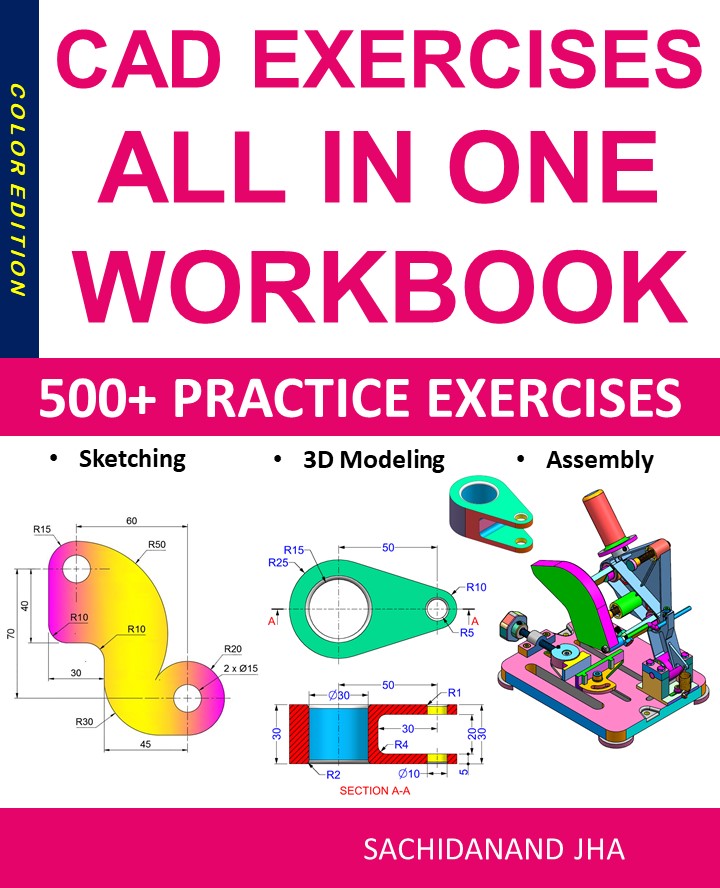
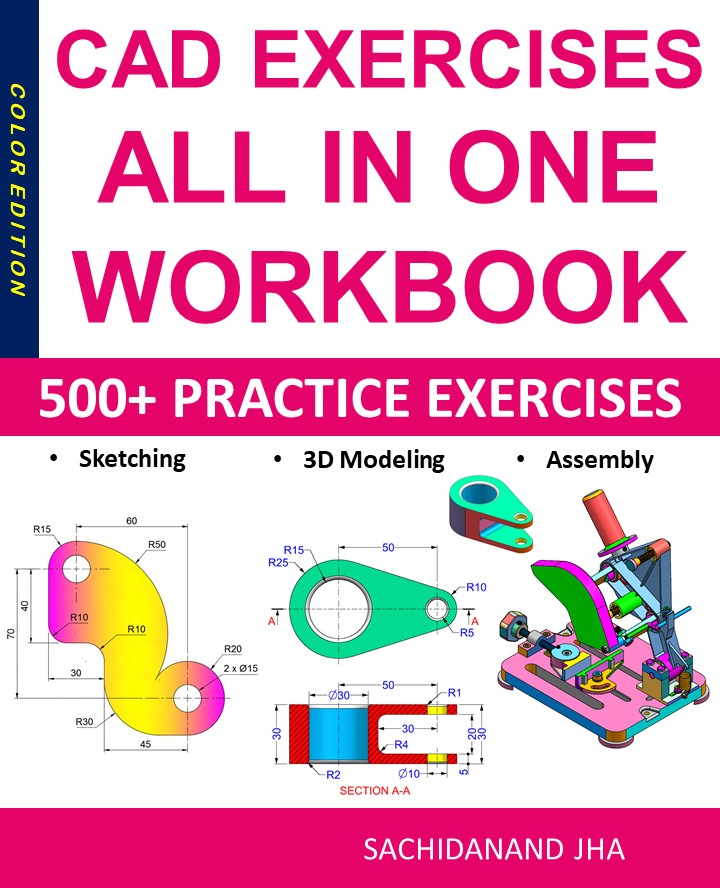
CAD EXERCISES All-in-One Workbook

500+ Practice Exercises to Master CAD Through Real-World Practice!

This all-in-one workbook is your ultimate resource to develop hands-on CAD skills using any CAD software.Whether you’re a student, engineer, hobbyist, or professional, this guide is designed to help you gain real design confidence through structured, practice-oriented exercises.

What’s Inside this Book:

  • 200 2D Sketching Exercises – Build a strong foundation in dimension-driven 2D geometry and technical drawings
  • 200 3D Modeling Exercises – Practice modeling real-world parts, from simple shapes to complex components.
  • Multi-Part Assembly Projects – Understand how parts fit together and create full assemblies with detailed drawings

🎯 Why This Book?

  • 500+ practice exercises following real design standards
  • Designed for self-paced learning & independent practice
  • Perfect for classrooms, technical interview preparation, and personal projects
  • Covers 2D Sketching, 3D Modeling & Assembly Design in one workbook
  • Trusted by 15,000+ CAD learners worldwide

After purchasing, a download link will be sent instantly to your email.

Buy Now For $27.99

Are you a student or Unemployed? Get this bundle for $19.99

Offer for Students Buy Now For $19.99

Buy Paperback on Amazon.com

Fusion 360 for Beginners: Mastering Sketching Essentials

Introduction

Fusion 360 is a powerful computer-aided design (CAD) software that allows users to create, edit, and simulate 3D models. One of the key features of Fusion 360 is its sketching tool, which enables users to create 2D sketches that can be used as reference for 3D models or as standalone designs. In this blog post, we will cover the basics of sketching in Fusion 360, including its purpose, how to create a sketch, and some practical examples.

What is Sketching in Fusion 360?

Sketching in Fusion 360 involves creating 2D drawings or designs using a variety of tools and functions. These sketches can be used as the foundation for 3D models, or they can be used as standalone designs. Sketching is an essential part of the design process in Fusion 360, as it allows users to visualize and communicate their ideas before moving on to 3D modeling.

Purpose of Sketching in Fusion 360

The purpose of sketching in Fusion 360 is to create a 2D representation of a design concept. This can be useful for several reasons:

  • It allows users to visualize their design concept before moving on to 3D modeling.
  • It provides a reference point for 3D modeling, ensuring that the 3D model is accurate and consistent with the design concept.
  • It enables users to make changes and revisions to their design concept before investing time and resources into 3D modeling.

Creating a Sketch in Fusion 360

To create a sketch in Fusion 360, follow these steps:

  1. Open a new part or assembly in Fusion 360.
  2. Select the “Sketch” tab in the top toolbar.
  3. Choose the desired sketch plane from the “Sketch Plane” dropdown menu.
  4. Use the various sketch tools to create lines, arcs, and other shapes.
  5. Use the “Dimensions” tool to add dimensions to your sketch.

Basic Sketch Tools

The following are some of the basic sketch tools available in Fusion 360:

  • Line Tool: The line tool is used to create straight lines in your sketch.
  • Arc Tool: The arc tool is used to create curved lines in your sketch.
  • Circle Tool: The circle tool is used to create circular shapes in your sketch.
  • Rectangle Tool: The rectangle tool is used to create rectangular shapes in your sketch.
  • Polygon Tool: The polygon tool is used to create polygonal shapes in your sketch.

Advanced Sketch Tools

In addition to the basic sketch tools, Fusion 360 also offers several advanced sketch tools, including:

  • Trim Tool: The trim tool is used to remove or trim excess sketch elements.
  • Extend Tool: The extend tool is used to extend or lengthen sketch elements.
  • Split Tool: The split tool is used to split or divide sketch elements.
  • Join Tool: The join tool is used to join or combine sketch elements.

Practical Examples

Here are a few practical examples of how to use the sketch tools in Fusion 360:

  • Example 1: Create a simple rectangle using the rectangle tool.
  • Example 2: Create a complex polygon using the polygon tool.
  • Example 3: Create a circular shape using the circle tool.

Dimensions and Constraints

Dimensions and constraints are essential components of a sketch in Fusion 360. Dimensions are used to specify the size and shape of a sketch element, while constraints are used to control the movement and behavior of a sketch element.

Types of Dimensions

The following are some of the common types of dimensions used in Fusion 360:

  • Linear Dimension: A linear dimension is used to specify the length of a sketch element.
  • Angular Dimension: An angular dimension is used to specify the angle between two sketch elements.
  • Radius Dimension: A radius dimension is used to specify the radius of a circular or curved sketch element.

Using Constraints

Constraints are used to control the movement and behavior of a sketch element. The following are some of the common types of constraints used in Fusion 360:

  • Fixed Constraint: A fixed constraint is used to lock a sketch element in place.
  • Coincident Constraint: A coincident constraint is used to align two or more sketch elements.
  • Parallel Constraint: A parallel constraint is used to align two or more sketch elements parallel to each other.

Conclusion

Sketching in Fusion 360 is a powerful tool that allows users to create 2D designs and references for 3D models. By mastering the basics of sketching, including creating a sketch, using basic and advanced sketch tools, and adding dimensions and constraints, users can create accurate and reliable designs.

FAQ

What is the purpose of sketching in Fusion 360?

The purpose of sketching in Fusion 360 is to create a 2D representation of a design concept, which can be used as a reference point for 3D modeling or as a standalone design.

How do I create a sketch in Fusion 360?

To create a sketch in Fusion 360, open a new part or assembly, select the “Sketch” tab, choose the desired sketch plane, and use the various sketch tools to create lines, arcs, and other shapes.

What are the basic sketch tools in Fusion 360?

The basic sketch tools in Fusion 360 include the line tool, arc tool, circle tool, rectangle tool, and polygon tool.

What are the advanced sketch tools in Fusion 360?

The advanced sketch tools in Fusion 360 include the trim tool, extend tool, split tool, and join tool.

How do I add dimensions to my sketch in Fusion 360?

To add dimensions to your sketch in Fusion 360, use the “Dimensions” tool to specify the size and shape of your sketch elements.

What are the types of dimensions used in Fusion 360?

The types of dimensions used in Fusion 360 include linear dimensions, angular dimensions, and radius dimensions.

How do I use constraints in Fusion 360?

To use constraints in Fusion 360, apply a constraint to a sketch element to control its movement and behavior.

Can I undo my sketch in Fusion 360?

Yes, you can undo your sketch in Fusion 360 by using the “Undo” button or by using the keyboard shortcut Ctrl + Z (Windows) or Command + Z (Mac).


End of Blog


Fusion 360 Workbook Cover

After purchasing, a download link will be sent instantly to your email.

Buy Now For $27.99

Are you a student or Unemployed? Get this bundle for $19.99

Offer for Students Buy Now For $19.99

Buy Paperback on Amazon.com

Autodesk Fusion 360 All-in-One Workbook

500+ Practice Exercises to Master Autodesk Fusion 360 through real-world practice!

This all-in-one workbook is your ultimate resource to develop hands-on CAD skills with Autodesk Fusion 360. Whether you’re a student, engineer, hobbyist, or professional, this guide is built to help you gain real design confidence through structured practice.

What’s Inside this Book:

  • 200 2D Sketching Exercises – Build a strong foundation in dimension-driven 2D geometry and technical drawings
  • 200 3D Modeling Exercises – Practice modeling real-world parts, from simple shapes to complex components.
  • Multi-Part Assembly Projects – Understand how parts fit together and create full assemblies with detailed drawings

🎯 Why This Book?

  • 500+ practice exercises following real design standards
  • Designed for self-paced learning & independent practice
  • Perfect for classrooms, technical interview preparation, and personal projects
  • Covers 2D Sketching, 3D Modeling & Assembly Design in one workbook
  • Trusted by 15,000+ CAD learners worldwide
After purchasing, a download link will be sent instantly to your email.

Buy Now For $27.99

Are you a student or Unemployed? Get this bundle for $19.99

Offer for Students Buy Now For $19.99

Buy Paperback on Amazon.com

Fusion 360 for Beginners: Mastering Sketching Essentials

Introduction

Fusion 360 is a powerful computer-aided design (CAD) software that allows users to create, edit, and simulate 3D models. One of the key features of Fusion 360 is its sketching tool, which enables users to create 2D sketches that can be used as reference for 3D models or as standalone designs. In this blog post, we will cover the basics of sketching in Fusion 360, including its purpose, how to create a sketch, and some practical examples.

What is Sketching in Fusion 360?

Sketching in Fusion 360 involves creating 2D drawings or designs using a variety of tools and functions. These sketches can be used as the foundation for 3D models, or they can be used as standalone designs. Sketching is an essential part of the design process in Fusion 360, as it allows users to visualize and communicate their ideas before moving on to 3D modeling.

Purpose of Sketching in Fusion 360

The purpose of sketching in Fusion 360 is to create a 2D representation of a design concept. This can be useful for several reasons:

  • It allows users to visualize their design concept before moving on to 3D modeling.
  • It provides a reference point for 3D modeling, ensuring that the 3D model is accurate and consistent with the design concept.
  • It enables users to make changes and revisions to their design concept before investing time and resources into 3D modeling.

Creating a Sketch in Fusion 360

To create a sketch in Fusion 360, follow these steps:

  1. Open a new part or assembly in Fusion 360.
  2. Select the “Sketch” tab in the top toolbar.
  3. Choose the desired sketch plane from the “Sketch Plane” dropdown menu.
  4. Use the various sketch tools to create lines, arcs, and other shapes.
  5. Use the “Dimensions” tool to add dimensions to your sketch.

Basic Sketch Tools

The following are some of the basic sketch tools available in Fusion 360:

  • Line Tool: The line tool is used to create straight lines in your sketch.
  • Arc Tool: The arc tool is used to create curved lines in your sketch.
  • Circle Tool: The circle tool is used to create circular shapes in your sketch.
  • Rectangle Tool: The rectangle tool is used to create rectangular shapes in your sketch.
  • Polygon Tool: The polygon tool is used to create polygonal shapes in your sketch.

Advanced Sketch Tools

In addition to the basic sketch tools, Fusion 360 also offers several advanced sketch tools, including:

  • Trim Tool: The trim tool is used to remove or trim excess sketch elements.
  • Extend Tool: The extend tool is used to extend or lengthen sketch elements.
  • Split Tool: The split tool is used to split or divide sketch elements.
  • Join Tool: The join tool is used to join or combine sketch elements.

Practical Examples

Here are a few practical examples of how to use the sketch tools in Fusion 360:

  • Example 1: Create a simple rectangle using the rectangle tool.
  • Example 2: Create a complex polygon using the polygon tool.
  • Example 3: Create a circular shape using the circle tool.

Dimensions and Constraints

Dimensions and constraints are essential components of a sketch in Fusion 360. Dimensions are used to specify the size and shape of a sketch element, while constraints are used to control the movement and behavior of a sketch element.

Types of Dimensions

The following are some of the common types of dimensions used in Fusion 360:

  • Linear Dimension: A linear dimension is used to specify the length of a sketch element.
  • Angular Dimension: An angular dimension is used to specify the angle between two sketch elements.
  • Radius Dimension: A radius dimension is used to specify the radius of a circular or curved sketch element.

Using Constraints

Constraints are used to control the movement and behavior of a sketch element. The following are some of the common types of constraints used in Fusion 360:

  • Fixed Constraint: A fixed constraint is used to lock a sketch element in place.
  • Coincident Constraint: A coincident constraint is used to align two or more sketch elements.
  • Parallel Constraint: A parallel constraint is used to align two or more sketch elements parallel to each other.

Conclusion

Sketching in Fusion 360 is a powerful tool that allows users to create 2D designs and references for 3D models. By mastering the basics of sketching, including creating a sketch, using basic and advanced sketch tools, and adding dimensions and constraints, users can create accurate and reliable designs.

FAQ

What is the purpose of sketching in Fusion 360?

The purpose of sketching in Fusion 360 is to create a 2D representation of a design concept, which can be used as a reference point for 3D modeling or as a standalone design.

How do I create a sketch in Fusion 360?

To create a sketch in Fusion 360, open a new part or assembly, select the “Sketch” tab, choose the desired sketch plane, and use the various sketch tools to create lines, arcs, and other shapes.

What are the basic sketch tools in Fusion 360?

The basic sketch tools in Fusion 360 include the line tool, arc tool, circle tool, rectangle tool, and polygon tool.

What are the advanced sketch tools in Fusion 360?

The advanced sketch tools in Fusion 360 include the trim tool, extend tool, split tool, and join tool.

How do I add dimensions to my sketch in Fusion 360?

To add dimensions to your sketch in Fusion 360, use the “Dimensions” tool to specify the size and shape of your sketch elements.

What are the types of dimensions used in Fusion 360?

The types of dimensions used in Fusion 360 include linear dimensions, angular dimensions, and radius dimensions.

How do I use constraints in Fusion 360?

To use constraints in Fusion 360, apply a constraint to a sketch element to control its movement and behavior.

Can I undo my sketch in Fusion 360?

Yes, you can undo your sketch in Fusion 360 by using the “Undo” button or by using the keyboard shortcut Ctrl + Z (Windows) or Command + Z (Mac).


End of Blog


Fusion 360 Workbook Cover

After purchasing, a download link will be sent instantly to your email.

Buy Now For $27.99

Are you a student or Unemployed? Get this bundle for $19.99

Offer for Students Buy Now For $19.99

Buy Paperback on Amazon.com

Autodesk Fusion 360 All-in-One Workbook

500+ Practice Exercises to Master Autodesk Fusion 360 through real-world practice!

This all-in-one workbook is your ultimate resource to develop hands-on CAD skills with Autodesk Fusion 360. Whether you’re a student, engineer, hobbyist, or professional, this guide is built to help you gain real design confidence through structured practice.

What’s Inside this Book:

  • 200 2D Sketching Exercises – Build a strong foundation in dimension-driven 2D geometry and technical drawings
  • 200 3D Modeling Exercises – Practice modeling real-world parts, from simple shapes to complex components.
  • Multi-Part Assembly Projects – Understand how parts fit together and create full assemblies with detailed drawings

🎯 Why This Book?

  • 500+ practice exercises following real design standards
  • Designed for self-paced learning & independent practice
  • Perfect for classrooms, technical interview preparation, and personal projects
  • Covers 2D Sketching, 3D Modeling & Assembly Design in one workbook
  • Trusted by 15,000+ CAD learners worldwide

After purchasing, a download link will be sent instantly to your email.

Buy Now For $27.99

Are you a student or Unemployed? Get this bundle for $19.99

Offer for Students Buy Now For $19.99

Buy Paperback on Amazon.com

Unlock FreeCAD’s Power: Top 5 Essential Workbenches for Beginners

Unlock FreeCAD's Power: Top 5 Essential Workbenches for Beginners

Introduction

FreeCAD is a free and open-source 3D computer-aided design (CAD) software that has gained popularity among designers, engineers, and hobbyists. One of the most significant advantages of FreeCAD is its flexibility and customizability, thanks to the various workbenches it offers. In this blog post, we will explore the top FreeCAD workbenches explained for new users, helping you understand which workbench to use for your specific needs.

The Standard Workbench

The Standard workbench is the default workbench in FreeCAD, and it provides a comprehensive set of tools for creating 2D and 3D designs. The Standard workbench includes features such as:

  • Sketcher for creating 2D sketches
  • Part design for creating 3D models
  • Part workbench for creating 3D models from sketches
  • Assembly workbench for creating assemblies
  • Drawing workbench for creating 2D drawings

To create a new part using the Standard workbench, follow these steps:

  1. Open FreeCAD and create a new project.
  2. Switch to the Part design workbench by clicking on the “Part Design” button in the top-left corner of the screen.
  3. Click on the “Create new document” button to create a new part.
  4. Use the Sketcher to create a 2D sketch by clicking on the “Sketcher” button and selecting the “New sketch” option.
  5. Use the Part design tools to create a 3D model from the sketch.

The Part Workbench

The Part workbench is a powerful tool for creating 3D models from sketches. It provides a range of features, including:

  • Creating solid models from sketches
  • Creating surface models from sketches
  • Creating mesh models from sketches

To create a new part using the Part workbench, follow these steps:

  1. Open FreeCAD and create a new project.
  2. Switch to the Part workbench by clicking on the “Part” button in the top-left corner of the screen.
  3. Click on the “Create new document” button to create a new part.
  4. Use the Sketcher to create a 2D sketch by clicking on the “Sketcher” button and selecting the “New sketch” option.
  5. Use the Part workbench tools to create a 3D model from the sketch.

The Arch Workbench

The Arch workbench is a specialized workbench for creating architectural designs. It provides a range of features, including:

  • Creating walls and windows
  • Creating doors and stairs
  • Creating roofs and floors
  • Creating elevations and sections

To create a new architectural design using the Arch workbench, follow these steps:

  1. Open FreeCAD and create a new project.
  2. Switch to the Arch workbench by clicking on the “Arch” button in the top-left corner of the screen.
  3. Click on the “Create new document” button to create a new part.
  4. Use the Arch workbench tools to create walls, windows, doors, and stairs.
  5. Use the Drawing workbench to create 2D drawings of the design.

The Assembly Workbench

The Assembly workbench is a powerful tool for creating assemblies of 3D models. It provides a range of features, including:

  • Creating new assemblies
  • Adding parts to assemblies
  • Configuring part relationships
  • Creating animations and simulations

To create a new assembly using the Assembly workbench, follow these steps:

  1. Open FreeCAD and create a new project.
  2. Switch to the Assembly workbench by clicking on the “Assembly” button in the top-left corner of the screen.
  3. Click on the “Create new document” button to create a new assembly.
  4. Use the Assembly workbench tools to add parts to the assembly.
  5. Use the Part design tools to create 3D models of the parts.

The Drawing Workbench

The Drawing workbench is a powerful tool for creating 2D drawings of 3D models. It provides a range of features, including:

  • Creating new drawings
  • Adding views to drawings
  • Configuring view properties
  • Creating title blocks and legends

To create a new drawing using the Drawing workbench, follow these steps:

  1. Open FreeCAD and create a new project.
  2. Switch to the Drawing workbench by clicking on the “Drawing” button in the top-left corner of the screen.
  3. Click on the “Create new document” button to create a new drawing.
  4. Use the Drawing workbench tools to add views to the drawing.
  5. Use the Part design tools to create 3D models of the parts.

Conclusion

In this blog post, we have explored the top FreeCAD workbenches explained for new users. Each workbench provides a range of features and tools for creating 2D and 3D designs. By understanding which workbench to use for your specific needs, you can unlock the full potential of FreeCAD and create complex designs with ease.

FAQ

Q: What is the difference between the Standard and Part workbenches?

A: The Standard workbench provides a comprehensive set of tools for creating 2D and 3D designs, while the Part workbench is a specialized workbench for creating 3D models from sketches.

Q: How do I create a new part using the Arch workbench?

A: To create a new part using the Arch workbench, click on the “Create new document” button and then use the Arch workbench tools to create walls, windows, doors, and stairs.

Q: Can I use the Assembly workbench to create 2D drawings?

A: No, the Assembly workbench is a specialized workbench for creating assemblies of 3D models. To create 2D drawings, use the Drawing workbench.

Q: How do I add parts to an assembly using the Assembly workbench?

A: To add parts to an assembly using the Assembly workbench, click on the “Add part” button and then select the part to add.

Q: Can I use the Drawing workbench to create 3D models?

A: No, the Drawing workbench is a specialized workbench for creating 2D drawings of 3D models. To create 3D models, use the Part design workbench.

Q: Where can I find more information about FreeCAD workbenches?

A: You can find more information about FreeCAD workbenches on the FreeCAD website or by joining the FreeCAD community forums.


End of Blog


CAD Exercises Workbook Cover

After purchasing, a download link will be sent instantly to your email.

Buy Now For $27.99

Are you a student or Unemployed? Get this bundle for $19.99

Offer for Students Buy Now For $19.99

Buy Paperback on Amazon.com

FREECAD All-in-One Workbook

500+ Practice Exercises to Master FreeCAD through real-world practice!

This all-in-one workbook is your ultimate resource to develop hands-on CAD skills with FreeCAD. Whether you’re a student, engineer, hobbyist, or professional, this guide is built to help you gain real design confidence through structured practice.

What’s Inside this Book:

  • 200 2D Sketching Exercises – Build a strong foundation in dimension-driven 2D geometry and technical drawings
  • 200 3D Modeling Exercises – Practice modeling real-world parts, from simple shapes to complex components.
  • Multi-Part Assembly Projects – Understand how parts fit together and create full assemblies with detailed drawings

🎯 Why This Book?

  • 500+ practice exercises following real design standards
  • Designed for self-paced learning & independent practice
  • Perfect for classrooms, technical interview preparation, and personal projects
  • Covers 2D Sketching, 3D Modeling & Assembly Design in one workbook
  • Trusted by 15,000+ CAD learners worldwide

After purchasing, a download link will be sent instantly to your email.

Buy Now For $27.99

Are you a student or Unemployed? Get this bundle for $19.99

Offer for Students Buy Now For $19.99

Buy Paperback on Amazon.com

Unlock FreeCAD’s Power: Top 5 Essential Workbenches for Beginners

Unlock FreeCAD's Power: Top 5 Essential Workbenches for Beginners

Introduction

FreeCAD is a free and open-source 3D computer-aided design (CAD) software that has gained popularity among designers, engineers, and hobbyists. One of the most significant advantages of FreeCAD is its flexibility and customizability, thanks to the various workbenches it offers. In this blog post, we will explore the top FreeCAD workbenches explained for new users, helping you understand which workbench to use for your specific needs.

The Standard Workbench

The Standard workbench is the default workbench in FreeCAD, and it provides a comprehensive set of tools for creating 2D and 3D designs. The Standard workbench includes features such as:

  • Sketcher for creating 2D sketches
  • Part design for creating 3D models
  • Part workbench for creating 3D models from sketches
  • Assembly workbench for creating assemblies
  • Drawing workbench for creating 2D drawings

To create a new part using the Standard workbench, follow these steps:

  1. Open FreeCAD and create a new project.
  2. Switch to the Part design workbench by clicking on the “Part Design” button in the top-left corner of the screen.
  3. Click on the “Create new document” button to create a new part.
  4. Use the Sketcher to create a 2D sketch by clicking on the “Sketcher” button and selecting the “New sketch” option.
  5. Use the Part design tools to create a 3D model from the sketch.

The Part Workbench

The Part workbench is a powerful tool for creating 3D models from sketches. It provides a range of features, including:

  • Creating solid models from sketches
  • Creating surface models from sketches
  • Creating mesh models from sketches

To create a new part using the Part workbench, follow these steps:

  1. Open FreeCAD and create a new project.
  2. Switch to the Part workbench by clicking on the “Part” button in the top-left corner of the screen.
  3. Click on the “Create new document” button to create a new part.
  4. Use the Sketcher to create a 2D sketch by clicking on the “Sketcher” button and selecting the “New sketch” option.
  5. Use the Part workbench tools to create a 3D model from the sketch.

The Arch Workbench

The Arch workbench is a specialized workbench for creating architectural designs. It provides a range of features, including:

  • Creating walls and windows
  • Creating doors and stairs
  • Creating roofs and floors
  • Creating elevations and sections

To create a new architectural design using the Arch workbench, follow these steps:

  1. Open FreeCAD and create a new project.
  2. Switch to the Arch workbench by clicking on the “Arch” button in the top-left corner of the screen.
  3. Click on the “Create new document” button to create a new part.
  4. Use the Arch workbench tools to create walls, windows, doors, and stairs.
  5. Use the Drawing workbench to create 2D drawings of the design.

The Assembly Workbench

The Assembly workbench is a powerful tool for creating assemblies of 3D models. It provides a range of features, including:

  • Creating new assemblies
  • Adding parts to assemblies
  • Configuring part relationships
  • Creating animations and simulations

To create a new assembly using the Assembly workbench, follow these steps:

  1. Open FreeCAD and create a new project.
  2. Switch to the Assembly workbench by clicking on the “Assembly” button in the top-left corner of the screen.
  3. Click on the “Create new document” button to create a new assembly.
  4. Use the Assembly workbench tools to add parts to the assembly.
  5. Use the Part design tools to create 3D models of the parts.

The Drawing Workbench

The Drawing workbench is a powerful tool for creating 2D drawings of 3D models. It provides a range of features, including:

  • Creating new drawings
  • Adding views to drawings
  • Configuring view properties
  • Creating title blocks and legends

To create a new drawing using the Drawing workbench, follow these steps:

  1. Open FreeCAD and create a new project.
  2. Switch to the Drawing workbench by clicking on the “Drawing” button in the top-left corner of the screen.
  3. Click on the “Create new document” button to create a new drawing.
  4. Use the Drawing workbench tools to add views to the drawing.
  5. Use the Part design tools to create 3D models of the parts.

Conclusion

In this blog post, we have explored the top FreeCAD workbenches explained for new users. Each workbench provides a range of features and tools for creating 2D and 3D designs. By understanding which workbench to use for your specific needs, you can unlock the full potential of FreeCAD and create complex designs with ease.

FAQ

Q: What is the difference between the Standard and Part workbenches?

A: The Standard workbench provides a comprehensive set of tools for creating 2D and 3D designs, while the Part workbench is a specialized workbench for creating 3D models from sketches.

Q: How do I create a new part using the Arch workbench?

A: To create a new part using the Arch workbench, click on the “Create new document” button and then use the Arch workbench tools to create walls, windows, doors, and stairs.

Q: Can I use the Assembly workbench to create 2D drawings?

A: No, the Assembly workbench is a specialized workbench for creating assemblies of 3D models. To create 2D drawings, use the Drawing workbench.

Q: How do I add parts to an assembly using the Assembly workbench?

A: To add parts to an assembly using the Assembly workbench, click on the “Add part” button and then select the part to add.

Q: Can I use the Drawing workbench to create 3D models?

A: No, the Drawing workbench is a specialized workbench for creating 2D drawings of 3D models. To create 3D models, use the Part design workbench.

Q: Where can I find more information about FreeCAD workbenches?

A: You can find more information about FreeCAD workbenches on the FreeCAD website or by joining the FreeCAD community forums.


End of Blog


CAD Exercises Workbook Cover

After purchasing, a download link will be sent instantly to your email.

Buy Now For $27.99

Are you a student or Unemployed? Get this bundle for $19.99

Offer for Students Buy Now For $19.99

Buy Paperback on Amazon.com

FREECAD All-in-One Workbook

500+ Practice Exercises to Master FreeCAD through real-world practice!

This all-in-one workbook is your ultimate resource to develop hands-on CAD skills with FreeCAD. Whether you’re a student, engineer, hobbyist, or professional, this guide is built to help you gain real design confidence through structured practice.

What’s Inside this Book:

  • 200 2D Sketching Exercises – Build a strong foundation in dimension-driven 2D geometry and technical drawings
  • 200 3D Modeling Exercises – Practice modeling real-world parts, from simple shapes to complex components.
  • Multi-Part Assembly Projects – Understand how parts fit together and create full assemblies with detailed drawings

🎯 Why This Book?

  • 500+ practice exercises following real design standards
  • Designed for self-paced learning & independent practice
  • Perfect for classrooms, technical interview preparation, and personal projects
  • Covers 2D Sketching, 3D Modeling & Assembly Design in one workbook
  • Trusted by 15,000+ CAD learners worldwide

After purchasing, a download link will be sent instantly to your email.

Buy Now For $27.99

Are you a student or Unemployed? Get this bundle for $19.99

Offer for Students Buy Now For $19.99

Buy Paperback on Amazon.com

Master FreeCAD in 5 Minutes: A Beginner’s Ultimate Guide

FreeCAD for Beginners: A Complete Getting Started Guide

Are you new to computer-aided design (CAD) software and looking for a free and open-source solution? Look no further than FreeCAD, a powerful and versatile 3D CAD modeling software that has gained popularity among designers, engineers, and hobbyists alike. In this comprehensive guide, we’ll walk you through the basics of FreeCAD and provide you with a step-by-step introduction to get you started.

What is FreeCAD?

FreeCAD is a free and open-source CAD software that runs on Windows, macOS, and Linux operating systems. It was created in 2002 by Werner Mayer and is now maintained by a community of developers and users. FreeCAD offers a wide range of features, including 3D modeling, drafting, and engineering tools, making it an ideal choice for various applications, from architectural design to mechanical engineering.

Key Features of FreeCAD

Before we dive into the getting started guide, let’s take a look at some of the key features of FreeCAD:

  • 3D modeling: FreeCAD allows you to create 3D models from scratch or by importing existing models.
  • Parametric modeling: FreeCAD uses parametric modeling, which means that you can create models by defining a set of parameters that control the shape of the model.
  • Drafting: FreeCAD offers 2D drafting tools, allowing you to create 2D drawings and documents.
  • Engineering tools: FreeCAD includes a range of engineering tools, such as mechanical engineering, electrical engineering, and civil engineering.
  • Scripting: FreeCAD supports scripting, allowing you to automate tasks and create custom tools.

Getting Started with FreeCAD

Now that we’ve covered the basics and key features of FreeCAD, let’s get started with a step-by-step guide.

Step 1: Installing FreeCAD

To install FreeCAD, follow these steps:

  1. Download the FreeCAD installer from the official website.
  2. Run the installer and follow the prompts to select the installation options.
  3. Choose the installation directory and select the components you want to install (e.g., Windows, macOS, Linux).

Step 2: Launching FreeCAD

Once installed, launch FreeCAD by double-clicking on the FreeCAD icon. You’ll see the FreeCAD welcome screen, which provides an overview of the software and its features.

Step 3: Creating a New Document

To create a new document, follow these steps:

  1. Click on the “File” menu and select “New” to create a new document.
  2. Choose the document type (e.g., 3D part, 3D assembly, 2D drawing).
  3. Select the document settings (e.g., unit system, precision).

Step 4: Understanding the Interface

The FreeCAD interface is divided into several sections:

  • Menu bar: The menu bar provides access to various menus, including File, Edit, View, and Help.
  • Toolbar: The toolbar provides quick access to frequently used tools and actions.
  • Workbench: The workbench is the central area of the interface where you’ll work on your designs.

Step 5: Basic Navigation

To navigate the FreeCAD interface, use the following tools:

  • Mouse wheel: Use the mouse wheel to zoom in and out of the 3D view.
  • Middle click: Use the middle click to pan the 3D view.
  • Right click: Use the right click to access context menus and toolbars.

Tips and Tricks

Here are some tips and tricks to help you get started with FreeCAD:

  • Use the tutorials: FreeCAD provides a range of tutorials and guides to help you learn the software.
  • Experiment with tools: Don’t be afraid to experiment with different tools and features.
  • Join the community: FreeCAD has an active community of users and developers. Join the forum or social media groups to connect with other users and get support.

Conclusion

FreeCAD is a powerful and versatile CAD software that offers a wide range of features and tools for designers, engineers, and hobbyists. With this comprehensive guide, you’ve learned the basics of FreeCAD and are ready to start creating your own designs. Remember to experiment with tools, join the community, and take advantage of the tutorials and guides available.

Common Questions

Here are some common questions that new users may have:

  • Q: What is the best way to learn FreeCAD?

A: The best way to learn FreeCAD is by experimenting with the software and following the tutorials and guides provided.

  • Q: Can I import existing models into FreeCAD?

A: Yes, you can import existing models into FreeCAD using various file formats, including STEP, IGES, and STL.

  • Q: Can I use FreeCAD for mechanical engineering?

A: Yes, FreeCAD offers a range of mechanical engineering tools, including 3D modeling, drafting, and engineering tools.

Final Thoughts

FreeCAD is a powerful and free CAD software that offers a wide range of features and tools for designers, engineers, and hobbyists. With this comprehensive guide, you’ve learned the basics of FreeCAD and are ready to start creating your own designs. Remember to experiment with tools, join the community, and take advantage of the tutorials and guides available. Happy designing!


End of Blog


CAD Exercises Workbook Cover

After purchasing, a download link will be sent instantly to your email.

Buy Now For $27.99

Are you a student or Unemployed? Get this bundle for $19.99

Offer for Students Buy Now For $19.99

Buy Paperback on Amazon.com

FREECAD All-in-One Workbook

500+ Practice Exercises to Master FreeCAD through real-world practice!

This all-in-one workbook is your ultimate resource to develop hands-on CAD skills with FreeCAD. Whether you’re a student, engineer, hobbyist, or professional, this guide is built to help you gain real design confidence through structured practice.

What’s Inside this Book:

  • 200 2D Sketching Exercises – Build a strong foundation in dimension-driven 2D geometry and technical drawings
  • 200 3D Modeling Exercises – Practice modeling real-world parts, from simple shapes to complex components.
  • Multi-Part Assembly Projects – Understand how parts fit together and create full assemblies with detailed drawings

🎯 Why This Book?

  • 500+ practice exercises following real design standards
  • Designed for self-paced learning & independent practice
  • Perfect for classrooms, technical interview preparation, and personal projects
  • Covers 2D Sketching, 3D Modeling & Assembly Design in one workbook
  • Trusted by 15,000+ CAD learners worldwide

After purchasing, a download link will be sent instantly to your email.

Buy Now For $27.99

Are you a student or Unemployed? Get this bundle for $19.99

Offer for Students Buy Now For $19.99

Buy Paperback on Amazon.com

Tinkercad Complete Guide 2025: Learn 3D Design, Circuits & Coding Easily

Tinkercad: The Complete Beginner’s Guide to 3D Design, Circuits, and Coding (2025)

Tinkercad is one of the most beginner-friendly design tools available today. Developed by Autodesk, Tinkercad is a free, web-based application that allows users to create 3D models, simulate electronic circuits, and explore block-based coding—all directly from a browser. Its simplicity and accessibility make it a popular choice for students, educators, hobbyists, and first-time designers.

In this comprehensive guide, we’ll explore what Tinkercad is, its key features, benefits, use cases, and how to get started effectively in 2025.


What Is Tinkercad?

Tinkercad is an online CAD (Computer-Aided Design) platform that focuses on ease of use rather than complexity. Unlike professional CAD software that requires extensive training, Tinkercad uses a drag-and-drop interface that allows users to build designs using simple geometric shapes.

Tinkercad supports three main workspaces:

  • 3D Design

  • Circuits

  • Codeblocks

Because it runs entirely in a web browser, there is no installation required, making it ideal for classrooms and quick prototyping.


Key Features of Tinkercad

1. Easy 3D Design Interface

Tinkercad’s 3D design workspace lets users create models by combining basic shapes such as cubes, cylinders, and spheres. Shapes can be resized, rotated, aligned, grouped, and modified with simple controls.

This intuitive approach makes Tinkercad perfect for:

  • Beginners learning CAD fundamentals

  • Students exploring 3D modeling

  • Hobbyists designing objects for 3D printing


2. Tinkercad Circuits

One of Tinkercad’s standout features is its circuits simulator. Users can build electronic circuits using virtual components such as:

  • Arduino boards

  • LEDs and resistors

  • Sensors and motors

  • Breadboards

The circuit simulation runs in real time, allowing users to test designs safely without physical hardware.


3. Block-Based and Text Coding

Tinkercad supports block-based coding (similar to Scratch) and text-based Arduino code. This makes it an excellent platform for learning programming concepts alongside electronics.

Students can:

  • Write logic using visual blocks

  • Convert blocks into Arduino C++ code

  • Understand how software interacts with hardware


4. Cloud-Based Collaboration

All projects are stored in the cloud, making it easy to access designs from anywhere. Users can also share projects via links, allowing teachers and teams to collaborate efficiently.


5. 3D Printing Ready

Tinkercad allows users to export models in STL and OBJ formats, which are widely supported by 3D printers and slicing software. This makes it a popular tool for quick 3D printing projects.


Benefits of Using Tinkercad

Beginner-Friendly

Tinkercad is designed for users with no prior CAD experience. The learning curve is minimal, and most users can create their first model within minutes.

Free to Use

Unlike many CAD tools, Tinkercad is completely free. All features are accessible with a simple Autodesk account.

Ideal for Education

Tinkercad is widely used in STEM education. Teachers can create classrooms, assign projects, and monitor student progress easily.

Safe Electronics Simulation

The circuit simulator eliminates the risk of damaging physical components, making it perfect for learning electronics safely.

Cross-Platform Access

Since it’s browser-based, Tinkercad works on Windows, macOS, Linux, and Chromebooks without installation.


Common Use Cases of Tinkercad

1. Learning 3D Modeling

Students and beginners use Tinkercad to understand core concepts like scaling, alignment, grouping, and spatial thinking.

2. 3D Printing Projects

Hobbyists design phone stands, keychains, enclosures, and custom parts for home 3D printers.

3. Electronics Prototyping

Tinkercad Circuits is commonly used to simulate Arduino projects before building them physically.

4. Classroom STEM Projects

Teachers use Tinkercad to introduce CAD, electronics, and coding in a unified learning environment.


How to Get Started with Tinkercad

Step 1: Create an Account

Visit the Tinkercad website and sign in using an Autodesk account or a supported login method.

Step 2: Choose a Workspace

Select 3D Design, Circuits, or Codeblocks depending on your project goals.

Step 3: Start Designing

Drag shapes onto the workplane, adjust dimensions, and combine them to form your model.

Step 4: Simulate or Export

  • Run simulations for circuits

  • Export 3D designs as STL files for printing


Tinkercad vs Professional CAD Software

While Tinkercad is not intended to replace advanced CAD tools like Fusion 360 or SolidWorks, it serves as an excellent entry point.

Feature Tinkercad Professional CAD
Learning Curve Very Low High
Cost Free Paid
Browser-Based Yes Mostly No
Advanced Engineering No Yes

Tinkercad is best for learning and simple projects, while professional CAD software is better suited for complex engineering tasks.


Limitations of Tinkercad

Despite its advantages, Tinkercad has some limitations:

  • Not suitable for complex mechanical designs

  • Limited parametric modeling

  • Basic rendering and visualization tools

However, these limitations are expected given its beginner-focused design.


Final Thoughts

Tinkercad is an excellent starting point for anyone interested in 3D design, electronics, or coding. Its simplicity, free access, and educational focus make it one of the most valuable tools for beginners and classrooms worldwide.

Whether you’re a student learning CAD, a teacher introducing STEM concepts, or a hobbyist exploring 3D printing, Tinkercad provides a powerful yet accessible platform to bring ideas to life.

If you’re just beginning your design .


End of Blog


CAD Exercises Workbook Cover

After purchasing, a download link will be sent instantly to your email.

Buy Now For $27.99

Are you a student or Unemployed? Get this bundle for $19.99

Offer for Students Buy Now For $19.99

Buy Paperback on Amazon.com

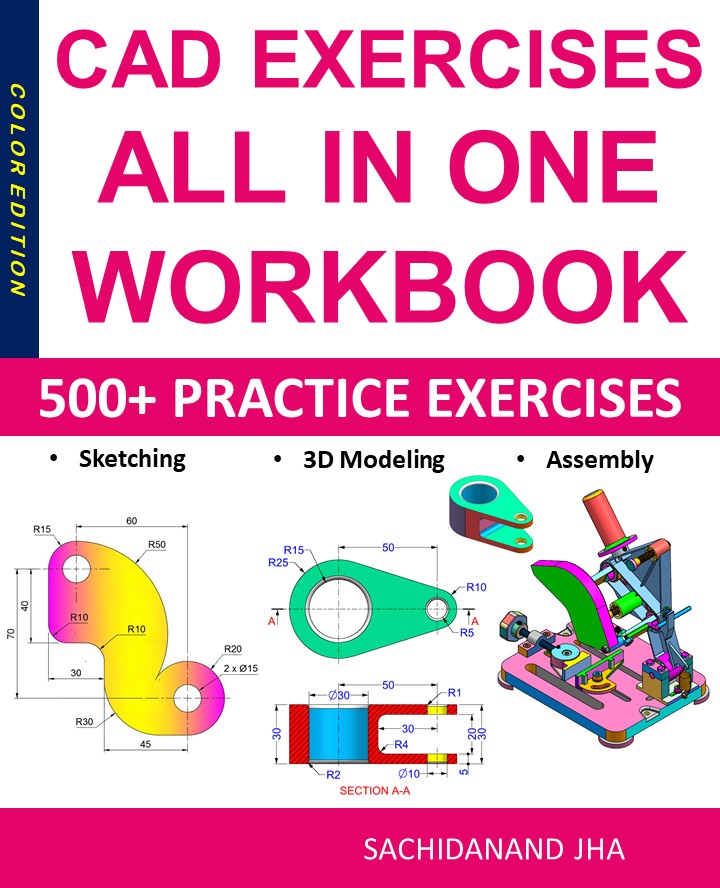
CAD EXERCISES All-in-One Workbook

500+ Practice Exercises to Master CAD Through Real-World Practice!

This all-in-one workbook is your ultimate resource to develop hands-on CAD skills using any CAD software.Whether you’re a student, engineer, hobbyist, or professional, this guide is designed to help you gain real design confidence through structured, practice-oriented exercises.

What’s Inside this Book:

  • 200 2D Sketching Exercises – Build a strong foundation in dimension-driven 2D geometry and technical drawings
  • 200 3D Modeling Exercises – Practice modeling real-world parts, from simple shapes to complex components.
  • Multi-Part Assembly Projects – Understand how parts fit together and create full assemblies with detailed drawings

🎯 Why This Book?

  • 500+ practice exercises following real design standards
  • Designed for self-paced learning & independent practice
  • Perfect for classrooms, technical interview preparation, and personal projects
  • Covers 2D Sketching, 3D Modeling & Assembly Design in one workbook
  • Trusted by 15,000+ CAD learners worldwide

After purchasing, a download link will be sent instantly to your email.

Buy Now For $27.99

Are you a student or Unemployed? Get this bundle for $19.99

Offer for Students Buy Now For $19.99

Buy Paperback on Amazon.com

Tinkercad Complete Guide 2025: Learn 3D Design, Circuits & Coding Easily

Tinkercad: The Complete Beginner’s Guide to 3D Design, Circuits, and Coding (2025)

Tinkercad is one of the most beginner-friendly design tools available today. Developed by Autodesk, Tinkercad is a free, web-based application that allows users to create 3D models, simulate electronic circuits, and explore block-based coding—all directly from a browser. Its simplicity and accessibility make it a popular choice for students, educators, hobbyists, and first-time designers.

In this comprehensive guide, we’ll explore what Tinkercad is, its key features, benefits, use cases, and how to get started effectively in 2025.


What Is Tinkercad?

Tinkercad is an online CAD (Computer-Aided Design) platform that focuses on ease of use rather than complexity. Unlike professional CAD software that requires extensive training, Tinkercad uses a drag-and-drop interface that allows users to build designs using simple geometric shapes.

Tinkercad supports three main workspaces:

  • 3D Design

  • Circuits

  • Codeblocks

Because it runs entirely in a web browser, there is no installation required, making it ideal for classrooms and quick prototyping.


Key Features of Tinkercad

1. Easy 3D Design Interface

Tinkercad’s 3D design workspace lets users create models by combining basic shapes such as cubes, cylinders, and spheres. Shapes can be resized, rotated, aligned, grouped, and modified with simple controls.

This intuitive approach makes Tinkercad perfect for:

  • Beginners learning CAD fundamentals

  • Students exploring 3D modeling

  • Hobbyists designing objects for 3D printing


2. Tinkercad Circuits

One of Tinkercad’s standout features is its circuits simulator. Users can build electronic circuits using virtual components such as:

  • Arduino boards

  • LEDs and resistors

  • Sensors and motors

  • Breadboards

The circuit simulation runs in real time, allowing users to test designs safely without physical hardware.


3. Block-Based and Text Coding

Tinkercad supports block-based coding (similar to Scratch) and text-based Arduino code. This makes it an excellent platform for learning programming concepts alongside electronics.

Students can:

  • Write logic using visual blocks

  • Convert blocks into Arduino C++ code

  • Understand how software interacts with hardware


4. Cloud-Based Collaboration

All projects are stored in the cloud, making it easy to access designs from anywhere. Users can also share projects via links, allowing teachers and teams to collaborate efficiently.


5. 3D Printing Ready

Tinkercad allows users to export models in STL and OBJ formats, which are widely supported by 3D printers and slicing software. This makes it a popular tool for quick 3D printing projects.


Benefits of Using Tinkercad

Beginner-Friendly

Tinkercad is designed for users with no prior CAD experience. The learning curve is minimal, and most users can create their first model within minutes.

Free to Use

Unlike many CAD tools, Tinkercad is completely free. All features are accessible with a simple Autodesk account.

Ideal for Education

Tinkercad is widely used in STEM education. Teachers can create classrooms, assign projects, and monitor student progress easily.

Safe Electronics Simulation

The circuit simulator eliminates the risk of damaging physical components, making it perfect for learning electronics safely.

Cross-Platform Access

Since it’s browser-based, Tinkercad works on Windows, macOS, Linux, and Chromebooks without installation.


Common Use Cases of Tinkercad

1. Learning 3D Modeling

Students and beginners use Tinkercad to understand core concepts like scaling, alignment, grouping, and spatial thinking.

2. 3D Printing Projects

Hobbyists design phone stands, keychains, enclosures, and custom parts for home 3D printers.

3. Electronics Prototyping

Tinkercad Circuits is commonly used to simulate Arduino projects before building them physically.

4. Classroom STEM Projects

Teachers use Tinkercad to introduce CAD, electronics, and coding in a unified learning environment.


How to Get Started with Tinkercad

Step 1: Create an Account

Visit the Tinkercad website and sign in using an Autodesk account or a supported login method.

Step 2: Choose a Workspace

Select 3D Design, Circuits, or Codeblocks depending on your project goals.

Step 3: Start Designing

Drag shapes onto the workplane, adjust dimensions, and combine them to form your model.

Step 4: Simulate or Export

  • Run simulations for circuits

  • Export 3D designs as STL files for printing


Tinkercad vs Professional CAD Software

While Tinkercad is not intended to replace advanced CAD tools like Fusion 360 or SolidWorks, it serves as an excellent entry point.

Feature Tinkercad Professional CAD
Learning Curve Very Low High
Cost Free Paid
Browser-Based Yes Mostly No
Advanced Engineering No Yes

Tinkercad is best for learning and simple projects, while professional CAD software is better suited for complex engineering tasks.


Limitations of Tinkercad

Despite its advantages, Tinkercad has some limitations:

  • Not suitable for complex mechanical designs

  • Limited parametric modeling

  • Basic rendering and visualization tools

However, these limitations are expected given its beginner-focused design.


Final Thoughts

Tinkercad is an excellent starting point for anyone interested in 3D design, electronics, or coding. Its simplicity, free access, and educational focus make it one of the most valuable tools for beginners and classrooms worldwide.

Whether you’re a student learning CAD, a teacher introducing STEM concepts, or a hobbyist exploring 3D printing, Tinkercad provides a powerful yet accessible platform to bring ideas to life.

If you’re just beginning your design journey in 2025, Tinkercad is the perfect place to start


End of Blog


CAD Exercises Workbook Cover

After purchasing, a download link will be sent instantly to your email.

Buy Now For $27.99

Are you a student or Unemployed? Get this bundle for $19.99

Offer for Students Buy Now For $19.99

Buy Paperback on Amazon.com

CAD EXERCISES All-in-One Workbook

500+ Practice Exercises to Master CAD Through Real-World Practice!

This all-in-one workbook is your ultimate resource to develop hands-on CAD skills using any CAD software.Whether you’re a student, engineer, hobbyist, or professional, this guide is designed to help you gain real design confidence through structured, practice-oriented exercises.

What’s Inside this Book:

  • 200 2D Sketching Exercises – Build a strong foundation in dimension-driven 2D geometry and technical drawings
  • 200 3D Modeling Exercises – Practice modeling real-world parts, from simple shapes to complex components.
  • Multi-Part Assembly Projects – Understand how parts fit together and create full assemblies with detailed drawings

🎯 Why This Book?

  • 500+ practice exercises following real design standards
  • Designed for self-paced learning & independent practice
  • Perfect for classrooms, technical interview preparation, and personal projects
  • Covers 2D Sketching, 3D Modeling & Assembly Design in one workbook
  • Trusted by 15,000+ CAD learners worldwide

After purchasing, a download link will be sent instantly to your email.

Buy Now For $27.99

Are you a student or Unemployed? Get this bundle for $19.99

Offer for Students Buy Now For $19.99

Buy Paperback on Amazon.com