Master Fusion 360: Enable/Disable Sketch Grid

Master Fusion 360: Enable/Disable Sketch Grid

Introduction

Fusion 360 is a powerful 3D CAD, CAM, and CAE tool that offers a wide range of features and tools for product design, engineering, and manufacturing. One of the useful features in Fusion 360 is the Sketch Grid, which provides a temporary reference frame for sketching and drawing objects. In this blog post, we will explore the process of turning the Sketch Grid on and off in Fusion 360.

Understanding the Sketch Grid

The Sketch Grid is a temporary reference frame that is displayed on the sketch plane. It consists of a series of lines and curves that intersect at specific points, creating a grid-like pattern. The Sketch Grid is useful for creating accurate and precise sketches, especially when working with complex shapes or symmetrical objects.

Turning the Sketch Grid On

To turn the Sketch Grid on in Fusion 360, follow these steps:

  1. Open a new or existing sketch in Fusion 360.
  2. Go to the “Sketch” tab in the top menu bar.
  3. Click on the “Grid” dropdown menu.
  4. Select “Show Grid” from the list of options.
  5. The Sketch Grid will be displayed on the sketch plane.

Alternatively, you can also turn the Sketch Grid on using the keyboard shortcut “Ctrl+Shift+G” (Windows) or “Command+Shift+G” (Mac).

Customizing the Sketch Grid

While the Sketch Grid is turned on, you can customize its appearance by adjusting the grid size, line style, and color. To do this:

  1. Go to the “Sketch” tab in the top menu bar.
  2. Click on the “Grid” dropdown menu.
  3. Select “Grid Options” from the list of options.
  4. In the “Grid Options” dialog box, adjust the grid size, line style, and color as desired.
  5. Click “OK” to apply the changes.

Turning the Sketch Grid Off

To turn the Sketch Grid off in Fusion 360, follow these steps:

  1. Open a new or existing sketch in Fusion 360.
  2. Go to the “Sketch” tab in the top menu bar.
  3. Click on the “Grid” dropdown menu.
  4. Select “Hide Grid” from the list of options.
  5. The Sketch Grid will be hidden from the sketch plane.

Alternatively, you can also turn the Sketch Grid off using the keyboard shortcut “Ctrl+Shift+G” (Windows) or “Command+Shift+G” (Mac) while holding down the “Shift” key.

Using the Sketch Grid in Practice

The Sketch Grid is a useful tool for creating accurate and precise sketches in Fusion 360. Here are a few examples of how to use the Sketch Grid in practice:

Example 1: Creating a Symmetrical Object

To create a symmetrical object using the Sketch Grid, follow these steps:

  1. Create a new sketch in Fusion 360.
  2. Go to the “Sketch” tab in the top menu bar.
  3. Click on the “Grid” dropdown menu.
  4. Select “Show Grid” from the list of options.
  5. Draw a line or shape on the sketch plane using the Sketch Grid as a reference frame.
  6. Use the “Mirror” tool to create a symmetrical copy of the line or shape.
  7. Adjust the Sketch Grid as needed to create the desired symmetrical object.

Example 2: Creating a Complex Shape

To create a complex shape using the Sketch Grid, follow these steps:

  1. Create a new sketch in Fusion 360.
  2. Go to the “Sketch” tab in the top menu bar.
  3. Click on the “Grid” dropdown menu.
  4. Select “Show Grid” from the list of options.
  5. Draw a series of lines or shapes on the sketch plane using the Sketch Grid as a reference frame.
  6. Use the “Trim” and “Extend” tools to modify the lines or shapes as needed.
  7. Adjust the Sketch Grid as needed to create the desired complex shape.

Conclusion

The Sketch Grid is a powerful tool in Fusion 360 that provides a temporary reference frame for sketching and drawing objects. By turning the Sketch Grid on and off, you can create accurate and precise sketches, especially when working with complex shapes or symmetrical objects. In this blog post, we have explored the process of turning the Sketch Grid on and off, as well as how to customize its appearance and use it in practice.

FAQ

Q: How do I turn the Sketch Grid on in Fusion 360?

A: To turn the Sketch Grid on in Fusion 360, go to the “Sketch” tab in the top menu bar, click on the “Grid” dropdown menu, and select “Show Grid” from the list of options.

Q: How do I turn the Sketch Grid off in Fusion 360?

A: To turn the Sketch Grid off in Fusion 360, go to the “Sketch” tab in the top menu bar, click on the “Grid” dropdown menu, and select “Hide Grid” from the list of options.

Q: Can I customize the appearance of the Sketch Grid?

A: Yes, you can customize the appearance of the Sketch Grid by adjusting the grid size, line style, and color. To do this, go to the “Sketch” tab in the top menu bar, click on the “Grid” dropdown menu, and select “Grid Options” from the list of options.

Q: How do I use the Sketch Grid to create a symmetrical object?

A: To create a symmetrical object using the Sketch Grid, draw a line or shape on the sketch plane using the Sketch Grid as a reference frame, and then use the “Mirror” tool to create a symmetrical copy of the line or shape.

Q: Can I use the Sketch Grid to create complex shapes?

A: Yes, you can use the Sketch Grid to create complex shapes by drawing a series of lines or shapes on the sketch plane using the Sketch Grid as a reference frame, and then using the “Trim” and “Extend” tools to modify the lines or shapes as needed.

Q: How do I reset the Sketch Grid to its default settings?

A: To reset the Sketch Grid to its default settings, go to the “Sketch” tab in the top menu bar, click on the “Grid” dropdown menu, and select “Reset Grid” from the list of options.


End of Blog


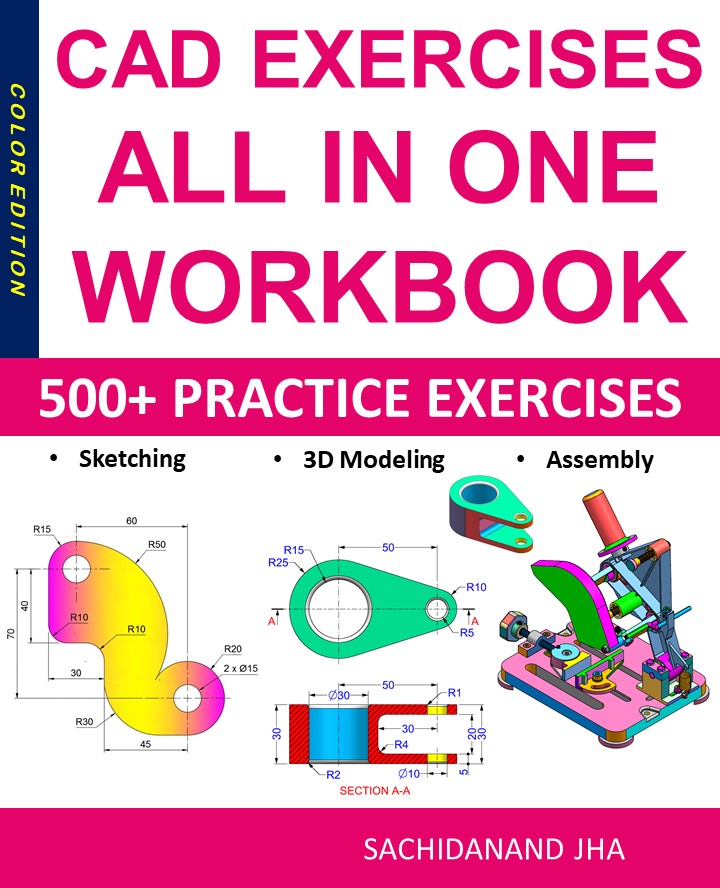
Fusion 360 Workbook Cover

After purchasing, a download link will be sent instantly to your email.

Buy Now For $27.99

Are you a student or Unemployed? Get this bundle for $19.99

Offer for Students Buy Now For $19.99

Buy Paperback on Amazon.com

Autodesk Fusion 360 All-in-One Workbook

500+ Practice Exercises to Master Autodesk Fusion 360 through real-world practice!

This all-in-one workbook is your ultimate resource to develop hands-on CAD skills with Autodesk Fusion 360. Whether you’re a student, engineer, hobbyist, or professional, this guide is built to help you gain real design confidence through structured practice.

What’s Inside this Book:

  • 200 2D Sketching Exercises – Build a strong foundation in dimension-driven 2D geometry and technical drawings
  • 200 3D Modeling Exercises – Practice modeling real-world parts, from simple shapes to complex components.
  • Multi-Part Assembly Projects – Understand how parts fit together and create full assemblies with detailed drawings

🎯 Why This Book?

  • 500+ practice exercises following real design standards
  • Designed for self-paced learning & independent practice
  • Perfect for classrooms, technical interview preparation, and personal projects
  • Covers 2D Sketching, 3D Modeling & Assembly Design in one workbook
  • Trusted by 15,000+ CAD learners worldwide

After purchasing, a download link will be sent instantly to your email.

Buy Now For $27.99

Are you a student or Unemployed? Get this bundle for $19.99

Offer for Students Buy Now For $19.99

Buy Paperback on Amazon.com

Master 2D Drafting in FreeCAD: A Step-by-Step Guide

Master 2D Drafting in FreeCAD: A Step-by-Step Guide

Introduction

FreeCAD is an open-source 3D computer-aided design (CAD) software that offers a range of tools for modeling and designing various objects, from simple household items to complex machines. While FreeCAD is primarily designed for 3D modeling, it also includes a powerful 2D drafting module that allows users to create precise and accurate 2D drawings. In this step-by-step guide, we will explore the process of 2D drafting in FreeCAD, covering the basics and advanced techniques to help you get started.

Setting Up the 2D Workbench

To begin 2D drafting in FreeCAD, you need to switch to the Draft Workbench. This workbench provides a set of tools specifically designed for 2D drafting. To access the Draft Workbench, follow these steps:

  1. Open FreeCAD and create a new project.
  2. Click on the “Workbench” menu at the top of the screen and select “Draft” from the drop-down list.
  3. You should now see the Draft Workbench toolbar and menu.

Creating a New 2D Document

Before you can start drafting, you need to create a new 2D document. To do this, follow these steps:

  1. Click on the “File” menu and select “New” from the drop-down list.
  2. In the “Create new document” dialog box, select “Draft” as the document type.
  3. Choose a document name and location, and click “OK.”

Drawing Basic Shapes

Once you have created a new 2D document, you can start drawing basic shapes using the Draft Workbench tools. Here are the steps to draw a rectangle, circle, and line:

Drawing a Rectangle

  1. Select the “Rectangle” tool from the Draft Workbench toolbar.
  2. Click on the screen where you want to place the top-left corner of the rectangle.
  3. Drag the mouse to define the size and position of the rectangle.
  4. Release the mouse button to create the rectangle.

Drawing a Circle

  1. Select the “Circle” tool from the Draft Workbench toolbar.
  2. Click on the screen where you want to place the center of the circle.
  3. Drag the mouse to define the radius of the circle.
  4. Release the mouse button to create the circle.

Drawing a Line

  1. Select the “Line” tool from the Draft Workbench toolbar.
  2. Click on the screen where you want to place the start point of the line.
  3. Drag the mouse to define the direction and length of the line.
  4. Release the mouse button to create the line.

Modifying and Manipulating Shapes

Once you have created basic shapes, you can modify and manipulate them using the Draft Workbench tools. Here are some common operations:

Moving a Shape

  1. Select the shape you want to move.
  2. Click on the “Move” tool from the Draft Workbench toolbar.
  3. Click on the screen where you want to move the shape to.
  4. Release the mouse button to move the shape.

Scaling a Shape

  1. Select the shape you want to scale.
  2. Click on the “Scale” tool from the Draft Workbench toolbar.
  3. Click on the screen where you want to scale the shape from.
  4. Drag the mouse to define the scaling factor.
  5. Release the mouse button to scale the shape.

Rotating a Shape

  1. Select the shape you want to rotate.
  2. Click on the “Rotate” tool from the Draft Workbench toolbar.
  3. Click on the screen where you want to rotate the shape from.
  4. Drag the mouse to define the rotation angle.
  5. Release the mouse button to rotate the shape.

Working with Dimensions and Constraints

Dimensions and constraints are essential for creating accurate and reliable 2D drawings. Here are some tips for working with dimensions and constraints in FreeCAD:

Adding Dimensions

  1. Select the shape you want to add a dimension to.
  2. Click on the “Dimension” tool from the Draft Workbench toolbar.
  3. Click on the screen where you want to place the dimension.
  4. Choose the dimension type (e.g., length, angle, radius) and click “OK.”

Adding Constraints

  1. Select the shape you want to add a constraint to.
  2. Click on the “Constraint” tool from the Draft Workbench toolbar.
  3. Choose the constraint type (e.g., fixed, coincident, perpendicular) and click “OK.”

Exporting and Printing 2D Drawings

Once you have completed your 2D drawing, you can export it as a vector file (e.g., PDF, SVG) or print it directly from FreeCAD. Here are the steps to export and print a 2D drawing:

Exporting a 2D Drawing

  1. Select the 2D drawing you want to export.
  2. Click on the “File” menu and select “Export” from the drop-down list.
  3. Choose the file format (e.g., PDF, SVG) and location, and click “OK.”

Printing a 2D Drawing

  1. Select the 2D drawing you want to print.
  2. Click on the “File” menu and select “Print” from the drop-down list.
  3. Choose the printer and paper settings, and click “OK.”

Conclusion

FreeCAD’s 2D drafting module offers a powerful and flexible set of tools for creating accurate and reliable 2D drawings. By following the steps outlined in this guide, you can master the basics of 2D drafting in FreeCAD and start creating professional-looking drawings.

FAQ

Q: What is the difference between FreeCAD’s 2D and 3D drafting modules?

A: FreeCAD’s 2D drafting module is specifically designed for creating 2D drawings, while the 3D drafting module is designed for creating 3D models.

Q: Can I use FreeCAD to draw architectural plans?

A: Yes, FreeCAD can be used to draw architectural plans, including floor plans, elevations, and cross-sections.

Q: How do I add text to a 2D drawing in FreeCAD?

A: To add text to a 2D drawing in FreeCAD, select the “Text” tool from the Draft Workbench toolbar and click on the screen where you want to place the text.

Q: Can I use FreeCAD to create technical drawings?

A: Yes, FreeCAD can be used to create technical drawings, including schematics, diagrams, and blueprints.

Q: How do I import a 2D drawing into FreeCAD?

A: To import a 2D drawing into FreeCAD, click on the “File” menu and select “Import” from the drop-down list.

Q: Can I use FreeCAD to create 2D animations?

A: Yes, FreeCAD can be used to create 2D animations, including GIFs and videos.

Q: How do I create a new 2D template in FreeCAD?

A: To create a new 2D template in FreeCAD, click on the “File” menu and select “New” from the drop-down list, then select “Draft” as the document type.


End of Blog


CAD Exercises Workbook Cover

After purchasing, a download link will be sent instantly to your email.

Buy Now For $27.99

Are you a student or Unemployed? Get this bundle for $19.99

Offer for Students Buy Now For $19.99

Buy Paperback on Amazon.com

FREECAD All-in-One Workbook

500+ Practice Exercises to Master FreeCAD through real-world practice!

This all-in-one workbook is your ultimate resource to develop hands-on CAD skills with FreeCAD. Whether you’re a student, engineer, hobbyist, or professional, this guide is built to help you gain real design confidence through structured practice.

What’s Inside this Book:

  • 200 2D Sketching Exercises – Build a strong foundation in dimension-driven 2D geometry and technical drawings
  • 200 3D Modeling Exercises – Practice modeling real-world parts, from simple shapes to complex components.
  • Multi-Part Assembly Projects – Understand how parts fit together and create full assemblies with detailed drawings

🎯 Why This Book?

  • 500+ practice exercises following real design standards
  • Designed for self-paced learning & independent practice
  • Perfect for classrooms, technical interview preparation, and personal projects
  • Covers 2D Sketching, 3D Modeling & Assembly Design in one workbook
  • Trusted by 15,000+ CAD learners worldwide

After purchasing, a download link will be sent instantly to your email.

Buy Now For $27.99

Are you a student or Unemployed? Get this bundle for $19.99

Offer for Students Buy Now For $19.99

Buy Paperback on Amazon.com

Master Parametric 3D Modeling in FreeCAD: A Step-by-Step Guide

Master Parametric 3D Modeling in FreeCAD: A Step-by-Step Guide

Introduction

FreeCAD is a free and open-source 3D computer-aided design (CAD) software that offers a wide range of features and tools for creating and editing 3D models. One of the most powerful features of FreeCAD is its ability to create parametric 3D models, which allows users to define a model’s shape and properties using mathematical equations and relationships. In this blog post, we will explore the basics of parametric modeling in FreeCAD and provide a step-by-step guide on how to create parametric 3D models.

Getting Started with Parametric Modeling in FreeCAD

Before we dive into the process of creating parametric 3D models, it’s essential to understand the basics of parametric modeling. Parametric modeling is a way of creating 3D models that are defined by a set of parameters or variables. These parameters can be used to define the shape, size, and properties of the model, and can be easily modified to create different variations of the model.

To get started with parametric modeling in FreeCAD, you’ll need to have a basic understanding of the software and its interface. FreeCAD has a steep learning curve, but don’t worry, we’ll take it one step at a time.

Setting Up FreeCAD for Parametric Modeling

To start creating parametric 3D models in FreeCAD, you’ll need to set up the software to use the parametric modeling feature. Here’s how to do it:

  • Open FreeCAD and create a new document by clicking on the “File” menu and selecting “New Document”.
  • Once the document is created, click on the “Part” workbench in the left-hand menu. The Part workbench is where you’ll find the parametric modeling tools.
  • In the Part workbench, click on the “Parametric” tab to access the parametric modeling tools.

Creating a Basic Parametric Model

Now that we’ve set up FreeCAD for parametric modeling, let’s create a basic parametric model. We’ll create a simple cube with a parameter that controls its size.

Creating the Cube

To create the cube, follow these steps:

  • In the Part workbench, click on the “Box” tool to create a new box.
  • In the “Properties” panel, click on the “Size” tab to access the size parameters.
  • In the “Size” tab, set the “Length”, “Width”, and “Height” parameters to a value of 10 mm.
  • Click on the “OK” button to create the cube.

Adding a Parameter to the Cube

Now that we’ve created the cube, let’s add a parameter to control its size. We’ll use the “Expression” tool to create a new parameter.

  • In the Part workbench, click on the “Expression” tool to create a new expression.
  • In the “Expression” dialog box, click on the “Add” button to create a new parameter.
  • In the “Parameter” dialog box, set the “Name” field to “size” and the “Value” field to 10 mm.
  • Click on the “OK” button to create the parameter.

Creating a Parametric Relationship

Now that we’ve created the parameter, let’s create a parametric relationship between the cube and the parameter. We’ll use the “Link” tool to create a link between the cube and the parameter.

  • In the Part workbench, click on the “Link” tool to create a new link.
  • In the “Link” dialog box, select the cube as the “Object” and the “size” parameter as the “Property”.
  • Click on the “OK” button to create the link.

Modifying the Parametric Model

Now that we’ve created a basic parametric model, let’s modify it to see how the parametric relationship works. We’ll change the value of the “size” parameter to see how it affects the cube.

  • In the Part workbench, click on the “Expression” tool to edit the “size” parameter.
  • In the “Expression” dialog box, change the value of the “size” parameter to 20 mm.
  • Click on the “OK” button to update the parameter.
  • The cube will update automatically to reflect the new size.

Creating a More Complex Parametric Model

Now that we’ve mastered the basics of parametric modeling, let’s create a more complex parametric model. We’ll create a parametric model of a car with a parameter that controls its size.

Creating the Car Body

To create the car body, follow these steps:

  • In the Part workbench, click on the “Part” tool to create a new part.
  • In the “Part” dialog box, click on the “Shape” tab to access the shape parameters.
  • In the “Shape” tab, select the “Parametric” tab to access the parametric shape tools.
  • In the “Parametric” tab, click on the “Box” tool to create a new box.
  • In the “Properties” panel, click on the “Size” tab to access the size parameters.
  • In the “Size” tab, set the “Length”, “Width”, and “Height” parameters to a value of 10 mm.
  • Click on the “OK” button to create the box.

Adding Parameters to the Car Body

Now that we’ve created the car body, let’s add parameters to control its size and shape. We’ll use the “Expression” tool to create new parameters.

  • In the Part workbench, click on the “Expression” tool to create a new expression.
  • In the “Expression” dialog box, click on the “Add” button to create a new parameter.
  • In the “Parameter” dialog box, set the “Name” field to “size” and the “Value” field to 10 mm.
  • Click on the “OK” button to create the parameter.
  • In the Part workbench, click on the “Expression” tool to create another new expression.
  • In the “Expression” dialog box, click on the “Add” button to create another new parameter.
  • In the “Parameter” dialog box, set the “Name” field to “width” and the “Value” field to 5 mm.
  • Click on the “OK” button to create the parameter.

Creating a Parametric Relationship for the Car Body

Now that we’ve created the parameters, let’s create a parametric relationship between the car body and the parameters. We’ll use the “Link” tool to create links between the car body and the parameters.

  • In the Part workbench, click on the “Link” tool to create a new link.
  • In the “Link” dialog box, select the car body as the “Object” and the “size” parameter as the “Property”.
  • Click on the “OK” button to create the link.
  • In the Part workbench, click on the “Link” tool to create another new link.
  • In the “Link” dialog box, select the car body as the “Object” and the “width” parameter as the “Property”.
  • Click on the “OK” button to create the link.

Conclusion

In this blog post, we’ve explored the basics of parametric modeling in FreeCAD and provided a step-by-step guide on how to create parametric 3D models. We’ve covered the basics of parametric modeling, including how to create a basic parametric model, modify it, and create a more complex parametric model.

FAQ

What is parametric modeling?

Parametric modeling is a way of creating 3D models that are defined by a set of parameters or variables. These parameters can be used to define the shape, size, and properties of the model, and can be easily modified to create different variations of the model.

What is FreeCAD?

FreeCAD is a free and open-source 3D computer-aided design (CAD) software that offers a wide range of features and tools for creating and editing 3D models.

How do I create a parametric model in FreeCAD?

To create a parametric model in FreeCAD, you’ll need to set up the software to use the parametric modeling feature. This involves creating a new document, selecting the Part workbench, and clicking on the “Parametric” tab to access the parametric modeling tools.

Can I use FreeCAD for other types of modeling?

Yes, FreeCAD is a versatile CAD software that can be used for a wide range of modeling tasks, including parametric modeling, freeform modeling, and 2D drafting.

What is the difference between parametric and freeform modeling?

Parametric modeling is a type of modeling that is defined by a set of parameters or variables, while freeform modeling is a type of modeling that is defined by a set of geometric shapes and surfaces.


End of Blog


CAD Exercises Workbook Cover

After purchasing, a download link will be sent instantly to your email.

Buy Now For $27.99

Are you a student or Unemployed? Get this bundle for $19.99

Offer for Students Buy Now For $19.99

Buy Paperback on Amazon.com

FREECAD All-in-One Workbook

500+ Practice Exercises to Master FreeCAD through real-world practice!

This all-in-one workbook is your ultimate resource to develop hands-on CAD skills with FreeCAD. Whether you’re a student, engineer, hobbyist, or professional, this guide is built to help you gain real design confidence through structured practice.

What’s Inside this Book:

  • 200 2D Sketching Exercises – Build a strong foundation in dimension-driven 2D geometry and technical drawings
  • 200 3D Modeling Exercises – Practice modeling real-world parts, from simple shapes to complex components.
  • Multi-Part Assembly Projects – Understand how parts fit together and create full assemblies with detailed drawings

🎯 Why This Book?

  • 500+ practice exercises following real design standards
  • Designed for self-paced learning & independent practice
  • Perfect for classrooms, technical interview preparation, and personal projects
  • Covers 2D Sketching, 3D Modeling & Assembly Design in one workbook
  • Trusted by 15,000+ CAD learners worldwide

After purchasing, a download link will be sent instantly to your email.

Buy Now For $27.99

Are you a student or Unemployed? Get this bundle for $19.99

Offer for Students Buy Now For $19.99

Buy Paperback on Amazon.com

Master 2D Drafting in FreeCAD: A Step-by-Step Guide

Introduction

FreeCAD is an open-source 3D computer-aided design (CAD) software that offers a range of tools for modeling and designing various objects, from simple household items to complex machines. While FreeCAD is primarily designed for 3D modeling, it also includes a powerful 2D drafting module that allows users to create precise and accurate 2D drawings. In this step-by-step guide, we will explore the process of 2D drafting in FreeCAD, covering the basics and advanced techniques to help you get started.

Setting Up the 2D Workbench

To begin 2D drafting in FreeCAD, you need to switch to the Draft Workbench. This workbench provides a set of tools specifically designed for 2D drafting. To access the Draft Workbench, follow these steps:

  1. Open FreeCAD and create a new project.
  2. Click on the “Workbench” menu at the top of the screen and select “Draft” from the drop-down list.
  3. You should now see the Draft Workbench toolbar and menu.

Creating a New 2D Document

Before you can start drafting, you need to create a new 2D document. To do this, follow these steps:

  1. Click on the “File” menu and select “New” from the drop-down list.
  2. In the “Create new document” dialog box, select “Draft” as the document type.
  3. Choose a document name and location, and click “OK.”

Drawing Basic Shapes

Once you have created a new 2D document, you can start drawing basic shapes using the Draft Workbench tools. Here are the steps to draw a rectangle, circle, and line:

Drawing a Rectangle

  1. Select the “Rectangle” tool from the Draft Workbench toolbar.
  2. Click on the screen where you want to place the top-left corner of the rectangle.
  3. Drag the mouse to define the size and position of the rectangle.
  4. Release the mouse button to create the rectangle.

Drawing a Circle

  1. Select the “Circle” tool from the Draft Workbench toolbar.
  2. Click on the screen where you want to place the center of the circle.
  3. Drag the mouse to define the radius of the circle.
  4. Release the mouse button to create the circle.

Drawing a Line

  1. Select the “Line” tool from the Draft Workbench toolbar.
  2. Click on the screen where you want to place the start point of the line.
  3. Drag the mouse to define the direction and length of the line.
  4. Release the mouse button to create the line.

Modifying and Manipulating Shapes

Once you have created basic shapes, you can modify and manipulate them using the Draft Workbench tools. Here are some common operations:

Moving a Shape

  1. Select the shape you want to move.
  2. Click on the “Move” tool from the Draft Workbench toolbar.
  3. Click on the screen where you want to move the shape to.
  4. Release the mouse button to move the shape.

Scaling a Shape

  1. Select the shape you want to scale.
  2. Click on the “Scale” tool from the Draft Workbench toolbar.
  3. Click on the screen where you want to scale the shape from.
  4. Drag the mouse to define the scaling factor.
  5. Release the mouse button to scale the shape.

Rotating a Shape

  1. Select the shape you want to rotate.
  2. Click on the “Rotate” tool from the Draft Workbench toolbar.
  3. Click on the screen where you want to rotate the shape from.
  4. Drag the mouse to define the rotation angle.
  5. Release the mouse button to rotate the shape.

Working with Dimensions and Constraints

Dimensions and constraints are essential for creating accurate and reliable 2D drawings. Here are some tips for working with dimensions and constraints in FreeCAD:

Adding Dimensions

  1. Select the shape you want to add a dimension to.
  2. Click on the “Dimension” tool from the Draft Workbench toolbar.
  3. Click on the screen where you want to place the dimension.
  4. Choose the dimension type (e.g., length, angle, radius) and click “OK.”

Adding Constraints

  1. Select the shape you want to add a constraint to.
  2. Click on the “Constraint” tool from the Draft Workbench toolbar.
  3. Choose the constraint type (e.g., fixed, coincident, perpendicular) and click “OK.”

Exporting and Printing 2D Drawings

Once you have completed your 2D drawing, you can export it as a vector file (e.g., PDF, SVG) or print it directly from FreeCAD. Here are the steps to export and print a 2D drawing:

Exporting a 2D Drawing

  1. Select the 2D drawing you want to export.
  2. Click on the “File” menu and select “Export” from the drop-down list.
  3. Choose the file format (e.g., PDF, SVG) and location, and click “OK.”

Printing a 2D Drawing

  1. Select the 2D drawing you want to print.
  2. Click on the “File” menu and select “Print” from the drop-down list.
  3. Choose the printer and paper settings, and click “OK.”

Conclusion

FreeCAD’s 2D drafting module offers a powerful and flexible set of tools for creating accurate and reliable 2D drawings. By following the steps outlined in this guide, you can master the basics of 2D drafting in FreeCAD and start creating professional-looking drawings.

FAQ

Q: What is the difference between FreeCAD’s 2D and 3D drafting modules?

A: FreeCAD’s 2D drafting module is specifically designed for creating 2D drawings, while the 3D drafting module is designed for creating 3D models.

Q: Can I use FreeCAD to draw architectural plans?

A: Yes, FreeCAD can be used to draw architectural plans, including floor plans, elevations, and cross-sections.

Q: How do I add text to a 2D drawing in FreeCAD?

A: To add text to a 2D drawing in FreeCAD, select the “Text” tool from the Draft Workbench toolbar and click on the screen where you want to place the text.

Q: Can I use FreeCAD to create technical drawings?

A: Yes, FreeCAD can be used to create technical drawings, including schematics, diagrams, and blueprints.

Q: How do I import a 2D drawing into FreeCAD?

A: To import a 2D drawing into FreeCAD, click on the “File” menu and select “Import” from the drop-down list.

Q: Can I use FreeCAD to create 2D animations?

A: Yes, FreeCAD can be used to create 2D animations, including GIFs and videos.

Q: How do I create a new 2D template in FreeCAD?

A: To create a new 2D template in FreeCAD, click on the “File” menu and select “New” from the drop-down list, then select “Draft” as the document type.


End of Blog


CAD Exercises Workbook Cover

After purchasing, a download link will be sent instantly to your email.

Buy Now For $27.99

Are you a student or Unemployed? Get this bundle for $19.99

Offer for Students Buy Now For $19.99

Buy Paperback on Amazon.com

FREECAD All-in-One Workbook

500+ Practice Exercises to Master FreeCAD through real-world practice!

This all-in-one workbook is your ultimate resource to develop hands-on CAD skills with FreeCAD. Whether you’re a student, engineer, hobbyist, or professional, this guide is built to help you gain real design confidence through structured practice.

What’s Inside this Book:

  • 200 2D Sketching Exercises – Build a strong foundation in dimension-driven 2D geometry and technical drawings
  • 200 3D Modeling Exercises – Practice modeling real-world parts, from simple shapes to complex components.
  • Multi-Part Assembly Projects – Understand how parts fit together and create full assemblies with detailed drawings

🎯 Why This Book?

  • 500+ practice exercises following real design standards
  • Designed for self-paced learning & independent practice
  • Perfect for classrooms, technical interview preparation, and personal projects
  • Covers 2D Sketching, 3D Modeling & Assembly Design in one workbook
  • Trusted by 15,000+ CAD learners worldwide

After purchasing, a download link will be sent instantly to your email.

Buy Now For $27.99

Are you a student or Unemployed? Get this bundle for $19.99

Offer for Students Buy Now For $19.99

Buy Paperback on Amazon.com

Frontend Developer: Skills, Tools, Career Path & Future Scope

Frontend Developer: Skills, Tools, Career Path & Future Scope

In today’s digital world, Frontend Developers play a crucial role in shaping how users interact with websites and web applications. Every button you click, every animation you see, and every form you fill out is crafted by a frontend developer. As businesses move online, the demand for skilled frontend developers continues to grow rapidly.

This blog will cover what a frontend developer is, key skills, tools and technologies, career opportunities, and future trends, making it a complete SEO-friendly guide for beginners and professionals alike.


Who Is a Frontend Developer?

A Frontend Developer is responsible for building the visual and interactive parts of a website or web application. They work on the client side, meaning everything users see and interact with in their browser.

Frontend developers convert design mockups (from tools like Figma or Adobe XD) into responsive, fast, and user-friendly interfaces using code. Their main goal is to ensure a smooth and engaging user experience across all devices.


Core Responsibilities of a Frontend Developer

A frontend developer’s daily tasks include:

  • Developing responsive website layouts

  • Writing clean, maintainable, and reusable code

  • Optimizing web performance and loading speed

  • Ensuring cross-browser compatibility

  • Implementing UI/UX designs accurately

  • Fixing bugs and improving user experience

  • Collaborating with backend developers and designers


Essential Skills for a Frontend Developer

1. HTML (HyperText Markup Language)

HTML is the backbone of web pages. A frontend developer must understand semantic HTML, accessibility, and proper document structure.

SEO Tip: Semantic HTML improves search engine visibility.

2. CSS (Cascading Style Sheets)

CSS is used to style websites. Modern frontend developers use:

  • Flexbox & Grid

  • Responsive design

  • Animations & transitions

  • Preprocessors like SCSS

Frameworks like Tailwind CSS, Bootstrap, and DaisyUI help speed up development.

3. JavaScript

JavaScript makes websites interactive. Core concepts include:

  • DOM manipulation

  • ES6+ features

  • Promises & async/await

  • Event handling

JavaScript is the most important skill for a frontend developer.


Popular Frontend Frameworks & Libraries

React.js

React is the most widely used frontend library. It allows developers to build fast and scalable user interfaces using components.

Vue.js

Vue is beginner-friendly and flexible, popular for smaller to medium projects.

Angular

Angular is a full-fledged framework used in enterprise-level applications.

SEO Keyword: frontend developer skills, frontend frameworks


Tools Every Frontend Developer Should Know

  • Version Control: Git & GitHub

  • Package Managers: npm, yarn

  • Build Tools: Vite, Webpack

  • Design Tools: Figma, Adobe XD

  • Testing Tools: Jest, Cypress

  • Browser DevTools: Chrome DevTools

These tools improve productivity and code quality.


Frontend Developer vs Backend Developer

Frontend Developer Backend Developer
Works on UI/UX Works on server logic
Uses HTML, CSS, JS Uses Node.js, Python, Java
Focuses on user interaction Focuses on databases & APIs

Many developers later become Full Stack Developers by learning both.


Career Path of a Frontend Developer

A typical frontend developer career path looks like this:

  1. Junior Frontend Developer

  2. Frontend Developer

  3. Senior Frontend Developer

  4. Lead Frontend Engineer / UI Architect

With experience, you can also move into roles like:

  • UI/UX Engineer

  • Full Stack Developer

  • Technical Lead

  • Product Engineer


Salary of a Frontend Developer

Frontend developer salaries vary based on location, experience, and skills.

  • India: ₹4–12 LPA

  • USA: $70,000–120,000 per year

  • Remote Jobs: Highly competitive and well-paid

React, performance optimization, and accessibility skills can significantly increase salary.


How to Become a Frontend Developer

Follow these steps to start your frontend developer journey:

  1. Learn HTML, CSS, and JavaScript

  2. Practice building responsive websites

  3. Learn a framework like React

  4. Build real-world projects

  5. Create a strong portfolio website

  6. Contribute to open-source projects

  7. Apply for internships and jobs

Consistency and hands-on practice are key.


Future Scope of Frontend Development

Frontend development is evolving rapidly. Future trends include:

  • AI-powered UI development

  • Web performance optimization

  • Progressive Web Apps (PWA)

  • Server-side rendering (Next.js)

  • Accessibility-first development

The demand for frontend developers is expected to grow as businesses focus more on user experience.


Why Frontend Development Is a Great Career Choice

  • High demand across industries

  • Creative and technical work

  • Remote job opportunities

  • Continuous learning and growth

  • Strong community support

Frontend development combines creativity with logic, making it an exciting career option.


Conclusion

A Frontend Developer is the bridge between design and technology. With the right skills, tools, and mindset, frontend development offers a rewarding and future-proof career. Whether you are a beginner or an experienced developer, continuously improving your skills and staying updated with modern frameworks will help you stand out in this competitive field.

If you want to build beautiful, fast, and user-friendly web applications, frontend development is the perfect path for you.


End of Blog


CAD Exercises Workbook Cover

After purchasing, a download link will be sent instantly to your email.

Buy Now For $27.99

Are you a student or Unemployed? Get this bundle for $19.99

Offer for Students Buy Now For $19.99

Buy Paperback on Amazon.com

CAD EXERCISES All-in-One Workbook

500+ Practice Exercises to Master CAD Through Real-World Practice!

This all-in-one workbook is your ultimate resource to develop hands-on CAD skills using any CAD software.Whether you’re a student, engineer, hobbyist, or professional, this guide is designed to help you gain real design confidence through structured, practice-oriented exercises.

What’s Inside this Book:

  • 200 2D Sketching Exercises – Build a strong foundation in dimension-driven 2D geometry and technical drawings
  • 200 3D Modeling Exercises – Practice modeling real-world parts, from simple shapes to complex components.
  • Multi-Part Assembly Projects – Understand how parts fit together and create full assemblies with detailed drawings

🎯 Why This Book?

  • 500+ practice exercises following real design standards
  • Designed for self-paced learning & independent practice
  • Perfect for classrooms, technical interview preparation, and personal projects
  • Covers 2D Sketching, 3D Modeling & Assembly Design in one workbook
  • Trusted by 15,000+ CAD learners worldwide

After purchasing, a download link will be sent instantly to your email.

Buy Now For $27.99

Are you a student or Unemployed? Get this bundle for $19.99

Offer for Students Buy Now For $19.99

Buy Paperback on Amazon.com

Frontend Developer: Skills, Tools, Career Path & Future Scope

Frontend Developer: Skills, Tools, Career Path & Future Scope

In today’s digital world, Frontend Developers play a crucial role in shaping how users interact with websites and web applications. Every button you click, every animation you see, and every form you fill out is crafted by a frontend developer. As businesses move online, the demand for skilled frontend developers continues to grow rapidly.

This blog will cover what a frontend developer is, key skills, tools and technologies, career opportunities, and future trends, making it a complete SEO-friendly guide for beginners and professionals alike.


Who Is a Frontend Developer?

A Frontend Developer is responsible for building the visual and interactive parts of a website or web application. They work on the client side, meaning everything users see and interact with in their browser.

Frontend developers convert design mockups (from tools like Figma or Adobe XD) into responsive, fast, and user-friendly interfaces using code. Their main goal is to ensure a smooth and engaging user experience across all devices.


Core Responsibilities of a Frontend Developer

A frontend developer’s daily tasks include:

  • Developing responsive website layouts

  • Writing clean, maintainable, and reusable code

  • Optimizing web performance and loading speed

  • Ensuring cross-browser compatibility

  • Implementing UI/UX designs accurately

  • Fixing bugs and improving user experience

  • Collaborating with backend developers and designers


Essential Skills for a Frontend Developer

1. HTML (HyperText Markup Language)

HTML is the backbone of web pages. A frontend developer must understand semantic HTML, accessibility, and proper document structure.

SEO Tip: Semantic HTML improves search engine visibility.

2. CSS (Cascading Style Sheets)

CSS is used to style websites. Modern frontend developers use:

  • Flexbox & Grid

  • Responsive design

  • Animations & transitions

  • Preprocessors like SCSS

Frameworks like Tailwind CSS, Bootstrap, and DaisyUI help speed up development.

3. JavaScript

JavaScript makes websites interactive. Core concepts include:

  • DOM manipulation

  • ES6+ features

  • Promises & async/await

  • Event handling

JavaScript is the most important skill for a frontend developer.


Popular Frontend Frameworks & Libraries

React.js

React is the most widely used frontend library. It allows developers to build fast and scalable user interfaces using components.

Vue.js

Vue is beginner-friendly and flexible, popular for smaller to medium projects.

Angular

Angular is a full-fledged framework used in enterprise-level applications.

SEO Keyword: frontend developer skills, frontend frameworks


Tools Every Frontend Developer Should Know

  • Version Control: Git & GitHub

  • Package Managers: npm, yarn

  • Build Tools: Vite, Webpack

  • Design Tools: Figma, Adobe XD

  • Testing Tools: Jest, Cypress

  • Browser DevTools: Chrome DevTools

These tools improve productivity and code quality.


Frontend Developer vs Backend Developer

Frontend Developer Backend Developer
Works on UI/UX Works on server logic
Uses HTML, CSS, JS Uses Node.js, Python, Java
Focuses on user interaction Focuses on databases & APIs

Many developers later become Full Stack Developers by learning both.


Career Path of a Frontend Developer

A typical frontend developer career path looks like this:

  1. Junior Frontend Developer

  2. Frontend Developer

  3. Senior Frontend Developer

  4. Lead Frontend Engineer / UI Architect

With experience, you can also move into roles like:

  • UI/UX Engineer

  • Full Stack Developer

  • Technical Lead

  • Product Engineer


Salary of a Frontend Developer

Frontend developer salaries vary based on location, experience, and skills.

  • India: ₹4–12 LPA

  • USA: $70,000–120,000 per year

  • Remote Jobs: Highly competitive and well-paid

React, performance optimization, and accessibility skills can significantly increase salary.


How to Become a Frontend Developer

Follow these steps to start your frontend developer journey:

  1. Learn HTML, CSS, and JavaScript

  2. Practice building responsive websites

  3. Learn a framework like React

  4. Build real-world projects

  5. Create a strong portfolio website

  6. Contribute to open-source projects

  7. Apply for internships and jobs

Consistency and hands-on practice are key.


Future Scope of Frontend Development

Frontend development is evolving rapidly. Future trends include:

  • AI-powered UI development

  • Web performance optimization

  • Progressive Web Apps (PWA)

  • Server-side rendering (Next.js)

  • Accessibility-first development

The demand for frontend developers is expected to grow as businesses focus more on user experience.


Why Frontend Development Is a Great Career Choice

  • High demand across industries

  • Creative and technical work

  • Remote job opportunities

  • Continuous learning and growth

  • Strong community support

Frontend development combines creativity with logic, making it an exciting career option.


Conclusion

A Frontend Developer is the bridge between design and technology. With the right skills, tools, and mindset, frontend development offers a rewarding and future-proof career. Whether you are a beginner or an experienced developer, continuously improving your skills and staying updated with modern frameworks will help you stand out in this competitive field.

If you want to build beautiful, fast, and user-friendly web applications, frontend development is the perfect path for you.


End of Blog


CAD Exercises Workbook Cover

After purchasing, a download link will be sent instantly to your email.

Buy Now For $27.99

Are you a student or Unemployed? Get this bundle for $19.99

Offer for Students Buy Now For $19.99

Buy Paperback on Amazon.com

CAD EXERCISES All-in-One Workbook

500+ Practice Exercises to Master CAD Through Real-World Practice!

This all-in-one workbook is your ultimate resource to develop hands-on CAD skills using any CAD software.Whether you’re a student, engineer, hobbyist, or professional, this guide is designed to help you gain real design confidence through structured, practice-oriented exercises.

What’s Inside this Book:

  • 200 2D Sketching Exercises – Build a strong foundation in dimension-driven 2D geometry and technical drawings
  • 200 3D Modeling Exercises – Practice modeling real-world parts, from simple shapes to complex components.
  • Multi-Part Assembly Projects – Understand how parts fit together and create full assemblies with detailed drawings

🎯 Why This Book?

  • 500+ practice exercises following real design standards
  • Designed for self-paced learning & independent practice
  • Perfect for classrooms, technical interview preparation, and personal projects
  • Covers 2D Sketching, 3D Modeling & Assembly Design in one workbook
  • Trusted by 15,000+ CAD learners worldwide

After purchasing, a download link will be sent instantly to your email.

Buy Now For $27.99

Are you a student or Unemployed? Get this bundle for $19.99

Offer for Students Buy Now For $19.99

Buy Paperback on Amazon.com

Kishan-The UnderCover Agent Came From SansFrancsisco

Introduction to Computer-Aided Design (CAD)

Computer-Aided Design (CAD) is a technology that uses computer systems to assist in the creation, modification, analysis, and optimization of designs. CAD has become an essential tool across industries such as engineering, architecture, manufacturing, automotive, aerospace, and product design. What once required hours of manual drafting can now be completed in minutes with extreme precision.

With the rise of digital transformation, CAD has evolved from simple 2D drawings to highly advanced 3D parametric and simulation-based modeling systems. Today, CAD is not just a design tool—it is the foundation of modern engineering workflows.


What is CAD and How Does It Work?

CAD software allows designers to create accurate drawings and models using digital tools. These designs can be two-dimensional (2D) or three-dimensional (3D), depending on project requirements.

At its core, CAD works by:

  • Defining geometry using mathematical equations

  • Allowing parametric control over dimensions and features

  • Enabling real-time editing and visualization

  • Supporting simulations and performance analysis

Modern CAD systems integrate with CAM (Computer-Aided Manufacturing) and CAE (Computer-Aided Engineering), creating a complete digital product development ecosystem.


Types of CAD Systems

1. 2D CAD

2D CAD is primarily used for drafting and documentation. It replaces manual drawing boards with digital drafting tools. Applications include floor plans, electrical diagrams, and mechanical schematics.

Examples:

  • AutoCAD (2D drafting)

  • LibreCAD

2. 3D CAD

3D CAD allows designers to build realistic models with depth, volume, and mass properties. These models can be rotated, analyzed, and tested virtually.

Examples:

  • Fusion 360

  • SolidWorks

  • CATIA

  • Creo

3. Parametric CAD

Parametric CAD enables designers to define relationships between features. Changing one dimension automatically updates the entire model, ensuring design consistency.


Key Benefits of Computer-Aided Design

1. Increased Accuracy

CAD eliminates many errors caused by manual drafting. Designs are created with mathematical precision, ensuring higher quality and fewer mistakes.

2. Faster Design Process

Design iterations that once took days can now be completed in hours. CAD allows quick modifications without starting from scratch.

3. Improved Visualization

3D CAD models help designers and stakeholders visualize the final product before manufacturing begins.

4. Cost Efficiency

By detecting design flaws early, CAD reduces material waste and costly manufacturing errors.

5. Easy Collaboration

CAD files can be shared globally, enabling teams to collaborate across locations using cloud-based CAD platforms.


Applications of CAD Across Industries

Engineering and Manufacturing

CAD is widely used in mechanical, electrical, and civil engineering for product design, tooling, and production planning.

Architecture and Construction

Architects use CAD to create detailed building layouts, elevations, and 3D walkthroughs.

Automotive and Aerospace

Complex assemblies, aerodynamic simulations, and precision components rely heavily on advanced CAD tools.

Product and Industrial Design

From consumer electronics to furniture, CAD helps designers bring ideas to life with speed and creativity.

Healthcare and Biomedical

CAD is used to design prosthetics, implants, and medical devices with high accuracy.


Popular CAD Software Tools

Some of the most widely used CAD tools include:

  • AutoCAD – Industry standard for 2D and 3D drafting

  • Fusion 360 – Cloud-based CAD/CAM/CAE solution

  • SolidWorks – Powerful parametric 3D modeling tool

  • CATIA – Advanced CAD used in aerospace and automotive industries

  • FreeCAD – Open-source CAD software for parametric modeling

Each tool serves different needs, from beginners to advanced professionals.


CAD Skills and Career Opportunities

Learning CAD opens doors to a wide range of career paths, including:

  • CAD Designer

  • Mechanical Engineer

  • Product Designer

  • Architectural Draftsman

  • Manufacturing Engineer

  • Industrial Designer

With industries rapidly adopting automation and digital manufacturing, CAD professionals are in high demand globally.


Future of CAD Technology

The future of Computer-Aided Design is driven by innovation and integration with emerging technologies:

  • AI-powered design automation

  • Cloud-based collaborative CAD

  • Generative design

  • AR/VR visualization

  • Digital twins

These advancements will make CAD smarter, faster, and more intuitive, reducing human effort while increasing creativity and efficiency.


Conclusion

Computer-Aided Design (CAD) has become the backbone of modern design and engineering. From simple drawings to complex 3D simulations, CAD empowers professionals to design better, faster, and smarter. Whether you are a student, engineer, architect, or designer, mastering CAD is no longer optional—it is essential.

As technology evolves, CAD will continue to shape the future of innovation, manufacturing, and digital design. Investing time in learning CAD today can lead to limitless opportunities tomorrow.

Master FreeCAD in 5 Minutes: A Beginner’s Ultimate Guide

FreeCAD for Beginners: A Complete Getting Started Guide

Are you new to computer-aided design (CAD) software and looking for a free and open-source solution? Look no further than FreeCAD, a powerful and versatile 3D CAD modeling software that has gained popularity among designers, engineers, and hobbyists alike. In this comprehensive guide, we’ll walk you through the basics of FreeCAD and provide you with a step-by-step introduction to get you started.

What is FreeCAD?

FreeCAD is a free and open-source CAD software that runs on Windows, macOS, and Linux operating systems. It was created in 2002 by Werner Mayer and is now maintained by a community of developers and users. FreeCAD offers a wide range of features, including 3D modeling, drafting, and engineering tools, making it an ideal choice for various applications, from architectural design to mechanical engineering.

Key Features of FreeCAD

Before we dive into the getting started guide, let’s take a look at some of the key features of FreeCAD:

  • 3D modeling: FreeCAD allows you to create 3D models from scratch or by importing existing models.
  • Parametric modeling: FreeCAD uses parametric modeling, which means that you can create models by defining a set of parameters that control the shape of the model.
  • Drafting: FreeCAD offers 2D drafting tools, allowing you to create 2D drawings and documents.
  • Engineering tools: FreeCAD includes a range of engineering tools, such as mechanical engineering, electrical engineering, and civil engineering.
  • Scripting: FreeCAD supports scripting, allowing you to automate tasks and create custom tools.

Getting Started with FreeCAD

Now that we’ve covered the basics and key features of FreeCAD, let’s get started with a step-by-step guide.

Step 1: Installing FreeCAD

To install FreeCAD, follow these steps:

  1. Download the FreeCAD installer from the official website.
  2. Run the installer and follow the prompts to select the installation options.
  3. Choose the installation directory and select the components you want to install (e.g., Windows, macOS, Linux).

Step 2: Launching FreeCAD

Once installed, launch FreeCAD by double-clicking on the FreeCAD icon. You’ll see the FreeCAD welcome screen, which provides an overview of the software and its features.

Step 3: Creating a New Document

To create a new document, follow these steps:

  1. Click on the “File” menu and select “New” to create a new document.
  2. Choose the document type (e.g., 3D part, 3D assembly, 2D drawing).
  3. Select the document settings (e.g., unit system, precision).

Step 4: Understanding the Interface

The FreeCAD interface is divided into several sections:

  • Menu bar: The menu bar provides access to various menus, including File, Edit, View, and Help.
  • Toolbar: The toolbar provides quick access to frequently used tools and actions.
  • Workbench: The workbench is the central area of the interface where you’ll work on your designs.

Step 5: Basic Navigation

To navigate the FreeCAD interface, use the following tools:

  • Mouse wheel: Use the mouse wheel to zoom in and out of the 3D view.
  • Middle click: Use the middle click to pan the 3D view.
  • Right click: Use the right click to access context menus and toolbars.

Tips and Tricks

Here are some tips and tricks to help you get started with FreeCAD:

  • Use the tutorials: FreeCAD provides a range of tutorials and guides to help you learn the software.
  • Experiment with tools: Don’t be afraid to experiment with different tools and features.
  • Join the community: FreeCAD has an active community of users and developers. Join the forum or social media groups to connect with other users and get support.

Conclusion

FreeCAD is a powerful and versatile CAD software that offers a wide range of features and tools for designers, engineers, and hobbyists. With this comprehensive guide, you’ve learned the basics of FreeCAD and are ready to start creating your own designs. Remember to experiment with tools, join the community, and take advantage of the tutorials and guides available.

Common Questions

Here are some common questions that new users may have:

  • Q: What is the best way to learn FreeCAD?

A: The best way to learn FreeCAD is by experimenting with the software and following the tutorials and guides provided.

  • Q: Can I import existing models into FreeCAD?

A: Yes, you can import existing models into FreeCAD using various file formats, including STEP, IGES, and STL.

  • Q: Can I use FreeCAD for mechanical engineering?

A: Yes, FreeCAD offers a range of mechanical engineering tools, including 3D modeling, drafting, and engineering tools.

Final Thoughts

FreeCAD is a powerful and free CAD software that offers a wide range of features and tools for designers, engineers, and hobbyists. With this comprehensive guide, you’ve learned the basics of FreeCAD and are ready to start creating your own designs. Remember to experiment with tools, join the community, and take advantage of the tutorials and guides available. Happy designing!


End of Blog


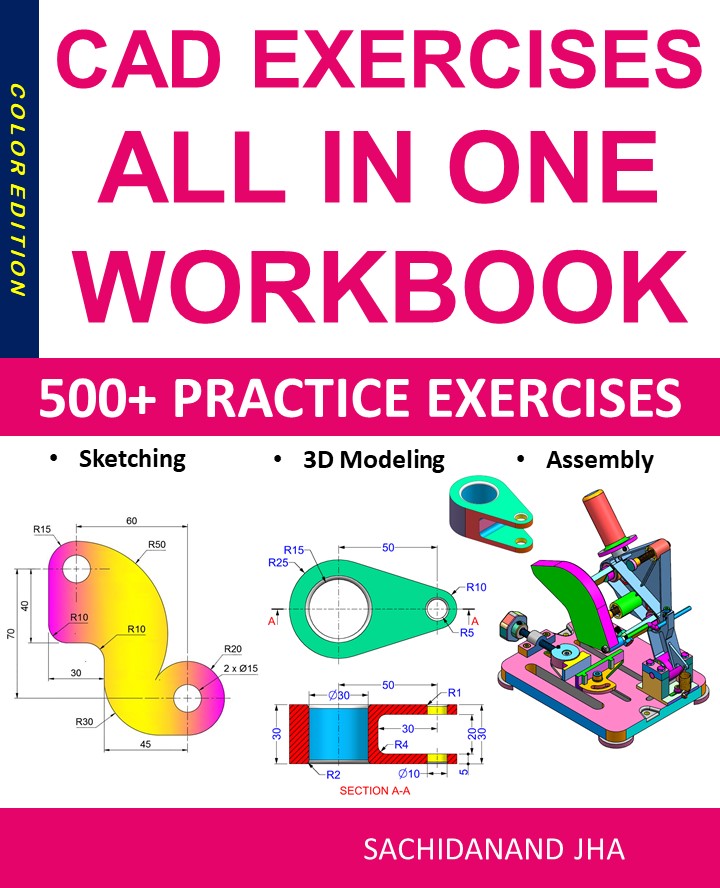
CAD Exercises Workbook Cover

After purchasing, a download link will be sent instantly to your email.

Buy Now For $27.99

Are you a student or Unemployed? Get this bundle for $19.99

Offer for Students Buy Now For $19.99

Buy Paperback on Amazon.com

FREECAD All-in-One Workbook

500+ Practice Exercises to Master FreeCAD through real-world practice!

This all-in-one workbook is your ultimate resource to develop hands-on CAD skills with FreeCAD. Whether you’re a student, engineer, hobbyist, or professional, this guide is built to help you gain real design confidence through structured practice.

What’s Inside this Book:

  • 200 2D Sketching Exercises – Build a strong foundation in dimension-driven 2D geometry and technical drawings
  • 200 3D Modeling Exercises – Practice modeling real-world parts, from simple shapes to complex components.
  • Multi-Part Assembly Projects – Understand how parts fit together and create full assemblies with detailed drawings

🎯 Why This Book?

  • 500+ practice exercises following real design standards
  • Designed for self-paced learning & independent practice
  • Perfect for classrooms, technical interview preparation, and personal projects
  • Covers 2D Sketching, 3D Modeling & Assembly Design in one workbook
  • Trusted by 15,000+ CAD learners worldwide
After purchasing, a download link will be sent instantly to your email.

Buy Now For $27.99

Are you a student or Unemployed? Get this bundle for $19.99

Offer for Students Buy Now For $19.99

Buy Paperback on Amazon.com

SolidWorks CAD Modeling Software: Complete Guide

SolidWorks : A Complete Guide for Engineers and Designers

Computer-Aided Design (CAD) has become an essential part of modern engineering and product development. Among the many tools available today, SolidWorks CAD modeling software stands out as one of the most powerful and user-friendly solutions for 3D mechanical design. Used by engineers, designers, and manufacturers worldwide, SolidWorks enables the creation of accurate, parametric, and production-ready models.

In this blog post, we’ll explore what SolidWorks is, its core features, benefits, applications, and why it remains one of the most trusted CAD tools in the industry.

What Is SolidWorks?

SolidWorks is a professional 3D CAD modeling software developed by Dassault Systèmes. It is primarily used for mechanical design, product development, and manufacturing workflows. Unlike traditional 2D drafting tools, SolidWorks allows designers to build intelligent 3D models that can be easily modified using parametric relationships.

SolidWorks is widely adopted across industries such as automotive, aerospace, consumer products, industrial machinery, medical devices, and electronics.

Key Features of SolidWorks CAD Modeling Software

1. Parametric 3D Modeling

One of the biggest strengths of SolidWorks CAD modeling software is its parametric design approach. Designers can define dimensions, constraints, and relationships, making it easy to update designs without rebuilding models from scratch.

2. Part, Assembly, and Drawing Workflow

SolidWorks follows a structured workflow:

  • Parts for individual components

  • Assemblies to combine parts with real-world constraints

  • Drawings for manufacturing documentation

This workflow ensures smooth transition from concept to production.

3. Advanced Sketching Tools

Sketching is the foundation of any CAD model. SolidWorks offers robust 2D sketch tools with constraints, relations, and real-time feedback to create precise geometry efficiently.

4. Simulation and Analysis

SolidWorks includes built-in simulation tools for stress analysis, motion studies, and thermal testing. Engineers can validate designs virtually, reducing physical prototyping costs and time.

5. Sheet Metal and Weldments

For manufacturing-focused design, SolidWorks provides specialized tools for sheet metal modeling, weldment structures, and frame design, making it ideal for industrial and mechanical applications.

6. Rendering and Visualization

With SolidWorks Visualize, designers can create photorealistic renders and animations for presentations, marketing, and client approvals.

Benefits of Using SolidWorks

User-Friendly Interface

Despite being a powerful professional tool, SolidWorks has an intuitive interface that makes it accessible to beginners while still offering advanced capabilities for experts.

Industry Recognition

SolidWorks CAD modeling software is widely recognized and accepted in industry, making it a valuable skill for engineers and designers seeking career growth.

Strong Community and Resources

There is a massive SolidWorks user community, along with tutorials, forums, certifications, and learning resources that make skill development easier.

Seamless Manufacturing Integration

SolidWorks supports industry-standard file formats and integrates well with CNC machining, 3D printing, and CAM software, ensuring smooth manufacturing workflows.

Common Applications of SolidWorks

SolidWorks is used across multiple industries, including:

  • Mechanical Engineering – gears, enclosures, machines

  • Product Design – consumer goods, appliances, tools

  • Automotive – components, fixtures, assemblies

  • Aerospace – structural and mechanical parts

  • Medical Devices – precise and regulated product designs

Its flexibility makes it suitable for both small startups and large manufacturing enterprises.

SolidWorks vs Other CAD Modeling Software

Compared to other CAD tools, SolidWorks offers an excellent balance between power and usability. While some software focuses heavily on cloud-based workflows or conceptual design, SolidWorks excels in detailed mechanical modeling and production-ready designs.

This makes SolidWorks CAD modeling software especially popular among mechanical engineers and manufacturing professionals.

Learning SolidWorks: Is It Worth It?

Learning SolidWorks is a smart investment if you are involved in engineering, product design, or manufacturing. Many companies specifically look for SolidWorks expertise when hiring CAD designers.

Beginners can start with basic sketching and part modeling, gradually moving to assemblies, simulations, and advanced features. With consistent practice, SolidWorks becomes a highly productive design tool.

Conclusion

SolidWorks CAD modeling software remains one of the most reliable and widely used tools for 3D mechanical design. Its parametric modeling, powerful simulation tools, manufacturing integration, and user-friendly interface make it an industry favorite.

Whether you are a student, professional engineer, or product designer, mastering SolidWorks can significantly enhance your design capabilities and career opportunities. As CAD technology continues to evolve, SolidWorks continues to set high standards for precision, efficiency, and innovation in 3D modeling.

CAD Exercises Workbook Cover

Are you a student or financially struggling? Get this bundle for $19.99

Offer for Students Buy Now For $19.99

After purchasing, a download link will be sent instantly to your email.

CAD EXERCISES All-in-One Workbook

500+ Practice Exercises to Master CAD Through Real-World Practice!

This all-in-one workbook is your ultimate resource to develop hands-on CAD skills using any CAD software.

What’s Inside this Book:

  • 200 2D Sketching Exercises – Build a strong foundation in dimension-driven 2D geometry and technical drawings.
  • 200 3D Modeling Exercises – Practice modeling real-world parts, from simple shapes to complex components.
  • Multi-Part Assembly Projects – Understand how parts fit together and create full assemblies with detailed drawings

🎯 Why This Book?

  • 500+ practice exercises following real design standards
  • Designed for self-paced learning & independent practice
  • Covers 2D Sketching, 3D Modeling & Assembly Design in one workbook
  • Trusted by 15,000+ CAD learners worldwide

Are you a student or financially struggling? Get this bundle for $19.99

Offer for Students Buy Now For $19.99

After purchasing, a download link will be sent instantly to your email.