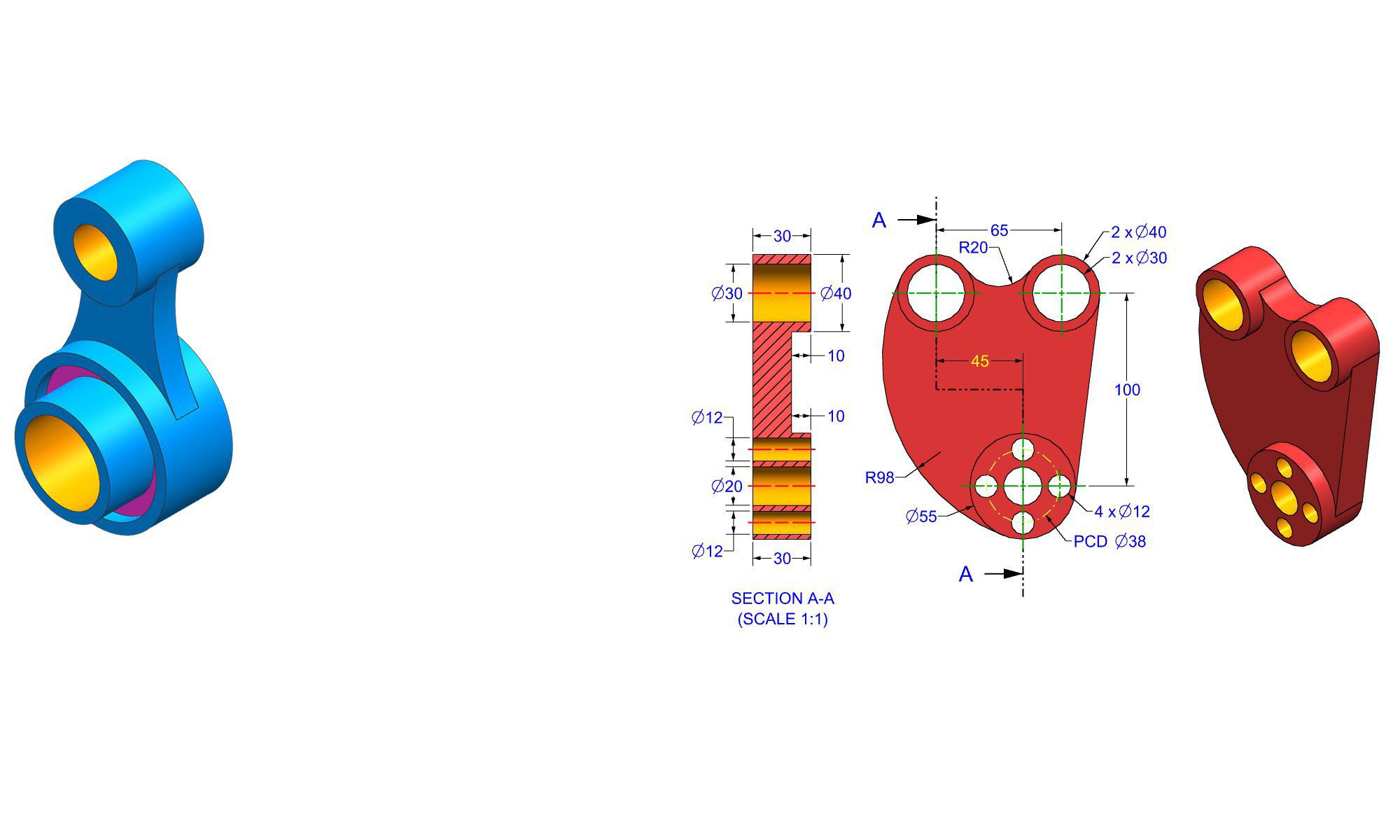

Introduction
Updating a drawing after model changes is a common task in Fusion 360 that can significantly enhance your design workflow. Whether you modify dimensions, features, or add new components, ensuring your drawings reflect these updates accurately is essential for manufacturing, documentation, or presentation purposes. Many users struggle with keeping their drawings synchronized with their evolving models, leading to discrepancies and errors. In this guide, you’ll learn how to effectively update your drawings after model changes in Fusion 360, with step-by-step instructions, practical tips, and common pitfalls to avoid. Mastering this process ensures your documentation always aligns with your latest design iterations, saving time and reducing errors.
How to Update Drawing After Model Changes in Fusion 360
Keeping your drawings synchronized with your model is straightforward once you understand the process. Below are the core steps and best practices for updating drawings efficiently.
1. Understanding the Context of Drawings in Fusion 360
Before diving into the update process, it’s important to recognize how drawings relate to models:
- Drawings in Fusion 360 are usually linked to specific components or assemblies.
- Changes made to the model may or may not automatically reflect in existing drawings.
- Recognizing whether your drawing is linked to the latest version of your model helps determine the need for updates.
2. Checking for Model Updates
When you modify your model:
- Save your model changes.
- Open the drawing that references the model.
- Look for indicators or notifications within Fusion 360 about updates or changes.
3. Updating a Drawing Referencing the Model
Follow these steps to manually update your drawing:
- Open the drawing in Fusion 360.
- Locate the browser panel:
- The browser panel displays all sheets, components, and views.
- Confirm it shows the correct component or assembly that has been modified.
- Refresh the views:
- Right-click on the view(s) you want to update.
- Choose “Update Drawing View” from the context menu.
- Select the updated model component:
- A dialog will appear listing available components.
- Choose the latest version of the model component you want the view to reflect.
- Apply the update:
- Confirm your selection, and the drawing view will refresh to match the current model geometry and features.
4. Updating Multiple Views
For drawings with multiple views:
- Repeat the update process for each view individually.
- Alternatively, select all views (using Shift or Ctrl/Cmd) before right-clicking and choosing “Update Drawing View” to refresh multiple views simultaneously.
5. Using the Drawing Update Button
Fusion 360 provides an Update button:
- Located on the toolbar at the top of the drawing workspace.
- Click it to refresh all views at once.
This option is quick but may not always update views if the linkage wasn’t properly established or if there are incompatibilities.
6. Confirming the Update
After updating:
- Verify that the drawing reflects the latest changes.
- Cross-check dimensions, annotations, and features against your current model.
- Adjust views or annotations if needed for clarity.
7. Saving the Updated Drawing
Once satisfied:
- Save your drawing to preserve the latest version.
- Consider exporting the drawing PDF or DWG for sharing or manufacturing.
Practical Examples of Updating Drawings
Example 1: Changing a Key Dimension
Suppose you alter a critical dimension in your model (e.g., length of a part). Updating the drawing will:
- Refresh the views to show the new geometry.
- Require updating dimension annotations if they are driven by model parameters.
Example 2: Modifying a Feature
Adding a new hole or fillet in the model:
- The drawing views will only update if explicitly refreshed.
- You may need to manually update or add new views showcasing the new features.
Example 3: Assembly Changes
When working on an assembly:
- Updating the component position or configuration requires refreshing views referencing that component.
- Ensure components are properly linked in the drawing.
Common Mistakes to Avoid
- Not saving the model before updating the drawing: Always save your latest changes first.
- Updating views selectively without checking dependencies: Some views might not update if they are based on different components or configurations.
- Ignoring errors or warnings during updates, which may indicate incompatibility or broken links.
- Forgetting to refresh multiple views: Overlooked views may display outdated geometry.
Pro Tips and Best Practices
- Use the “Update All Views” button for quick refreshes of all drawing views.
- Maintain a clean model hierarchy to ensure views link correctly.
- Regularly save both your model and drawing to prevent discrepancies.
- Organize views logically — plan views based on updates to minimize editing post-update.
- Leverage the Fusion 360 Data Panel to manage versions, especially for complex projects.
Comparing Fusion 360 vs. Other CAD Software
| Feature | Fusion 360 | SolidWorks | AutoCAD |
|---|---|---|---|
| Linking models to drawings | Yes, with update options | Yes | Yes, but less integrated |
| Automatic update prompts | Manual refresh required | Automatic with settings | Manual update required |
| Ease of updating views | Simple with right-click | Similar, with more options | More manual, less intuitive |
Fusion 360’s intuitive interface and simple update process make it ideal for beginners and professionals alike, especially for projects requiring frequent iterations.
Conclusion
Keeping your drawings current with model changes in Fusion 360 is crucial for accurate manufacturing documentation, presentations, and project collaboration. By understanding how to manually or automatically refresh drawings, you ensure your designs are always accurately represented. Regularly updating your drawings not only saves time but also minimizes errors, streamlining your entire design process. With practice, updating drawings becomes a seamless part of your workflow, helping you produce professional, precise, and reliable documentation every time.
FAQ
1. How do I update a specific view in Fusion 360 after changing the model?
Ans: Right-click on the view and select “Update Drawing View” to refresh that specific view.
2. Can I automate drawing updates whenever the model changes?
Ans: Fusion 360 requires manual refreshing; automated updates are limited but can be managed efficiently with the “Update All Views” button.
3. What should I do if the drawing doesn’t reflect recent model changes?
Ans: Ensure you saved your model, then manually refresh the views or use the “Update” button to synchronize the drawing.
4. Are there any common mistakes to watch for when updating drawings?
Ans: Yes, such as forgetting to save updates, not refreshing all views, or updating views individually without verifying changes.
5. Is it necessary to create new drawing views after each model change?
Ans: Not always; updating existing views usually suffices unless you need new views to show new features.
6. How can I keep multiple drawings synchronized with different versions of my model?
Ans: Use version control and systematically update each drawing after saving new model versions.
7. Can I update drawings in Fusion 360 on mobile devices?
Ans: Fusion 360’s full drawing update capabilities are best accessed on desktop; mobile devices may have limited functionality.
End of Blog

Autodesk Fusion 360 All-in-One Workbook
500+ Practice Exercises to Master Autodesk Fusion 360 through real-world practice!
This all-in-one workbook is your ultimate resource to develop hands-on CAD skills with Autodesk Fusion 360. Whether you’re a student, engineer, hobbyist, or professional, this guide is built to help you gain real design confidence through structured practice.
What’s Inside this Book:
- 200 2D Sketching Exercises – Build a strong foundation in dimension-driven 2D geometry and technical drawings
- 200 3D Modeling Exercises – Practice modeling real-world parts, from simple shapes to complex components.
- Multi-Part Assembly Projects – Understand how parts fit together and create full assemblies with detailed drawings
🎯 Why This Book?
- 500+ practice exercises following real design standards
- Designed for self-paced learning & independent practice
- Perfect for classrooms, technical interview preparation, and personal projects
- Covers 2D Sketching, 3D Modeling & Assembly Design in one workbook
- Trusted by 15,000+ CAD learners worldwide