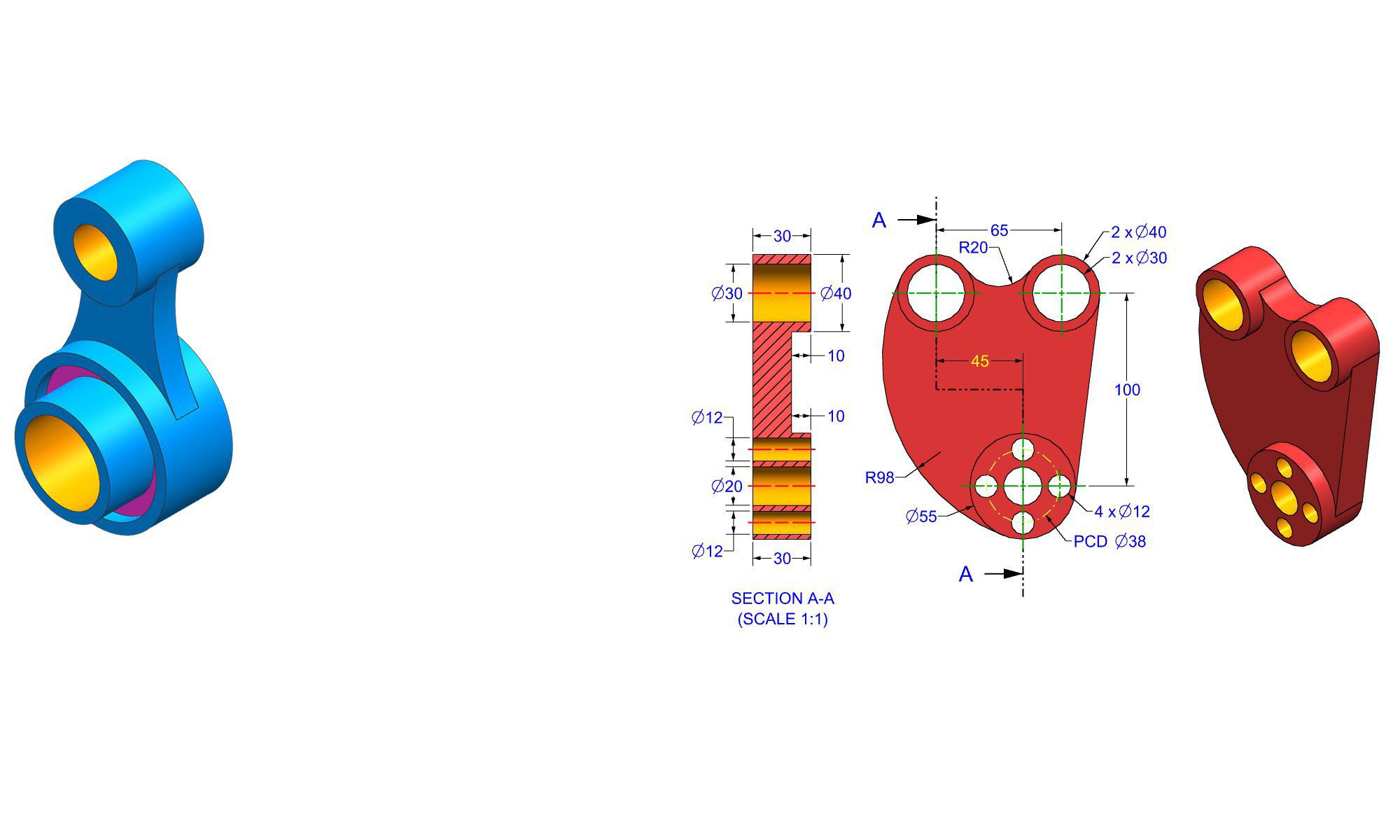

Introduction
Adding leader notes in Fusion 360 is essential for documenting your designs, providing annotations, or adding instructions directly within your models. Leader notes help communicate important details to team members, clients, or yourself during the design process. If you’re looking to streamline your workflow and enhance your annotation process, understanding how to add leader notes effectively is key. In this comprehensive guide, you’ll learn step-by-step how to add leader notes in Fusion 360, practical tips, common mistakes to avoid, and best practices to ensure your annotations enhance your design clarity.
Understanding Leader Notes in Fusion 360
Leader notes are annotations with customizable leaders (lines or arrows) pointing to specific features or parts of your design. They are vital for explanations, manufacturing notes, or design modifications. Fusion 360 provides an intuitive way to add these notes, primarily through the Text tool combined with the Sketch environment, which allows for flexible and detailed annotations.
How to Add Leader Notes in Fusion 360: Step-by-Step Guide
Adding leader notes requires a combination of sketching, text, and annotation features. Follow these steps for a clear and efficient process:
1. Prepare Your Model
- Open your design in Fusion 360.
- Ensure your model is fully modeled and orientated correctly.
- Decide where you want to place your leader note for maximum clarity.
2. Start a New Sketch
- Select the face or plane where you want your leader note to be attached.
- Click on the Create Sketch button from the Toolbar.
- This opens the sketch environment for drawing and annotation.
3. Draw the Leader Line
- Choose the Line tool from the Sketch dropdown.
- Draw a straight line from the feature or area you want to annotate toward the designated note location.
- To create a leader with an arrowhead, draw the line with a slight angle pointing to your area of interest.
4. Add the Text Annotation
- Select the Text tool within the sketch environment.
- Click on the endpoint of your leader line where you want the text to appear.
- Enter your annotation or note content in the text box.
- Adjust the font size and style as needed for clarity.
5. Place the Leader Note
- Position the text box along the line without overlapping other features.
- Use constraints or the move tool to precisely place your note for readability.
6. Finish the Sketch
- Once your leader line and text annotation are placed, click Finish Sketch.
- Your leader note will now be part of your model’s annotation layer.
7. Fine-tune for Clarity
- If needed, go back into the sketch to adjust the leader line or text position.
- Use the Move/Copy tool for precise placement.
- Consider combining multiple leader notes for comprehensive documentation.
Practical Examples of Leader Notes in Use
- Annotating complex assemblies with instructions.
- Indicating tolerances or specific manufacturing notes.
- Highlighting critical dimensions or features.
- Providing design change comments directly within the model.
Common Mistakes to Avoid
- Overlapping leader lines or text, reducing clarity.
- Using inconsistent font sizes for different notes.
- Placing leader notes too close to the feature, causing confusion.
- Forgetting to finish sketches after adding annotations, leaving them in an incomplete state.
- Overloading the model with too many leader notes, cluttering the workspace.
Best Practices and Pro Tips
- Use leader notes sparingly; prioritize clarity over quantity.
- Keep leader lines short and direct to avoid visual clutter.
- Use layer management to organize annotations.
- Double-check spelling and formatting before finalizing notes.
- Use leader annotations for critical or complex features to enhance communication.
- For detailed documentation, consider exporting annotations to PDFs or drawings.
Adding Leader Notes in Fusion 360: Alternative Method
In addition to sketching, you can also add annotations directly in the drawing workspace:
- Switch to the Drawing environment.
- Use the Note tool to add annotations with leader lines.
- This method is particularly useful for creating presentation-ready documentation.
Comparison: Fusion 360 vs. Traditional CAD Annotations
| Feature | Fusion 360 | Traditional CAD (e.g., AutoCAD, SolidWorks) |
|---|---|---|
| Ease of Use | User-friendly, integrated in model | Often requires dedicated annotation tools |
| Location Flexibility | In-Model sketches or drawings | Usually in separate annotation modules |
| Collaboration | Cloud-based, real-time editing | Local files, version control required |
| Update & Edit | Simple to revise within the model | May require re-importing or manual updates |
Conclusion
Mastering how to add leader notes in Fusion 360 can significantly improve your ability to communicate design details clearly and professionally. By combining sketching techniques with annotation tools, you can create precise, informative leader notes that enhance your documentation. Remember to keep your annotations concise, well-placed, and organized to ensure they provide maximum value. As you practice, you’ll become more efficient at adding meaningful notes that streamline your design process and facilitate effective communication with manufacturers, collaborators, or clients.
FAQ
1. How do I add a leader note directly in Fusion 360 without sketching?
Ans: You can add a leader note by creating a drawing view and using the Note tool, or by sketching a leader line with text as part of a sketch.
2. Can I customize the leader line style in Fusion 360?
Ans: Yes, you can modify line styles, arrowheads, and text formatting within the sketch environment to customize your leader notes.
3. How do I move or edit an existing leader note?
Ans: Edit the associated sketch by selecting the leader line or text, then move or modify it before finishing the sketch again.
4. Is it possible to add multiple leader notes to a single feature?
Ans: Yes, you can add multiple leader lines with notes pointing to different parts or aspects of a feature within the same sketch.
5. Can leader notes be exported for manufacturing documentation?
Ans: Yes, exporting your model or drawing with annotations to PDF or DWG formats preserves leader notes for manufacturing or documentation purposes.
6. What are some common drawbacks of using sketches for leader notes?
Ans: They can clutter the workspace if overused and may require updates if the model features move or change.
7. How do I ensure my leader notes stay updated with model changes?
Ans: Revisit and adjust the associated sketches after modifications to maintain alignment and clarity.
End of Blog

Autodesk Fusion 360 All-in-One Workbook
500+ Practice Exercises to Master Autodesk Fusion 360 through real-world practice!
This all-in-one workbook is your ultimate resource to develop hands-on CAD skills with Autodesk Fusion 360. Whether you’re a student, engineer, hobbyist, or professional, this guide is built to help you gain real design confidence through structured practice.
What’s Inside this Book:
- 200 2D Sketching Exercises – Build a strong foundation in dimension-driven 2D geometry and technical drawings
- 200 3D Modeling Exercises – Practice modeling real-world parts, from simple shapes to complex components.
- Multi-Part Assembly Projects – Understand how parts fit together and create full assemblies with detailed drawings
🎯 Why This Book?
- 500+ practice exercises following real design standards
- Designed for self-paced learning & independent practice
- Perfect for classrooms, technical interview preparation, and personal projects
- Covers 2D Sketching, 3D Modeling & Assembly Design in one workbook
- Trusted by 15,000+ CAD learners worldwide