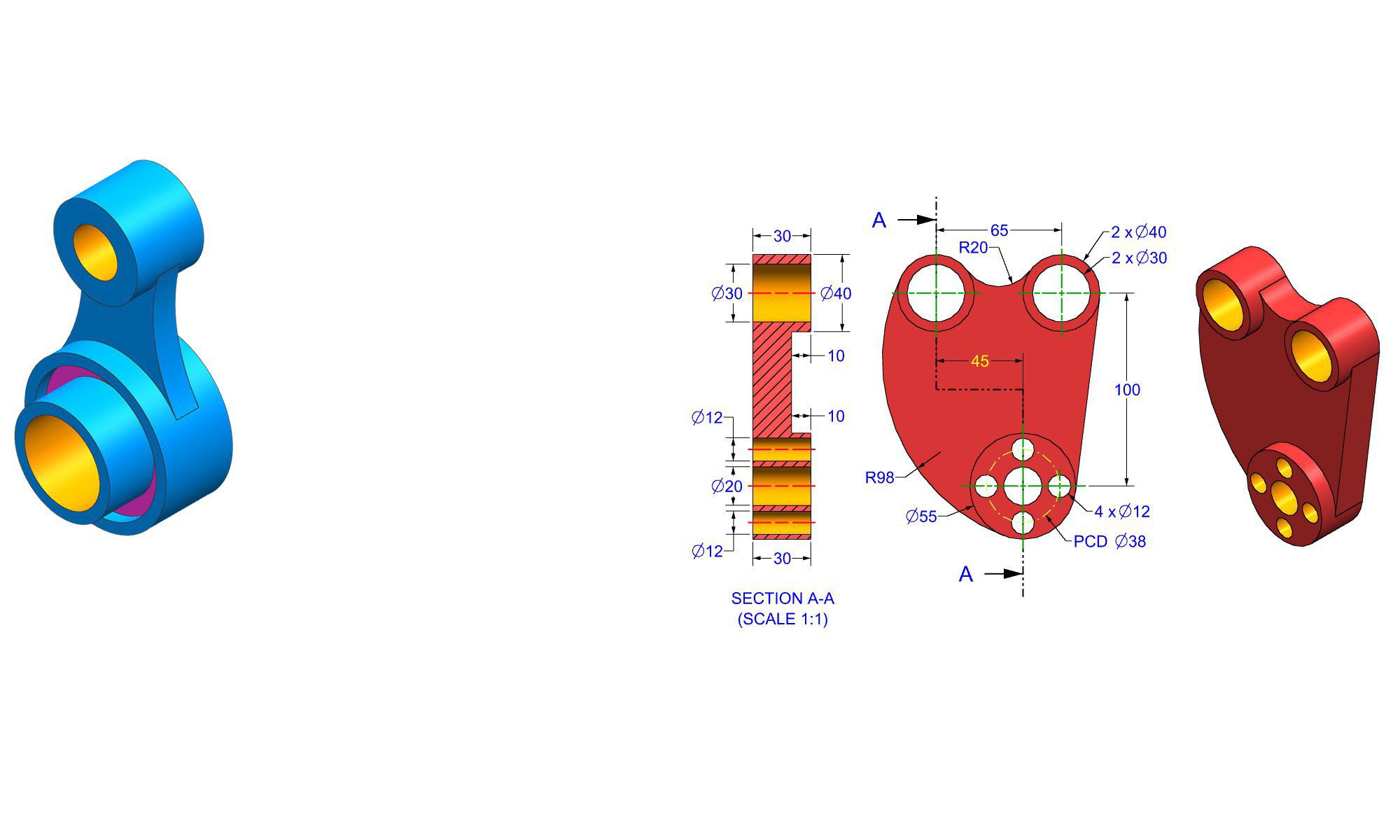

Introduction
Using keyboard commands in AutoCAD can dramatically increase your drawing efficiency and productivity. While mouse and toolbar methods are common, mastering keyboard shortcuts allows for faster execution of commands and smoother workflow transitions. Whether you’re a beginner or an experienced user, understanding how to utilize keyboard commands effectively can save time and reduce repetitive strain. This guide explores essential tips, step-by-step instructions, and real-world examples to help you become faster and more precise in AutoCAD through expert use of keyboard commands.
Why Using Keyboard Commands in AutoCAD Matters
Keyboard shortcuts are designed to streamline your AutoCAD tasks by reducing the need to navigate through menus visually. They enable quick execution of frequently used functions, such as drawing, editing, and navigating. Additionally, knowing the right commands reduces errors and improves overall accuracy—key factors in producing professional-quality designs efficiently.
Some benefits include:
- Faster creation and modification of drawings
- Reduced mouse fatigue and workspace clutter
- Better focus on design rather than tool navigation
This section will delve into practical steps and best practices for integrating keyboard commands into your AutoCAD workflow, turning you into a more proficient user.
Essential Keyboard Commands in AutoCAD
To maximize efficiency, start with the most commonly used commands. Below is a list of key shortcuts that every AutoCAD user should master.
| Command | Keyboard Shortcut | Function |
|---|---|---|
| Line | L | Draws a line segment |
| Circle | C | Creates a circle |
| Erase | E | Deletes selected objects |
| Copy | CP | Copies objects |
| Move | M | Moves objects |
| Zoom Extents | ZE | Fits all objects in view |
| Undo | Ctrl + Z | Reverses last action |
| Redo | Ctrl + Y | Reapplies last undo |
| Trim | TR | Trims objects at an intersection |
| Extend | EX | Extends objects to meet other objects |
Tip: Practice these commands regularly to build muscle memory, which is crucial for speed.
Step-by-Step Guide to Using Keyboard Commands Effectively
1. Customizing Your Keyboard Shortcuts
Personalizing shortcuts can make your workflow more intuitive.
- Access ‘CUI’ (Customize User Interface) by typing `CUI` in the command line.
- In the ‘Keyboard Shortcuts’ section, assign rarely used commands to keys that are comfortable.
- Save your customizations to reuse in different projects.
2. Practicing Basic Drawing Commands
- Draw a Line:
- Type `L` then press Enter.
- Click to specify the start point.
- Move your cursor and click to specify the endpoint or type coordinates (e.g., `0,0`) then press Enter.
- Create a Circle:
- Type `C` then press Enter.
- Specify the center point.
- Enter radius or diameter directly.
3. Editing and Modifying Objects
- Erase:
- Select objects, then press `E`.
- Press Enter to confirm.
- Copy:
- Select objects, then type `CP`.
- Specify base point and second point or type relative coordinates.
4. Navigating Your Drawing Quickly
- Zoom Extents:
- Type `ZE` then Enter.
- Pan:
- Hold down the middle mouse button or press `Z` then `Enter`, then type `P` and drag.
5. Combining Commands for Faster Workflow
- For example, draw a rectangle quickly by typing `REC` (if customized) or combine line and trim commands:
- Draw multiple lines with `L`.
- Use `TR` to trim overlapping segments, refining your drawing faster.
6. Using Keyboard Commands in Complex Operations
- Use command aliases for sequences, such as `LA` for ‘Layer Add’ or custom scripts for repetitive tasks.
- Practice chaining commands with command line prompts, reducing pauses in workflow.
Practical Real-World Examples
Example 1: Creating a Floor Plan
- Use keyboard shortcuts to draw walls (`L`), doors (`C` for circles), and windows (`REC`), swiftly switching between commands with minimal mouse movement.
- Employ `TR` and `EX` to modify wall segments precisely.
Example 2: Annotating and Dimensioning
- Use `DIM` (custom shortcut) to add dimensions quickly.
- Navigate between your drawing and annotation tools with keyboard commands to keep your focus on design.
Example 3: Revising and Updating Designs
- Use `E` to erase obsolete elements.
- Copy features with `CP` and move them to new locations rapidly.
- Use `Z` + `Enter` + `A` (for All) for quick zooming and better view control.
Common Mistakes When Relying on Keyboard Commands
- Not practicing enough, leading to slower performance.
- Over-customizing without thorough testing, which can create confusion.
- Ignoring the importance of the command line, leading to scattered workflows.
Pro Tip: Keep a printable list of shortcuts near your workspace until commands become second nature.
Best Practices for Mastering AutoCAD Keyboard Commands
- Consistent Practice: Dedicate time daily or weekly to practicing key commands.
- Incremental Learning: Focus on mastering a few commands at a time before expanding.
- Use Command Aliases: Customize abbreviations for complex commands to save time.
- Maintain a Reference: Keep quick-reference guides for shortcuts until habitual.
- Leverage AutoCAD’s ‘Macro’ feature: Automate repetitive tasks with custom keyboard sequences.
Comparing Keyboard Commands to Mouse-Driven Operations
| Feature | Keyboard Commands | Mouse Operations |
|---|---|---|
| Speed | Faster once mastered | Slower, especially for complex tasks |
| Precision | High, especially with coordinate input | Can be less precise, depending on the user |
| Learning Curve | Steeper initially | Easier for beginners |
| Repetition | Ideal for repetitive tasks | Less efficient for repetitive functions |
By understanding where keyboard commands excel, users can decide when to use shortcuts versus mouse operations for maximum efficiency.
Conclusion
Mastering keyboard commands in AutoCAD transforms your drafting process from mundane to efficient. By practicing and customizing shortcuts, integrating them into your daily workflow, and avoiding common pitfalls, you become a faster, more precise designer. Embrace these tools gradually, and over time, you’ll find yourself completing complex projects in less time with fewer errors—making keyboard commands an indispensable part of your AutoCAD skillset.
FAQ
1. What are the most essential keyboard shortcuts for beginners in AutoCAD?
Ans: The most essential shortcuts include `L` for Line, `C` for Circle, `E` for Erase, `M` for Move, `Z` for Zoom, and `Ctrl + Z` for Undo.
2. How can I customize keyboard shortcuts in AutoCAD?
Ans: Type `CUI` in the command line, go to the Keyboard Shortcuts section, then assign or modify shortcuts according to your preferences.
3. Can keyboard commands replace the mouse completely in AutoCAD?
Ans: While advanced users can do almost everything via keyboard shortcuts, key operations still often benefit from mouse interaction, especially for visual tasks.
4. How do I improve my speed with keyboard commands in AutoCAD?
Ans: Practice regularly, customize shortcuts for frequently used commands, and learn command sequences to reduce workflow interruptions.
5. Are there any tools or features that help memorize AutoCAD shortcuts?
Ans: Yes, you can create custom cheat sheets, use macro scripts, or employ AutoCAD training simulations to reinforce shortcuts.
6. What are common mistakes to avoid when transitioning to keyboard commands?
Ans: Avoid over-customization, neglecting practice, and overlooking the command line interface, which is central to efficient keyboard use.
7. How do I learn new keyboard shortcuts for advanced AutoCAD features?
Ans: Refer to official AutoCAD documentation, online tutorials, or interactivity within the software’s tips to discover and practice new shortcuts.